

Diagrams in Markdown
Put diagram source in a fenced block. Space renders it in the document; the original text, XML or JSON stays in the same Markdown file.
Text source
Section titled “Text source”Use Mermaid or PlantUML when the diagram should remain readable and editable as text.
Canvas source
Section titled “Canvas source”Use Draw.io or Excalidraw when the diagram needs a visual canvas and its native document structure.
Start with a text diagram
Section titled “Start with a text diagram”```mermaidflowchart LR Preview --> Edit Edit --> Save```flowchart LR S1["Preview"] S2["Edit"] S3["Save"] S1 --> S2 S2 --> S3Live SFM rendering. Node outlines, connectors, and labels follow the current reading theme.
In the editable document, open the diagram’s editing action to work with source and preview. The diagram toolbar offers Source, Source and Preview, and Diagram views where supported. Return to the document after editing; switching the whole document to source always exposes the original fence.
Choose a diagram type
Section titled “Choose a diagram type”| Fence | Stored source | Editing model |
|---|---|---|
mermaid |
Diagram text | Text beside a preview |
plantuml |
UML text | Text beside a preview |
drawio |
Original mxfile XML | Embedded Diagram canvas |
excalidraw |
Original Excalidraw JSON | Embedded Whiteboard canvas |
mindmap |
Mind-map source | Rendered map with supported controls |
For example, a UML sequence can stay fully text based:
```plantuml@startumlReader -> Space: Open documentSpace --> Reader: Rendered content@enduml```Changing a fence language does not translate its source. For independent documents, file extensions and creation entries are listed in Diagrams and canvases.
Theme-aware diagram examples
Section titled “Theme-aware diagram examples”Switch the site’s appearance to see the same Markdown source in light and dark. Mermaid distinguishes pie categories and Gantt task states. PlantUML uses the reader’s node and connector colors for diagrams without a local style.
pie showData title Ticket status "Complete" : 48 "In progress" : 32 "Unassigned" : 20gantt title Delivery plan dateFormat YYYY-MM-DD axisFormat %m/%d section Preparation Design :done, design, 2026-11-01, 3d section Implementation Build :active, dev, after design, 4d Verify :after dev, 2d@startmindmap* Delivery** Design*** Prototype*** Review** Implementation*** Build*** Verify@endmindmapSee Rendering and themes for web integration and diagram options.
Edit a canvas
Section titled “Edit a canvas”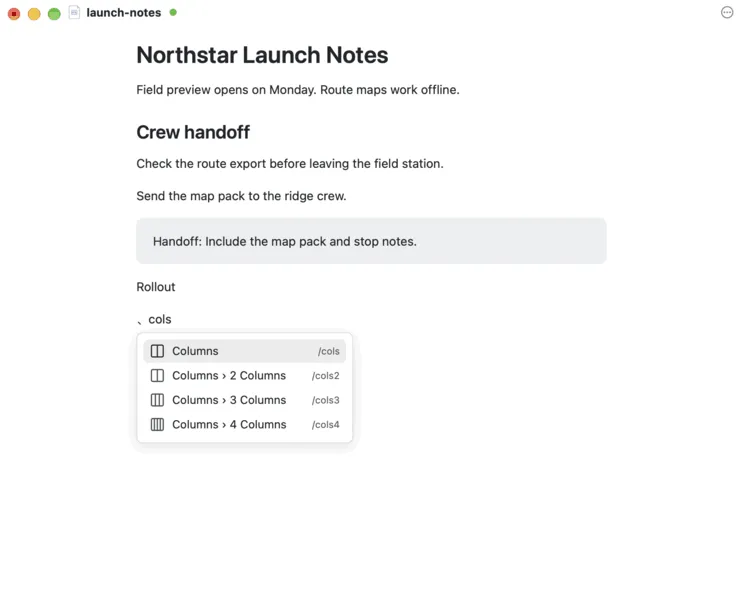
/ to open the insertion menu, then select the diagram type.Paste or drop supported Diagram XML or Whiteboard JSON into the rendered editor to create the matching fenced block. Open that block to edit its canvas. The original structured data stays in Markdown; the canvas is not a separate hidden document.
Diagram uses an online editor by default. Its optional offline editing engine is downloaded and selected in Settings > Editor > Extensions. Read-only previews and Quick Look use the local viewer. Keep this difference in mind when working without a connection.
Preview and export
Section titled “Preview and export”A rendered block exposes the actions supported by that format, including image viewing, zoom, full screen and export. Where available, Save as Standalone File… copies the block’s current source to a new diagram file and leaves the Markdown document intact. PNG and SVG provide visual output; some formats use a raster image inside SVG rather than editable vectors.
Quick Look displays a read-only result. It cannot open an editable canvas or change the fenced source.
Maps and models
Section titled “Maps and models”GitHub-compatible geojson, topojson and ASCII stl fences can display maps and models. Maps start with local vector rendering. Network map imagery requires an explicit per-document session choice. Quick Look and read-only windows use a static result for the STL model.
```geojson{"type":"Point","coordinates":[0,0]}```If content is malformed or exceeds a rendering limit, keep the original source and use the available error or source view to correct it. A failed preview must not be treated as a converted or saved replacement.
Share the result
Section titled “Share the result”| What the reader needs | Include |
|---|---|
| Continue editing the diagram | The original Markdown document and related files |
| Read it in another tool | A rendered export or an image of the diagram |
A reader without support for a fence sees its source. Export a fixed visual result when the recipient needs the diagram without a compatible renderer.
The website renders these pages with the site’s read-only SFM renderer. Its supported diagram syntax and limits are listed in the SFM reference; Space-only editing controls do not appear in the web reader. Support in Space does not imply that every diagram form is supported by the renderer. The renderer produces a static result or keeps unsupported source readable, while diagram editing remains in Space.