

Terminal sessions
Run a shell beside the saved files in a Space window. Both versions can start in Session Documents, with links to the files you have open.
| Version | Where the terminal opens |
|---|---|
| Direct | Embedded Terminal panel in Space |
| Mac App Store | A separate window in the macOS Terminal app, or the app chosen under Settings > Terminal |
[!WARNING] Session links point to the original files. Commands that write through a link change those files; review tool edits as you normally would.
Try it with a test document
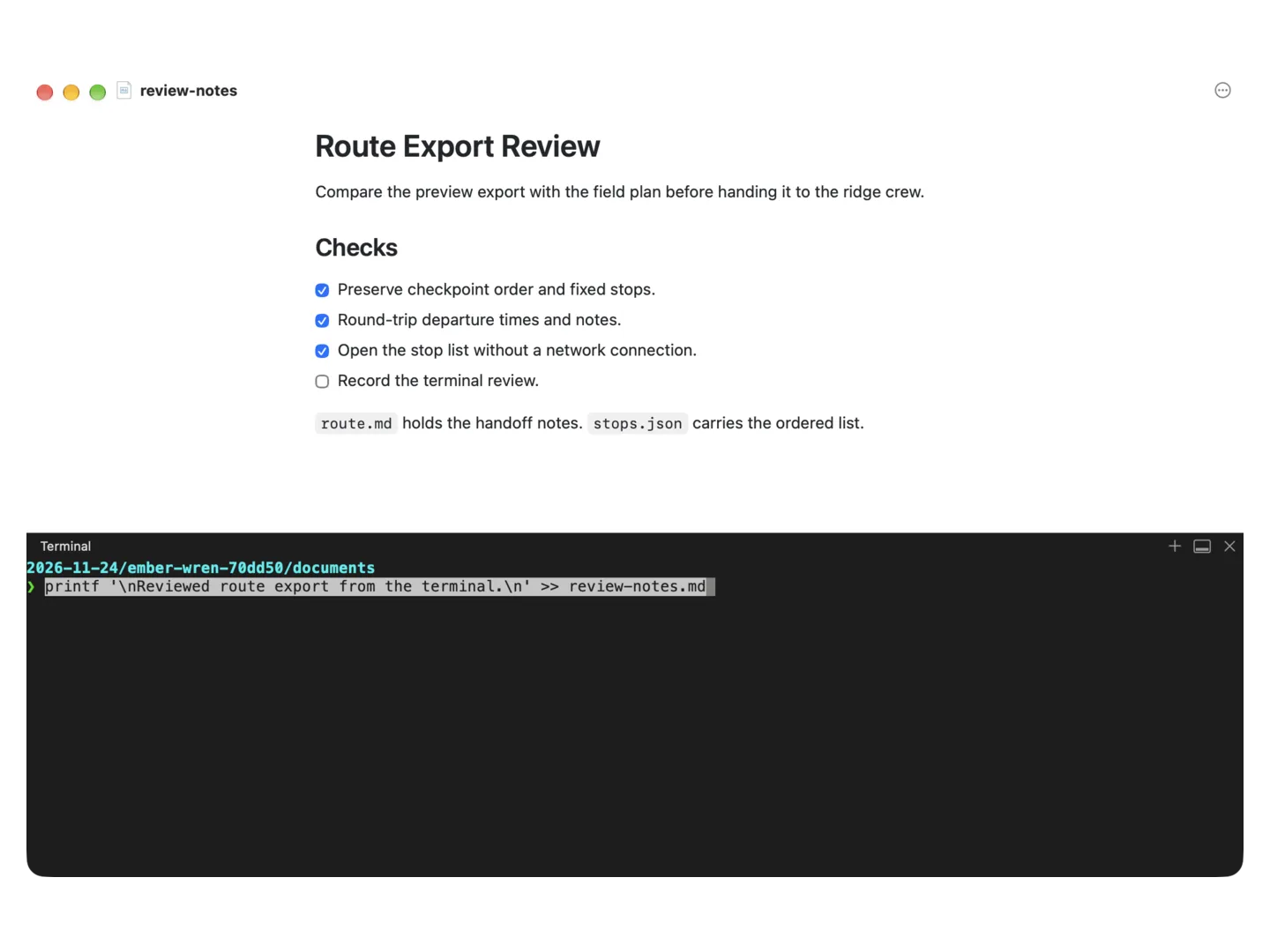
Section titled “Try it with a test document”Download the test document and save a disposable copy as notes.md. Keep it open in Space. Open a new terminal in Session Documents, then check that its file list includes the test copy:
ls -lcat notes.mdprintf '\nReviewed from the terminal.\n' >> notes.mdThe last command changes the original file through its link. Space detects the external change and brings the window up to date; with unsaved edits it shows a banner first — see Open and save files. Use the same session folder with your preferred command-line tool; inspect its proposed edits and permissions as you normally would.
Open a terminal
Section titled “Open a terminal”
In the Direct version, choose Terminal > New Terminal. Space opens the embedded Terminal panel and creates the window’s session folder.
In the Mac App Store version, choose Terminal > Open in Terminal or press Control-`. Space creates or updates the lightweight session folder, then asks macOS to open its documents/ folder in the terminal app selected under Settings > Terminal. Space does not start or manage a shell, terminal process, output log, or embedded panel in this version.
The Direct version uses the following session folder. The Mac App Store version keeps the same structure inside its sandbox.
~/Library/Application Support/app.spacetext/sessions/<creation-date>/<session-id>/The folder contains documents/, outputs/, and meta.json. The Direct version can also add terminal logs when recording is enabled. A readable ID such as coral-otter-3f9a2c identifies the session.
New terminals start in the session’s documents/ folder by default, beside the links to the files open in that window. In Settings > Terminal, Starting directory can instead use your Home Folder or a custom folder. The Mac App Store version asks you to choose Home or Custom Folder so macOS can grant persistent access. If that authorization is missing, stale, or unavailable, Space explains the fallback, opens Session Documents, and offers a shortcut back to Terminal settings. The setting applies only to terminals opened afterward; an already running shell keeps its current directory.
The Mac App Store version shows only Startup and External Terminal settings because appearance, panel position, output recording, retention, and process warnings apply only to the Direct version’s embedded terminal.
Direct version panel
Section titled “Direct version panel”Use Show Terminal, Hide Terminal, or the x button in the Terminal header to show or hide the panel without stopping the shell. The default shortcut is Control-`. Close Terminal stops the selected terminal.
The terminal rail appears on the right when a window has two or more terminals. With one terminal, the rail is hidden so the terminal uses the full panel width. Use Terminal > Previous Terminal and Next Terminal to move through the rail while a terminal has keyboard focus. Their default shortcuts are Option-Command-Left and Option-Command-Right.
Move and resize the panel
Section titled “Move and resize the panel”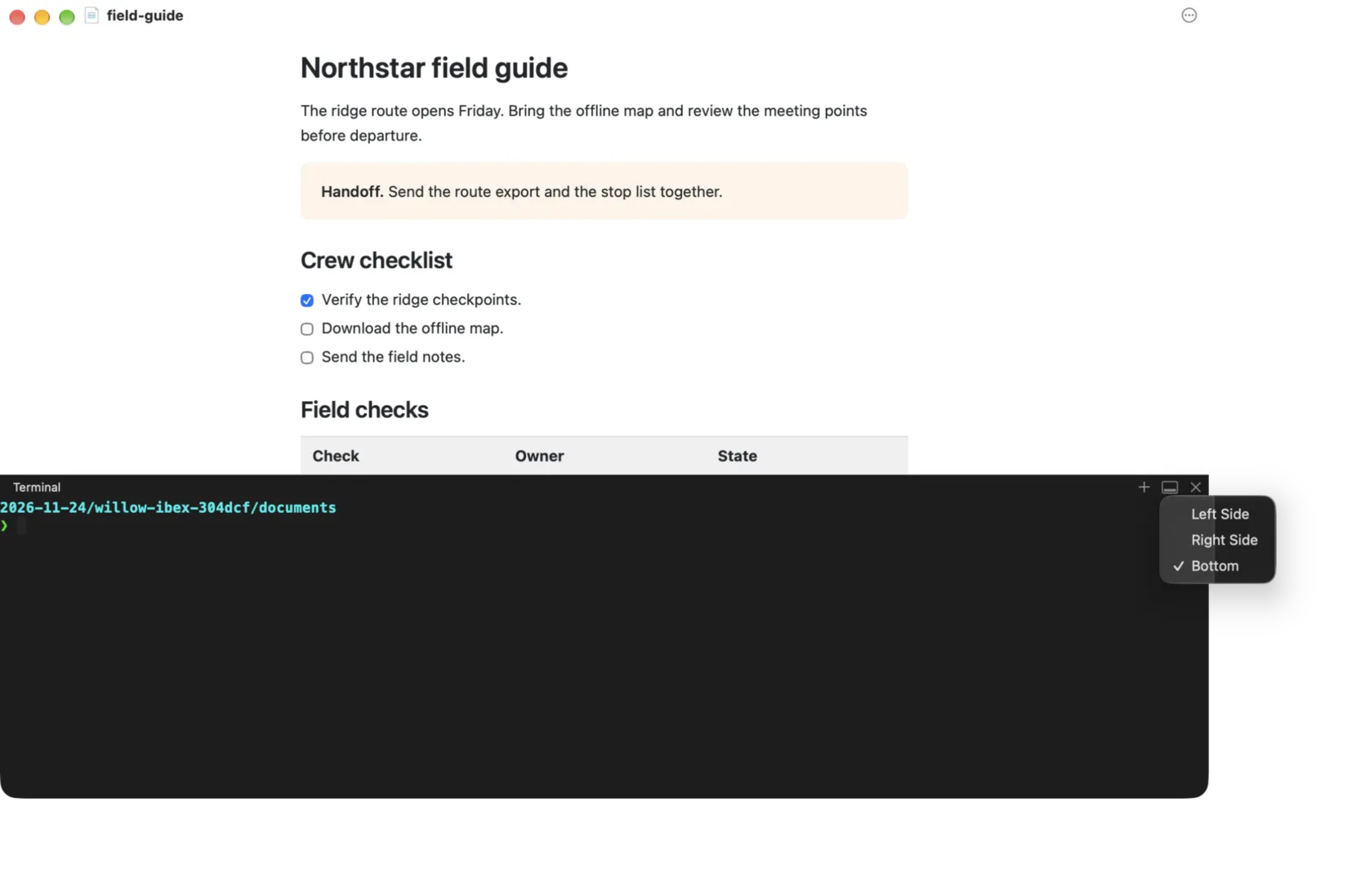
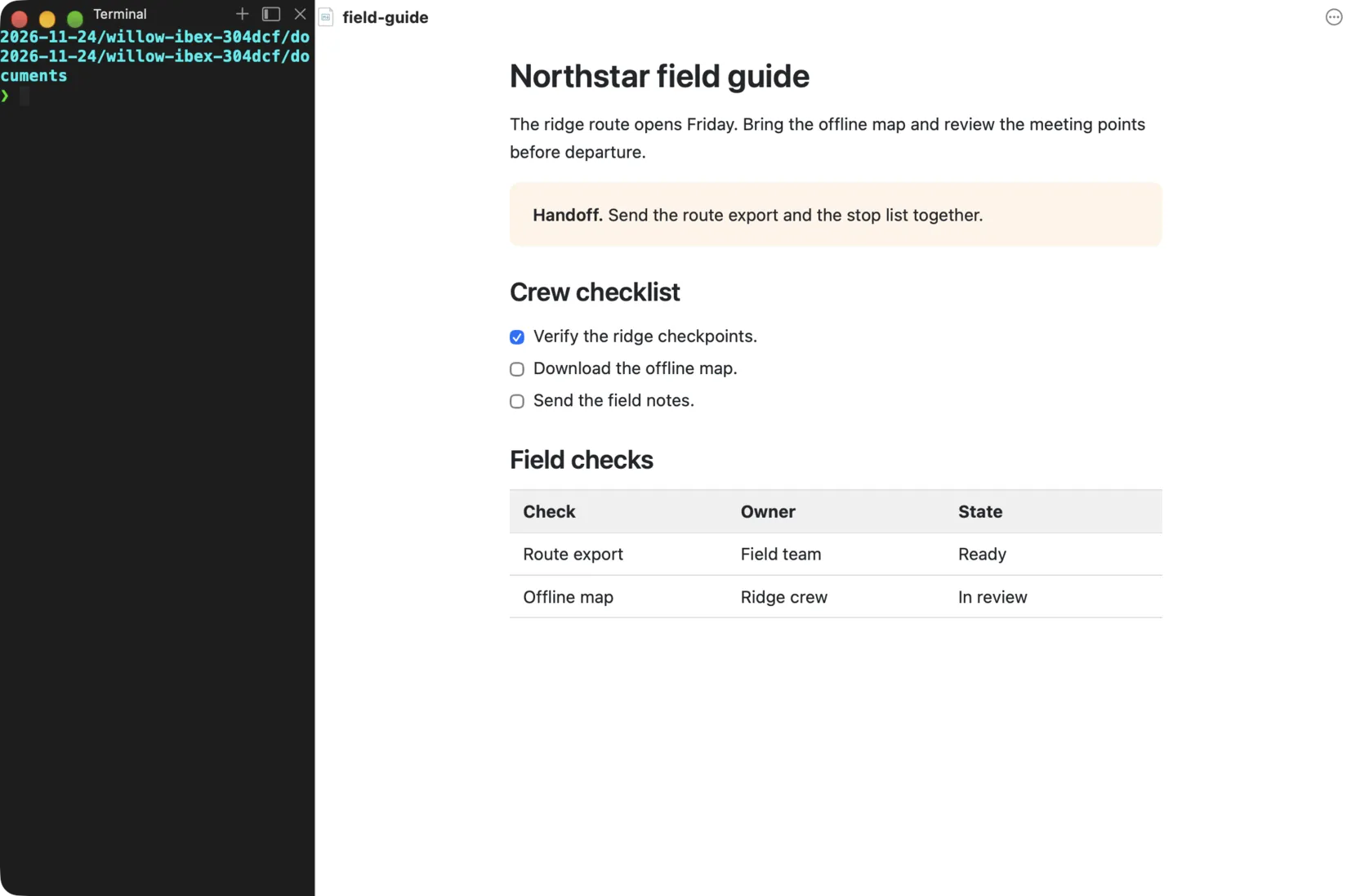
The Terminal Position button sits between + and the hide button in the Terminal header. Choose Left Side, Right Side, or Bottom. Moving the panel keeps its terminals, working directories and output.
Drag the divider to resize. The window remembers each position’s size while it stays open, and new windows use your last chosen position. Bottom is the initial default.
Work with open files
Section titled “Work with open files”Saved files that are open in the window appear as symbolic links in documents/. The links point to the original files, so editing through a link edits the source document and Space refreshes the editor when the file changes outside Space.
Unsaved drafts are not linked until they are saved. When you close a file, its link is removed; the source file is never deleted.
See an external edit return to Space
Section titled “See an external edit return to Space”- Open a saved Markdown document and run an append command against its session link.
- Look for the new line in the Space editor. With a saved document and no pending local changes, the editor refreshes when the original file changes.
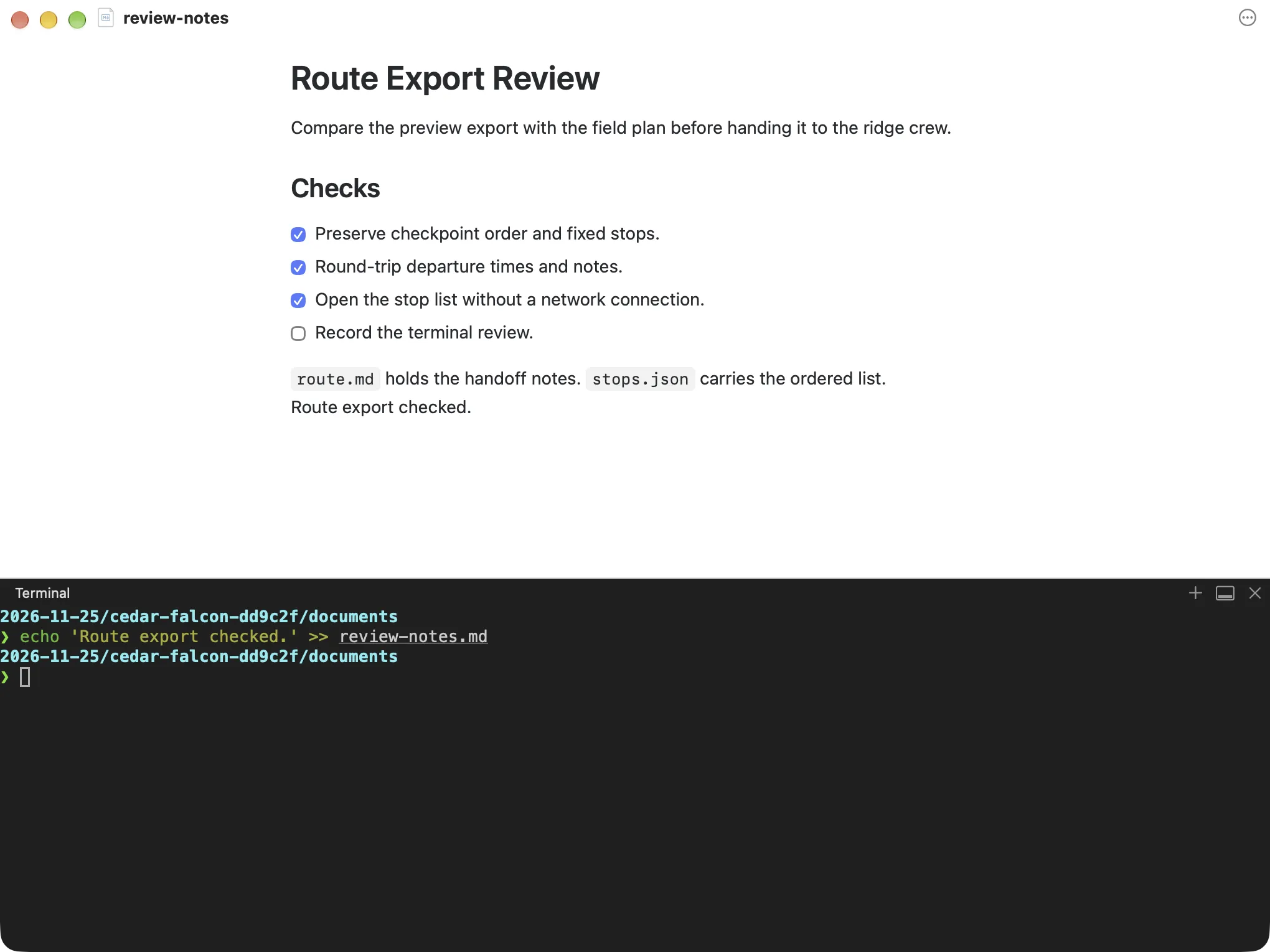
Download a starting document to try the workflow with your own session.
Direct version sessions and cleanup
Section titled “Direct version sessions and cleanup”Sessions are owned by the window. Closing the window stops its terminal processes but keeps the session folder until cleanup removes it. Terminal > Copy Session Path, Show Session in Finder, Show Documents in Finder, and Show Outputs in Finder make it easy to collect agent output.
Cleanup is manual by default. In Settings > Terminal, you can retain sessions for 3, 7, or 30 days, choose a custom number of days, or keep manual control. Cleanup uses the time when the session was last opened and never follows symbolic links to delete source documents.
Direct version output logs
Section titled “Direct version output logs”Record terminal output is off by default. When you turn it on, each terminal writes its own log in the session folder: terminal.log, terminal-2.log, and so on. Terminal output can contain tokens, file contents, and other sensitive information, so keep the folder private.
Direct version running processes
Section titled “Direct version running processes”Closing a terminal, a window, or Space asks for confirmation when a command or agent is still running. An idle shell prompt does not trigger the warning. Each warning can be turned off separately in settings.