

Diagrams and drawings
Open a text diagram, freeform diagram, whiteboard or mind map in its Space editor. In Finder, use Quick Look for the read-only rendered result.
flowchart LR Read --> Edit Edit --> SaveCopy this source into a .mermaid file. For a fence inside a document, see Embedded diagrams.
Open a diagram file
Section titled “Open a diagram file”Use File > Open… to select an existing file. File > New can create Diagram, Whiteboard and Mind Map documents. For text diagrams, paste the sample above into a .mermaid file or a Markdown fence.
| Format | Extensions | Editor |
|---|---|---|
| Text Diagrams (Mermaid) | .mermaid, .mmd |
Source next to a live diagram |
| Text Diagrams (PlantUML) | .puml, .plantuml, .iuml, .pu, .wsd |
Source next to a live diagram |
| Freeform | .drawio |
Diagram canvas; online by default, optional offline engine download |
| Whiteboard | .excalidraw |
The official Excalidraw canvas |
| Mind Map | .mindmap, .mp |
The built-in Mind Elixir canvas |
A mermaid or plantuml fenced code block inside Markdown is drawn in place. drawio and excalidraw blocks open their full canvas inside the Markdown document while keeping the original XML or JSON in the fenced block — see Writing Markdown. In Quick Look and read-only windows the same blocks show as a read-only picture of the drawing.
Editing text diagrams
Section titled “Editing text diagrams”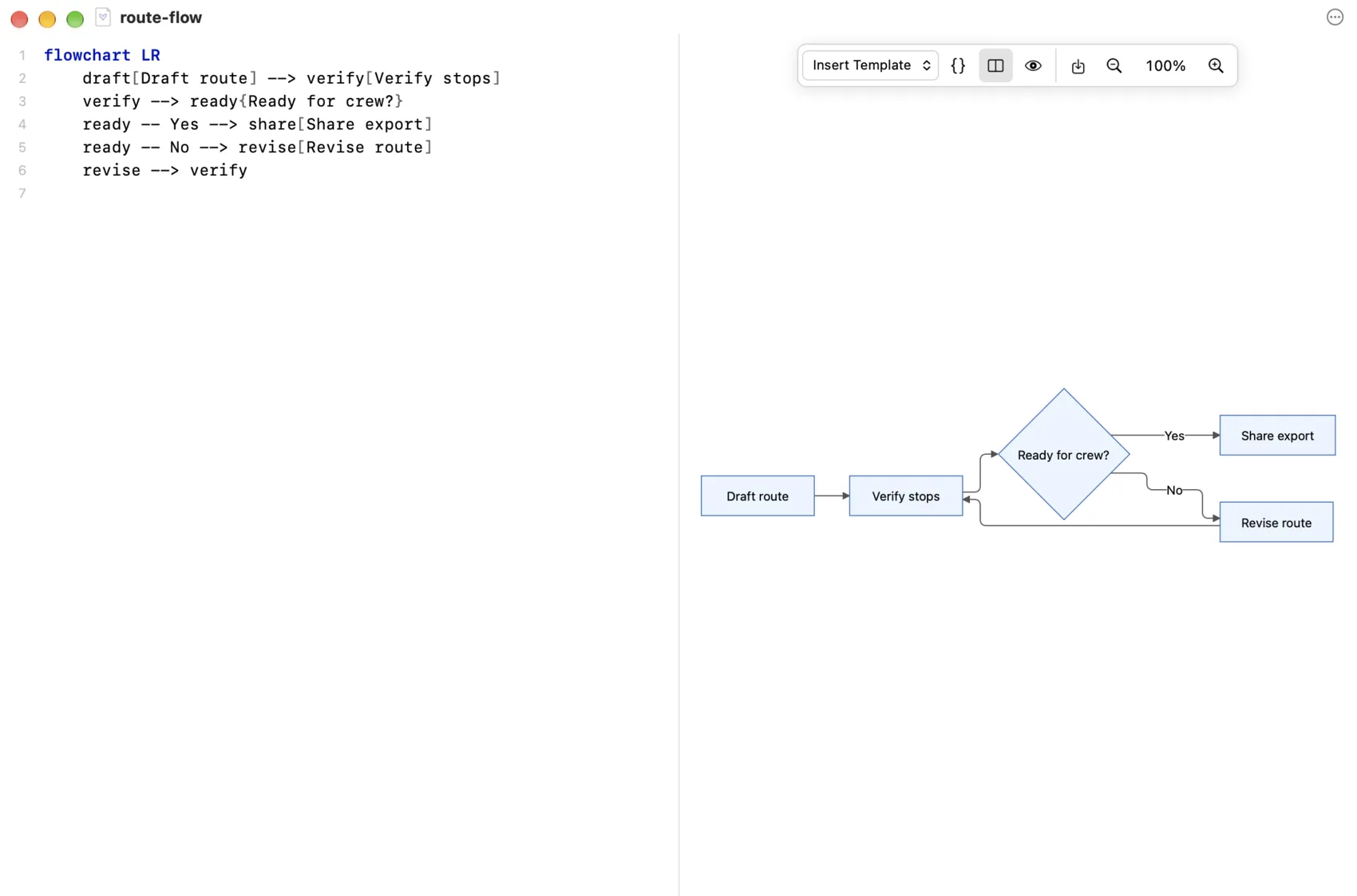
Mermaid and PlantUML open with source on the left and the diagram on the right.
| View control | Result |
|---|---|
| Source | Fill the window with the text editor |
| Source and Preview | Type and watch the diagram update |
| Diagram | Give the rendered diagram the full area |
Drag the divider, or focus it and use the arrow keys, to adjust widths. Zoom and export controls appear with the diagram.
The preview canvas follows the editor’s light, dark, and custom theme background. Drag the rendered diagram to move it within the canvas. Use the mouse wheel or pinch on a trackpad to zoom; the toolbar shows the current percentage. Click the percentage to restore the default view. These view changes do not edit the diagram source and reset when the file is reopened.
The view choice and divider position last for the current tab only. Closing and reopening a file starts in the two-column view. The file’s extension determines its language and these view choices never change its contents. If the current source cannot be rendered, the last successful diagram stays visible with an error message; you can continue editing the source.
Rendered preview controls
Section titled “Rendered preview controls”For diagrams rendered inside Markdown and other embedded previews, hover the diagram or move keyboard focus into it to reveal its available actions. Standalone Mermaid and PlantUML files keep their toolbar visible. Actions such as edit, export, zoom and full screen appear where the view and format support them. Previews are centered, keep their proportions and adapt to the available space up to a shared 480px height limit. A single click opens the image viewer; a double-click cancels that pending action and enters editing. Full screen uses the current editor content area and Escape returns to the previous layout.
Online and offline editing
Section titled “Online and offline editing”Diagram uses its online editor by default. Download and select the optional offline engine in Settings > Editor > Extensions when you need full editing without a connection. Quick Look and read-only previews use the bundled local viewer. Other bundled document capabilities do not require this Diagram engine download.
Editor behavior and recovery
Section titled “Editor behavior and recovery”It behaves like the rest of Space, not like a web page
Section titled “It behaves like the rest of Space, not like a web page”Start typing in a text diagram to edit its source. In the drawing editors, select a tool to work on the canvas. For example, drop a local image onto an Excalidraw whiteboard to add it to the drawing. Each editor’s context menu offers commands for the content it handles.
If the editor itself runs into an error — a malformed diagram, an offline package that failed to start — the page shows a plain-language description and a Show Source button that switches to the underlying source instead of leaving a blank page.
Undo, Redo, and the standard editing keys
Section titled “Undo, Redo, and the standard editing keys”⌘Z and ⇧⌘Z undo and redo inside the diagram, and the Edit menu’s Undo and Redo items do exactly the same thing — clicking Undo in the menu never does something different from pressing ⌘Z. Space’s Edit menu routes Cut, Copy, Paste and Select All to Draw.io shapes; Cut and Copy use the system clipboard. While editing shape text, those commands edit the text instead. Draw.io’s own Paste menu uses its canvas clipboard for shapes copied in that editor. To paste a diagram copied from another document, use Space’s Edit > Paste or ⌘V. Each format keeps its own undo history, separate from any other document.
⌘F’s behavior depends on the format:
- Mermaid and PlantUML open Space’s own find bar in the top-right corner of the diagram: a search field with Previous and Next buttons. Return finds the next match, Shift-Return finds the previous one, and Esc closes it.
- Diagram opens draw.io’s own Find and Replace dialog.
- Whiteboard opens Excalidraw’s own search sidebar, which searches text on the canvas.
View > Zoom
Section titled “View > Zoom”Use View > Zoom In, Zoom Out and Actual Size for text diagrams. Diagram and Whiteboard have their own canvas zoom controls and support trackpad pinch. Use + and − in the mind map toolbar to change its canvas zoom.
Printing and exporting as PDF
Section titled “Printing and exporting as PDF”File > Print… and File > Export As… > PDF produce a real, multi-page PDF for these documents, with the content laid out at the printed page’s size — content wider than the page is scaled down first rather than cut off. Text stays selectable where the format can print as vectors.
Where an editor offers image export, its toolbar provides both PNG and SVG. Picking one opens the standard macOS save panel, named after the current document — a flow.mermaid document offers flow.svg, for instance. Exporting never changes the file you’re editing.
Editing controls
Section titled “Editing controls”Space keeps the same seven menu bar menus for every document. Use each drawing editor’s own toolbar, canvas menu, or side panels for its tools, templates, and format-specific exports. Mermaid and PlantUML show template choices inside their shared text diagram editor; PlantUML also offers SVG and PNG export there. Draw.io provides its own diagram menus and canvas controls. Space’s File > Export As > PDF remains the document-level PDF path.
The drawing editors handle their own internal keys. Their tool, node, layout, and zoom shortcuts are not listed in Settings > Shortcuts. That page contains Space commands, including document and window actions.
Draw.io’s own Export as > Animated GIF action exports animated connectors through the macOS save panel as a .gif file. A diagram without animation has no GIF frames to export and shows an error instead.
Editing a Diagram document
Section titled “Editing a Diagram document”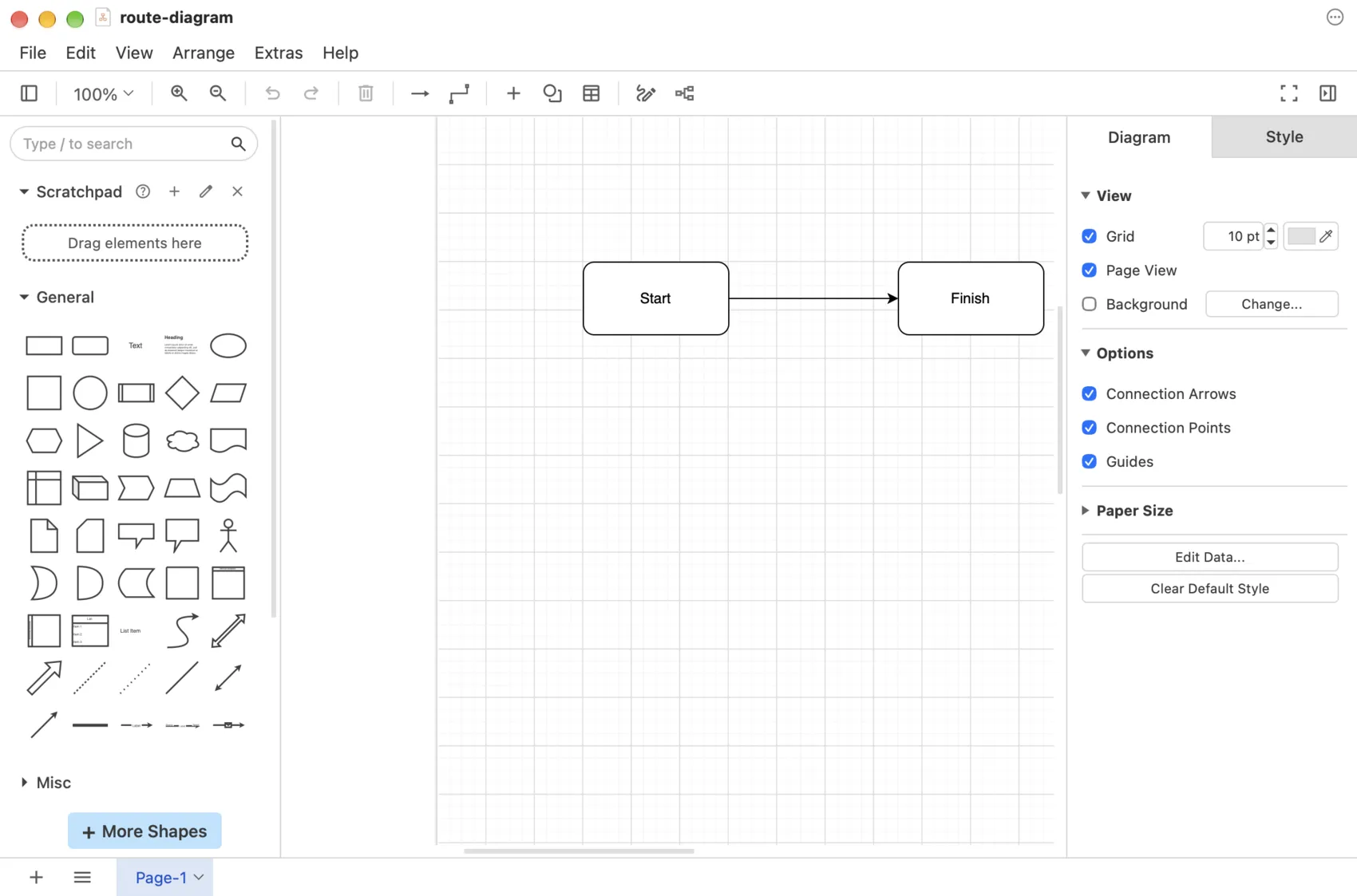
Use draw.io’s own menu, toolbar, side panels and page tabs for diagram editing. Space’s menu handles shared document actions. When editing text inside a shape, clipboard actions apply to that text; on the canvas they apply to diagram objects.
Working with a whiteboard
Section titled “Working with a whiteboard”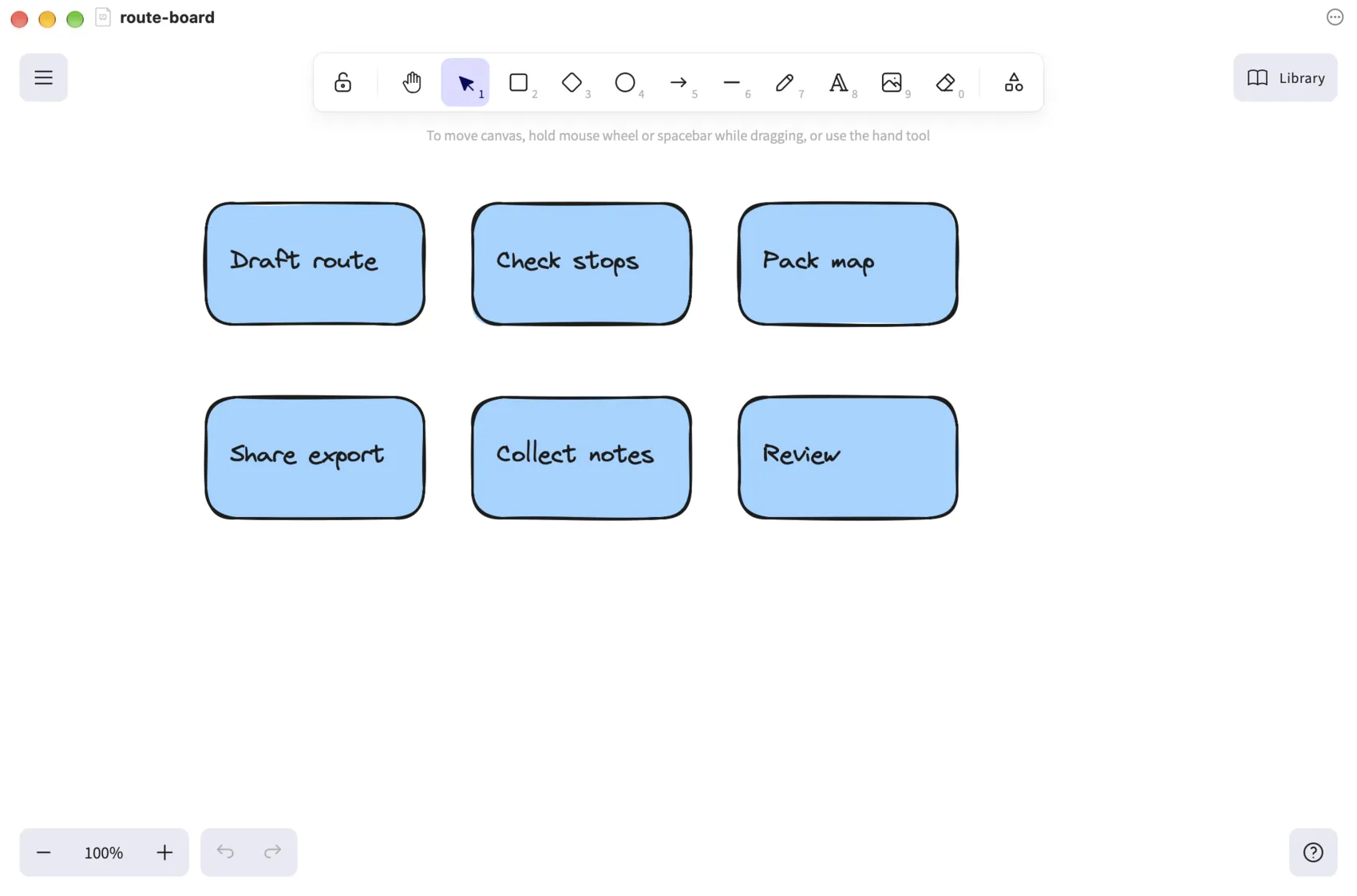
Working with mind maps
Section titled “Working with mind maps”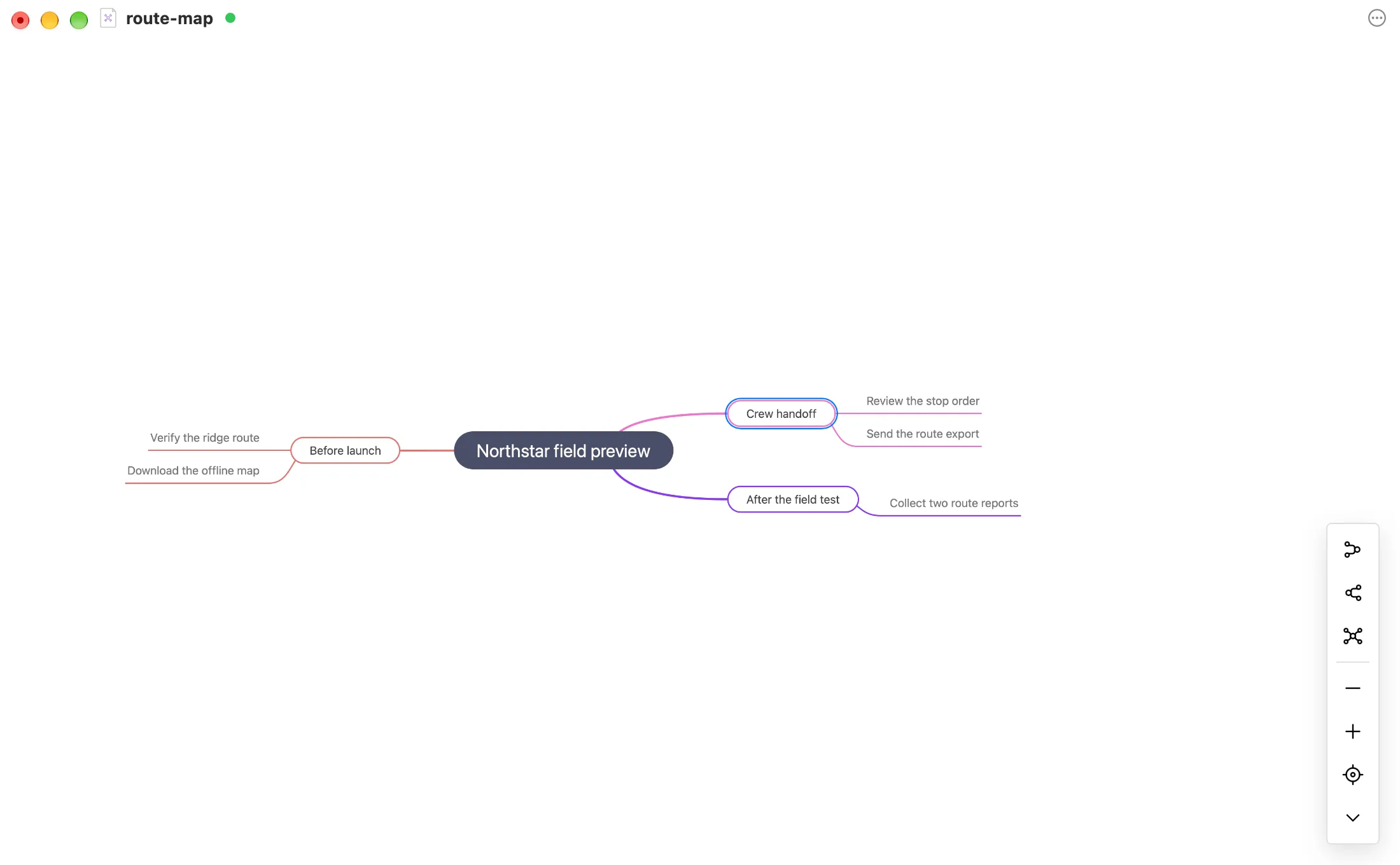
Double-click a node to edit its topic. Right-click a node for Add child, Add sibling, Focus Mode and other branch actions. The menu shows the shortcuts that apply to that node.
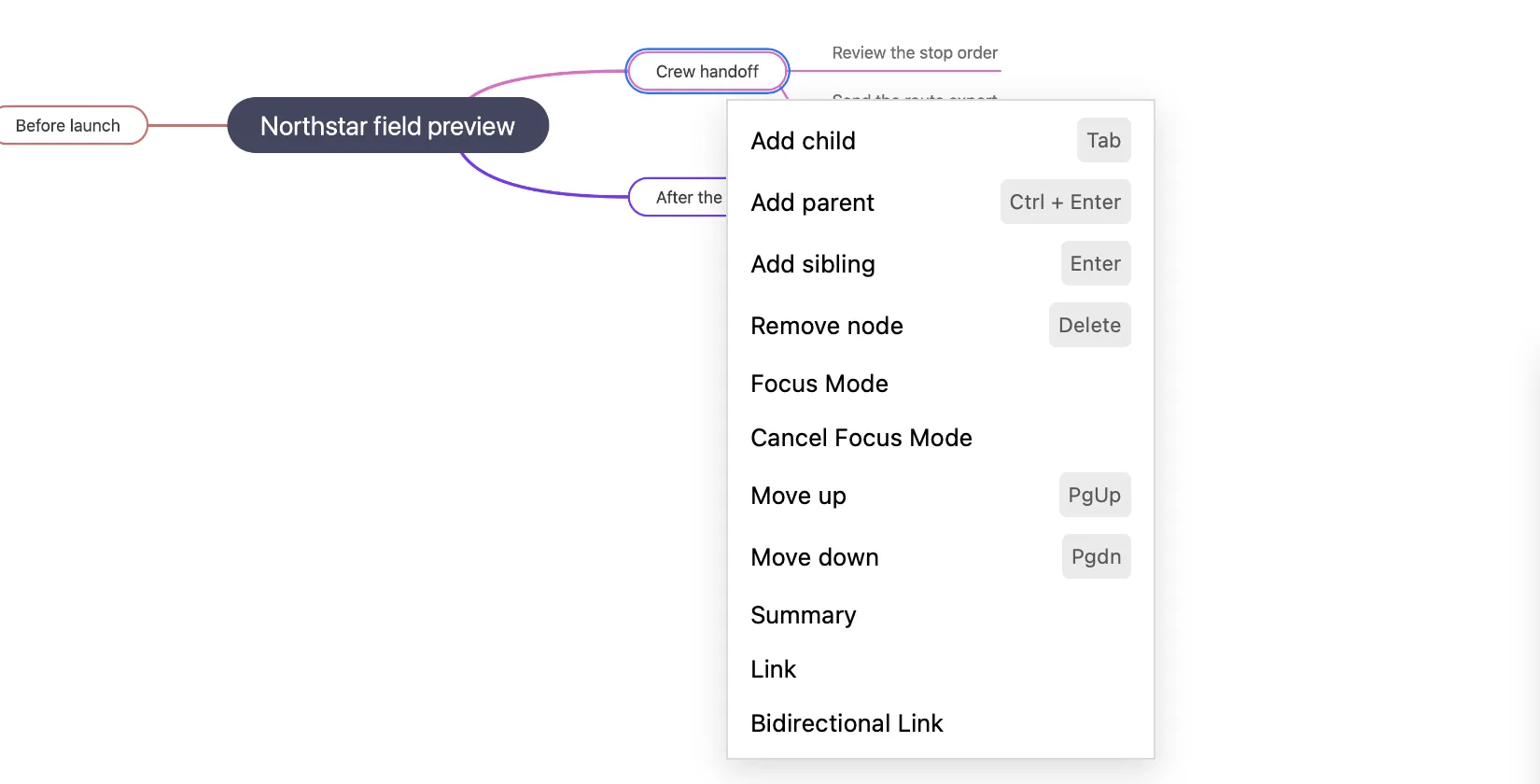
Save the editable .mindmap or .mp file with File > Save. For a read-only copy, select the file in Finder and press Space. See a mind map in Quick Look.
Markdown has its own Markdown menu with an Insert submenu (Table, Image, Inline Formula, Formula Block, Text Diagrams, Collapsible Section, Divider) — the same actions the / menu offers while writing (see Writing Markdown). Text Diagrams creates a Mermaid block; its language selector can switch the block to PlantUML.
Interface language
Section titled “Interface language”Menus and built-in text inside text diagram, freeform diagram, whiteboard and mind map documents follow Space’s interface language (see Settings > General).
System appearance
Section titled “System appearance”These documents follow the Mac’s light and dark appearance and the system’s accent color the same way the rest of Space does, and they honor Reduce Motion and Increase Contrast from System Settings > Accessibility where the underlying format supports it.
Mermaid and PlantUML sequence diagrams use the current editor theme in Markdown and standalone files. Message text follows the foreground color. Participant borders use the theme’s Markdown link color, falling back to the system accent. Each engine positions participants and routes its own messages.
Pie slices and their legend swatches share a categorical palette derived from the theme accent. Gantt sections and task bars use separate fills. PlantUML mind-map nodes inherit the page theme unless the document supplies its own style.
Pie charts use the theme’s categorical palette with thin separators; Gantt charts show status through task-bar fills and relationship diagrams outline nodes and arrows, all updating with the current theme.
Flowcharts in Markdown scale with the body font size (2 px smaller by default), size nodes to their labels, and wrap long labels.
A custom theme file can include the following optional properties. Radius and stroke width are measured in pixels. Fill strength sets the percentage of accent mixed into the page background. Line strength sets the percentage of foreground mixed into the background for connectors.
{ "diagram": { "cornerRadius": 5, "strokeWidth": 1.5, "fillStrength": 16, "lineStrength": 68 } }- A document that fails to render shows the error and a Show Source button rather than a blank page — Show Source always gets you back to editable text.
- Each format’s own toolbar has more options than fit in Space’s menus (arranging, styling, library shapes); those stay where the upstream editor already puts them.
- Printing a wide diagram scales it down to fit the page instead of cropping it — for a very wide canvas, Page Setup’s paper size and orientation matter more than for text documents.
Related settings
Section titled “Related settings”- Editor > Extensions — document capability settings, including Diagram’s optional offline engine. See Settings.
- Shortcuts — change Space commands here; drawing editor keys stay in their editors. See Keyboard shortcuts.
- Quick Look — the same formats render as the diagram, read-only and offline, when you press the Space bar on one in Finder. See Quick Look Preview.