
Settings
Press ⌘, to open Space > Settings…. Search for a setting to jump to its page or Editor tab. A disabled feature keeps its settings visible.
| Task | Pages |
|---|---|
| Change how documents open or look | General, Appearance, Editor, Quick Look |
| Configure tools and publishing | Quick Input, Quick Clipboard, Finder Actions, Terminal, Integrations |
| Change command keys | Shortcuts |
General
Section titled “General”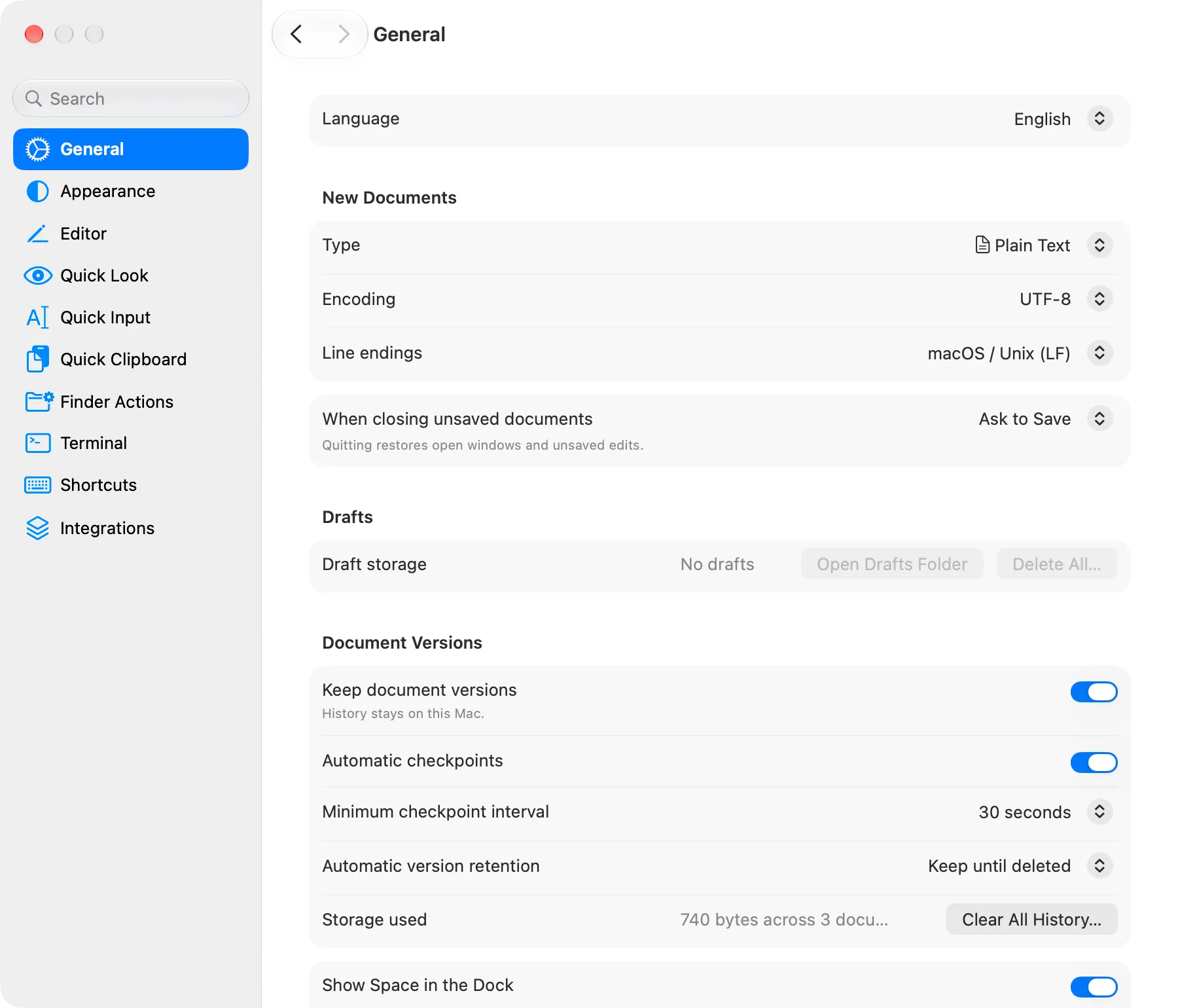
Language is the first setting in General. Below it are defaults for new documents, what happens when you close an unsaved document, draft storage, and document version history. Dock and command line settings follow. The Direct version offers Install and Remove for the space command; the Mac App Store version explains that the command is Direct-only and does not show an installer. Accessibility permission for sending Quick Input or Quick Clipboard content to another app appears near the end. Space asks when you send to another app; you can also choose Request Access in General. If macOS does not grant access, use System Settings… and retry the send after returning. Opening an existing document preserves its encoding and line endings. Draft storage shows how much space cached untitled documents use; Open Drafts Folder opens that folder in Finder, and Delete All removes drafts after confirmation.
Document Versions can keep automatic checkpoints for 7, 30, or 90 days, or until you delete them. Each document keeps its latest automatic checkpoint; manual and original versions are not removed by this retention rule. Storage used shows a readable size and the number of documents with history. See Document Versions.
Appearance
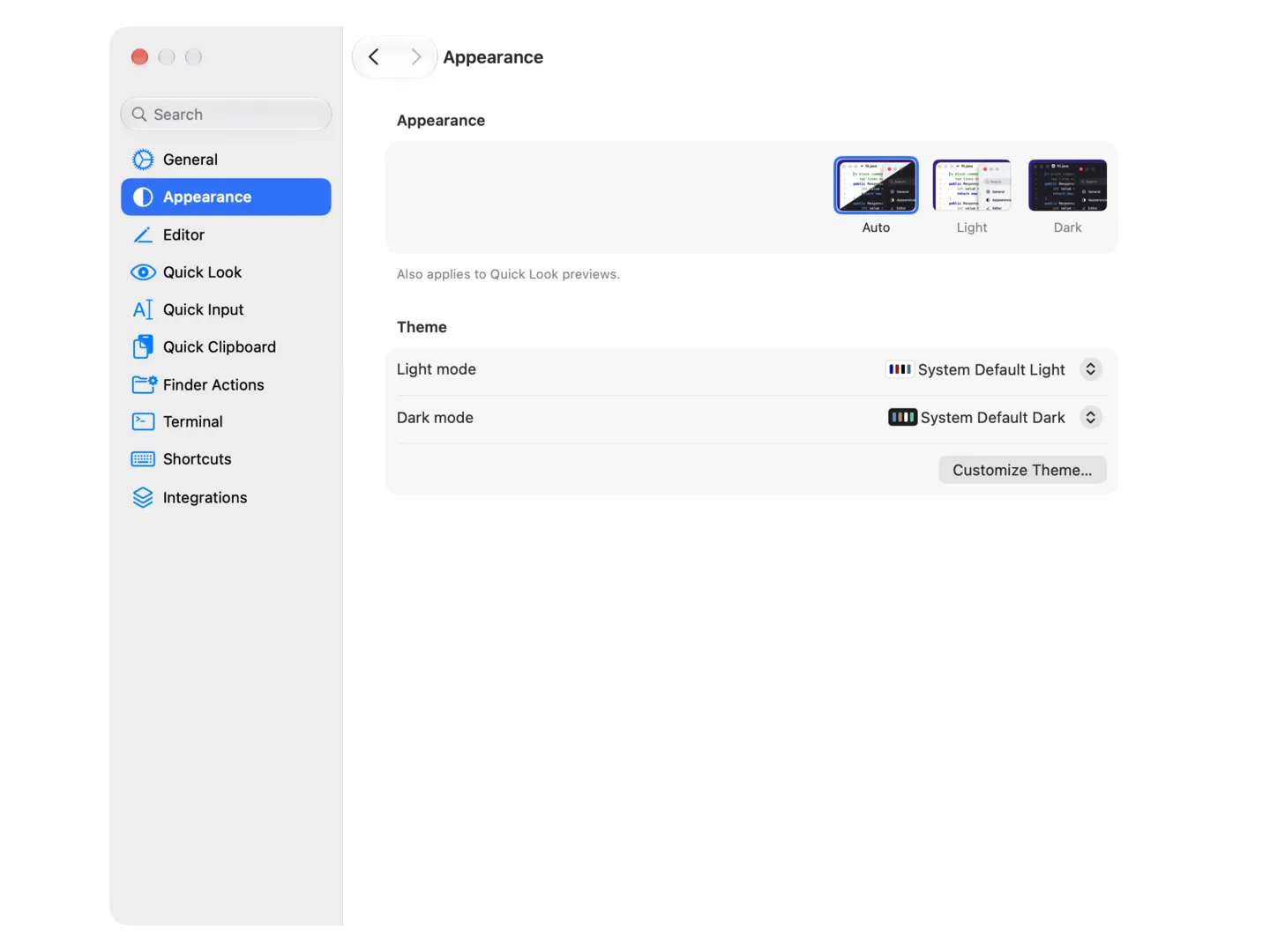
Section titled “Appearance”Choose whether Space follows the system appearance or uses Light or Dark, then choose or customize the theme for each appearance. See Appearance and themes.
Editor
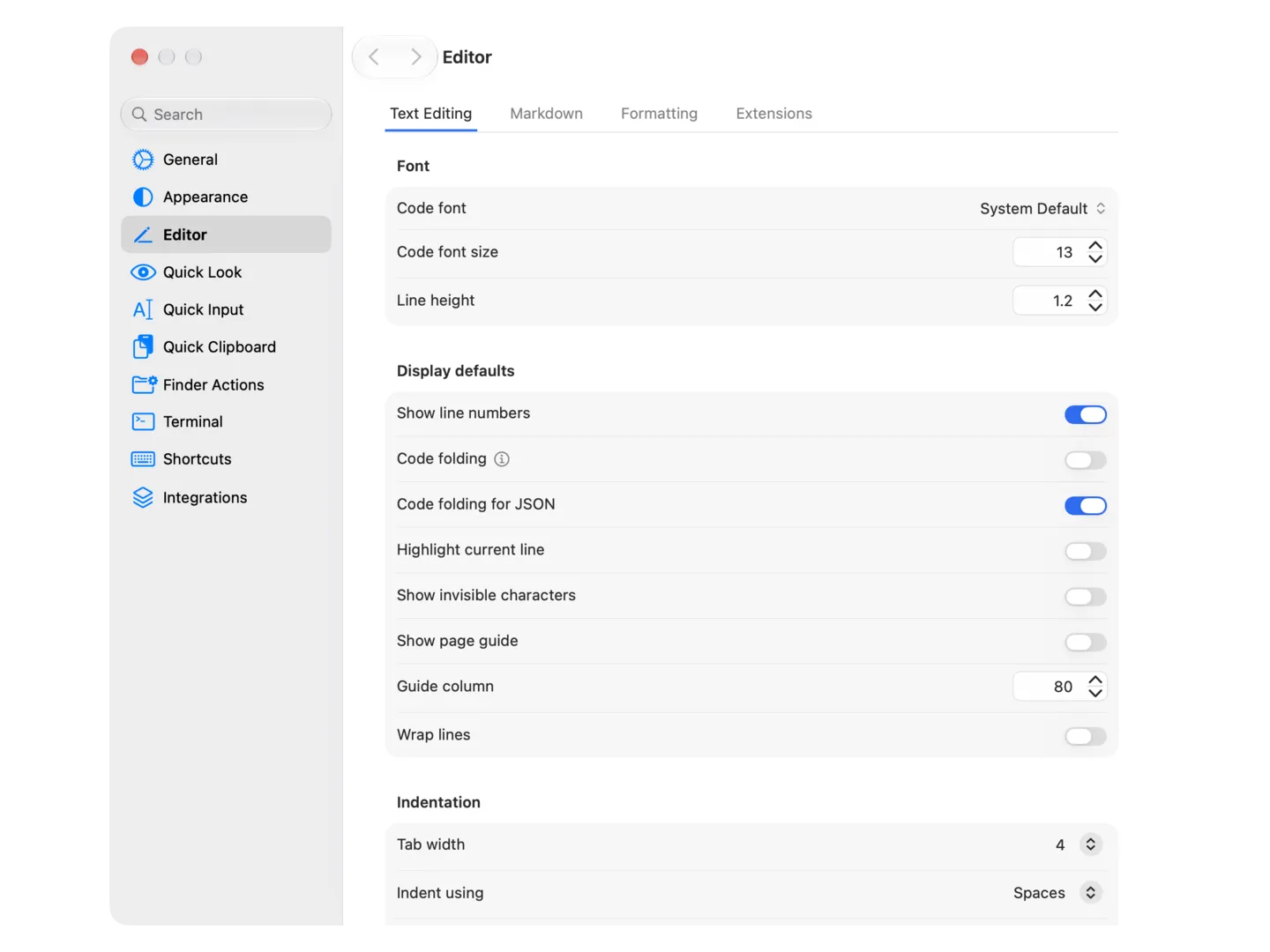
Section titled “Editor”The four left-aligned tabs are Text Editing, Markdown, Formatting, and Extensions. Every group is visible without expanding it. Search reaches a setting in any tab and switches tabs for you.
Text Editing sets code typography, display, indentation, typing, save behavior, and window defaults. Window titles show file names without their extension by default; turn on Show File Name Extensions under Window defaults to show it, while save and rename dialogs always use the full name. Markdown groups reading and display options, writing and new-content options, and online content. Formatting sets rules used by formatting commands, including language-specific overrides. Trim trailing whitespace in Text Editing applies on save; the same-named rule in Formatting commands applies when you format a document or re-indent it. Diagram, Whiteboard, and Mind Map have no separate settings pages. Diagram uses its online editor by default; Extensions can download and select its optional offline editing engine. Quick Look and read-only previews use the local viewer.
See Open and save files, Writing Markdown, and Format and indent.
Markdown
Section titled “Markdown”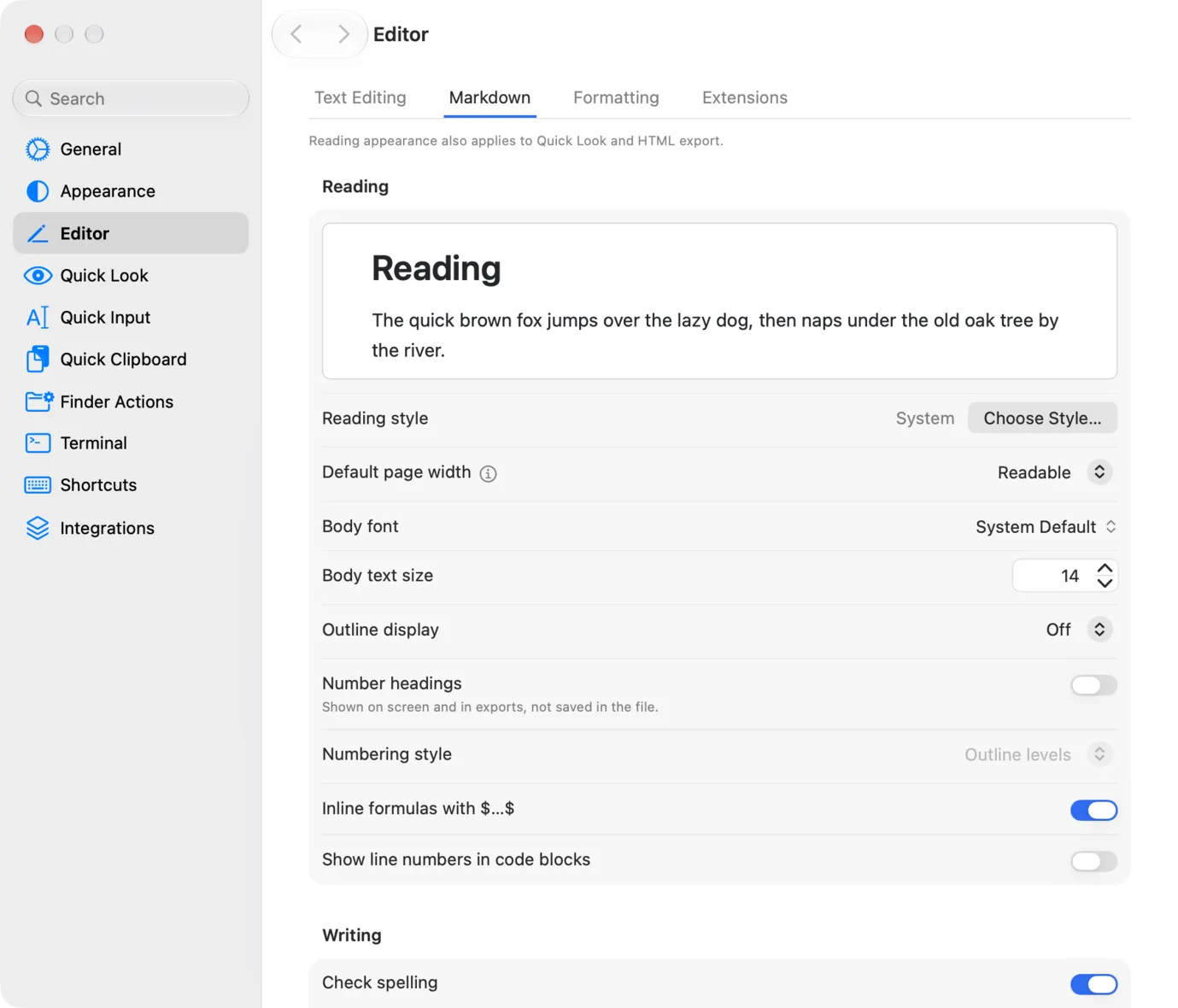
Reading style, page width and body text apply to the rendered document. Writing controls choose new-content defaults; Load remote resources controls requests for Markdown images, audio and video. Markdown editing explains file effects.
Quick Look
Section titled “Quick Look”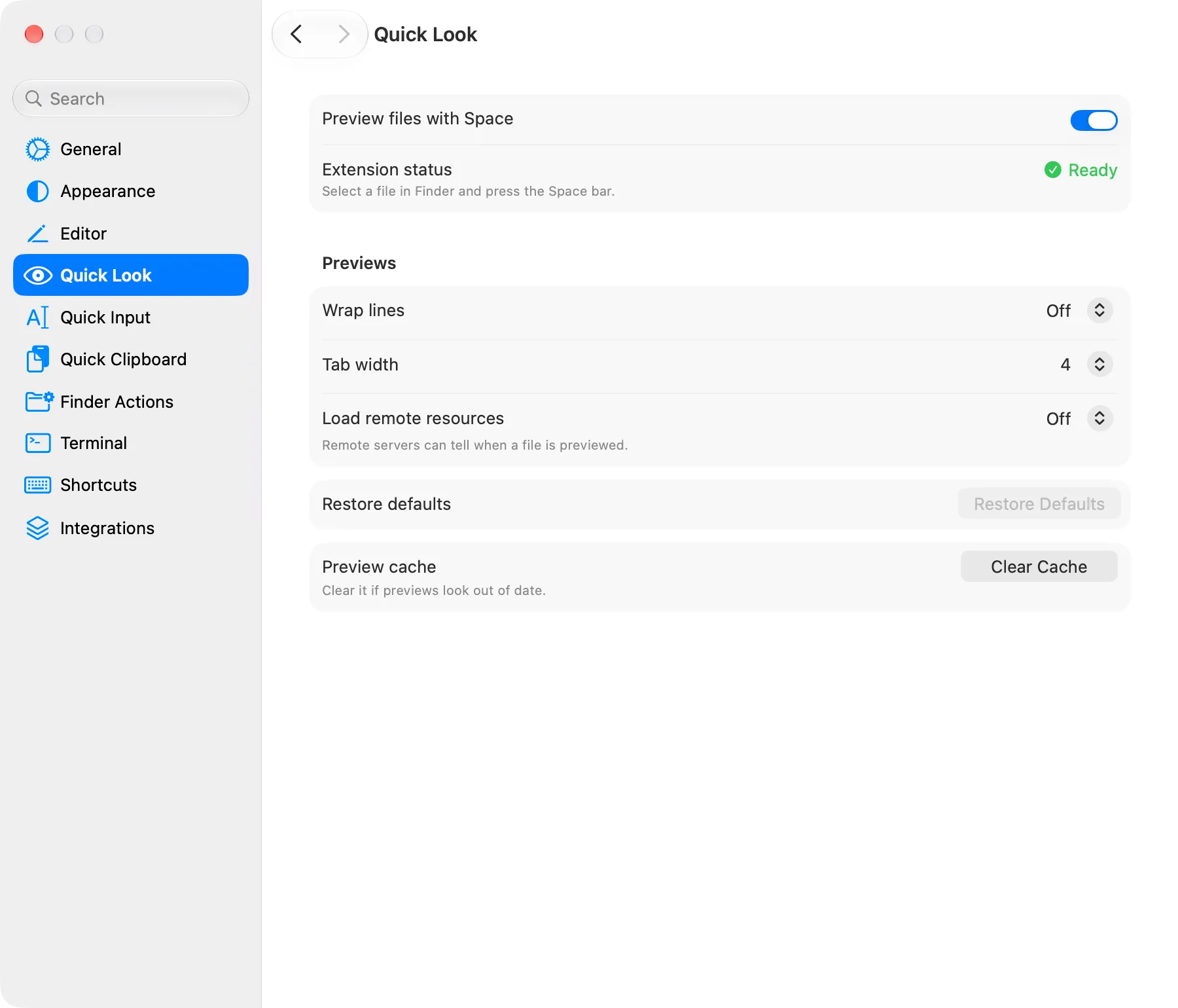
Preview controls cover line wrapping, tab width, and one remote resource switch for images, audio and video; other reading styles and colors follow Editor and Appearance. Each changed preview row has a restore button: wrapping and tab width return to following Editor, while remote resources return to the default Off state. Restore Defaults restores all three. In the Direct version, Preview files with Space requests participation in macOS Quick Look, the extension status reports what macOS enabled, and Clear Cache provides a system-level recovery action. In the Mac App Store version, Space does not show an unverifiable switch, live status, or cache command; choose System Settings… and let macOS manage the extension. See Quick Look Preview.
Quick Input
Section titled “Quick Input”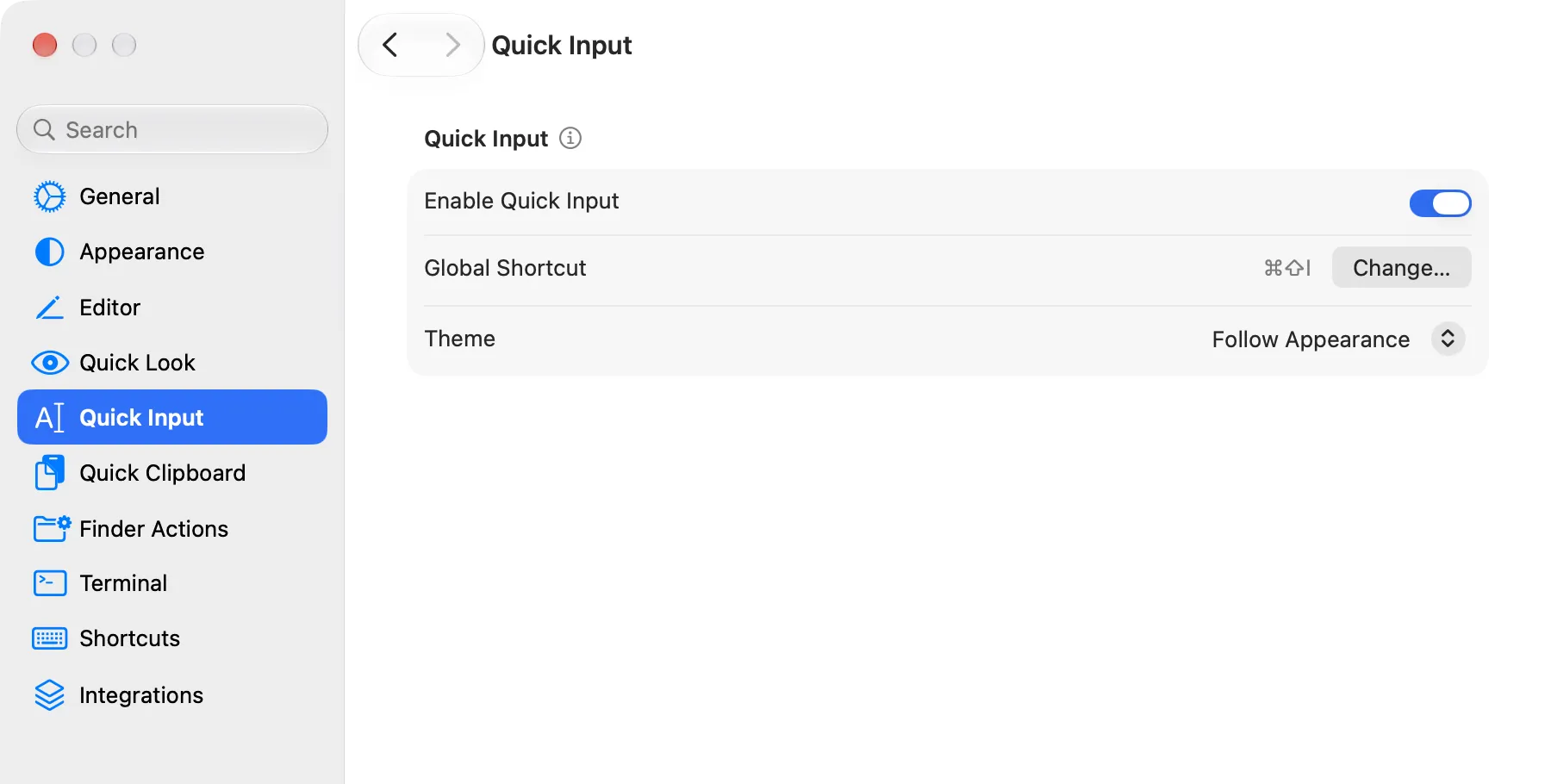
Quick Input starts on and registers its global shortcut. You can turn it off in its settings page. Its settings page shows the current global shortcut even while the feature is off. Choose Change… beside the shortcut to find and edit it in Shortcuts. The theme setting remains visible but disabled while Quick Input is off. See Quick Input.
Quick Clipboard
Section titled “Quick Clipboard”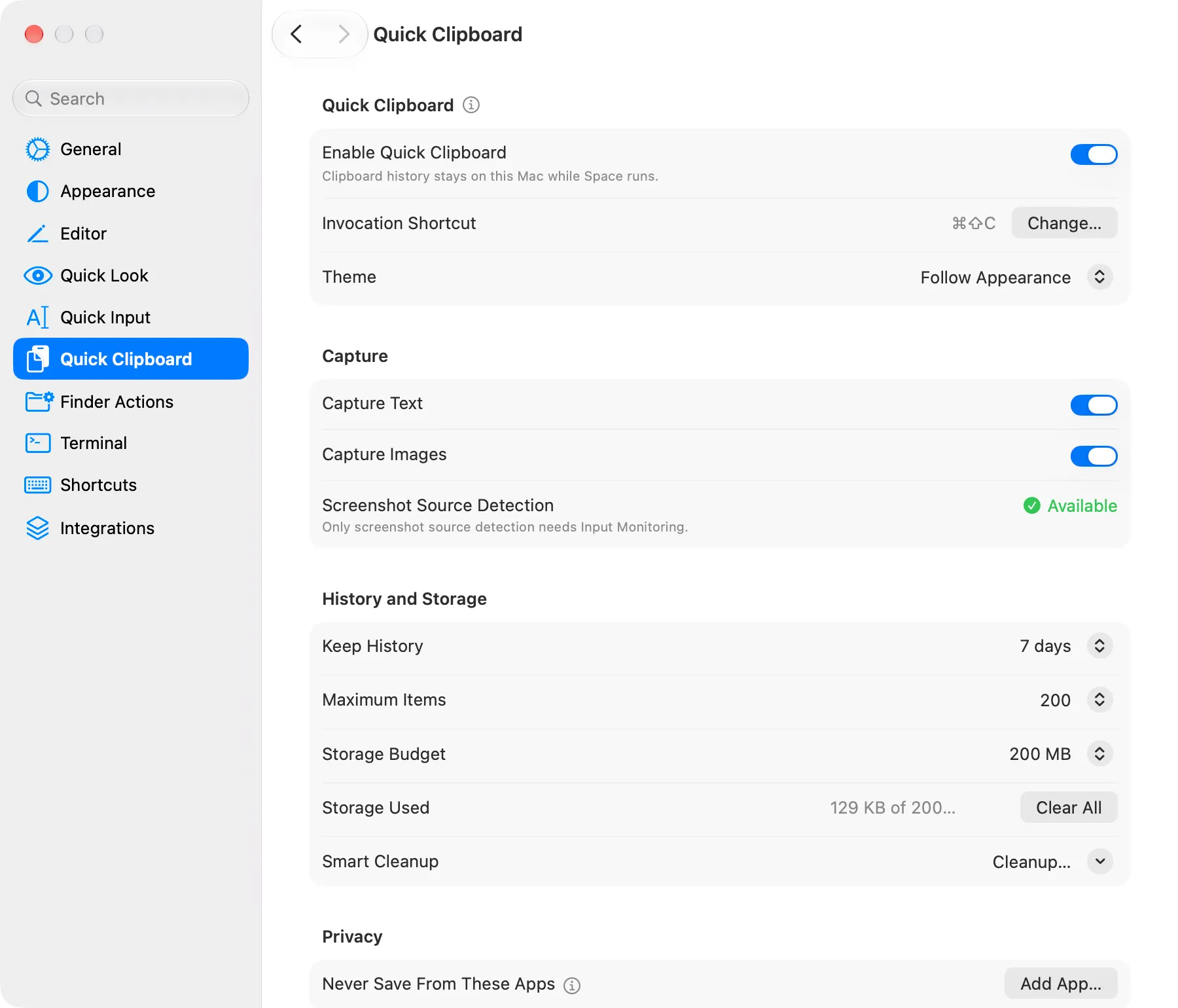
Quick Clipboard starts on and saves new clipboard copies locally while Space runs. Updating from an earlier version also turns it on once, even if you previously turned it off. You can turn it off in its settings page; while off, it stops capture and unregisters its shortcut, but keeps existing history. A later restart preserves your new choice. Its settings page shows the current invocation shortcut even while the feature is off. Choose Change… beside it to find and edit it in Shortcuts. Settings for capture, retention, storage, and privacy stay visible while off. Screenshot Source Detection uses Input Monitoring only to identify the window behind a screenshot. If access is missing, clipboard history still works; choose Request Access for source detection, then open System Settings > Privacy & Security > Input Monitoring if the request fails. The information button opens diagnostics; failures appear in the page only while Quick Clipboard is on. See Quick Clipboard.
Finder Actions
Section titled “Finder Actions”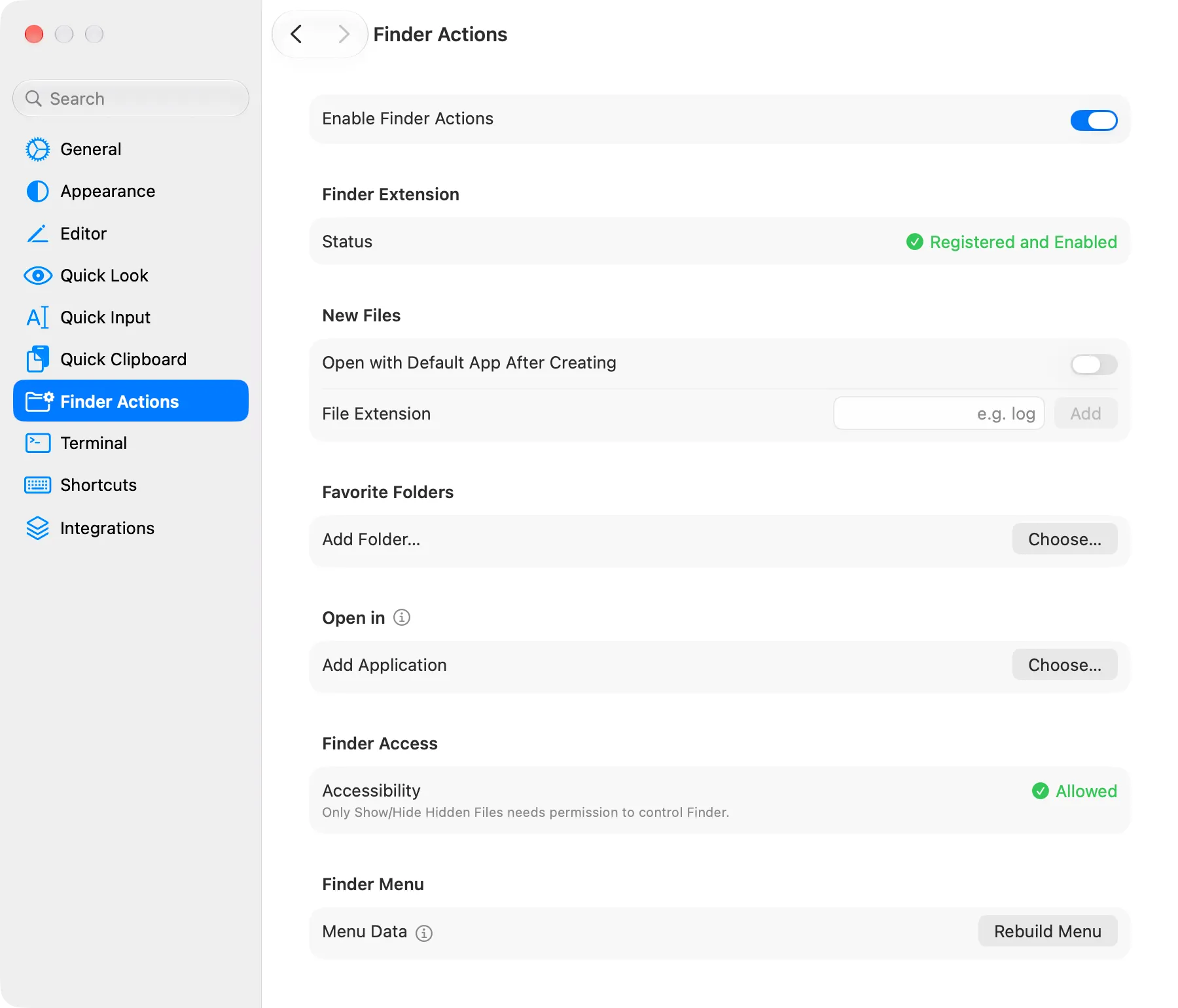
Finder Actions starts on. Space checks and repairs missing extension registration at startup; macOS may still require you to enable the extension. If the Space menu is absent, check Enable Finder Actions and the Finder Extension status row in Space Settings. If automatic activation fails, use the recovery action there and return to Space to check the result. Space requests permission to control Finder when you first choose Show/Hide Hidden Files, or when you choose Request Access in Finder Actions settings. If the request fails, the action offers a System Settings route. Other Finder actions remain available if you decline it. When on, configure new-file behavior and custom extensions together, favorite folders, then terminal and application choices under Open in. If newly installed apps or favorite folders are missing from the Finder menu, choose Rebuild Menu under Finder Menu, then reopen the Finder context menu. The Info beside Menu Data explains this recovery action. A stale Finder menu item cannot run an action after you turn Finder Actions off.
Terminal
Section titled “Terminal”
Startup chooses where new shells begin: the window’s Session Documents folder, your Home Folder, or a custom folder. The selected path appears below Starting directory. Hover over a shortened path to see it in full. It does not move terminals that are already running. The Direct version also has Appearance, History and Closing settings. Appearance sets theme and font. History controls output recording, session retention and cleanup. The custom day field appears only when retention is Custom. Closing has separate warnings for a terminal, a window, and quitting Space while processes are running. See Terminal Sessions.
Shortcuts
Section titled “Shortcuts”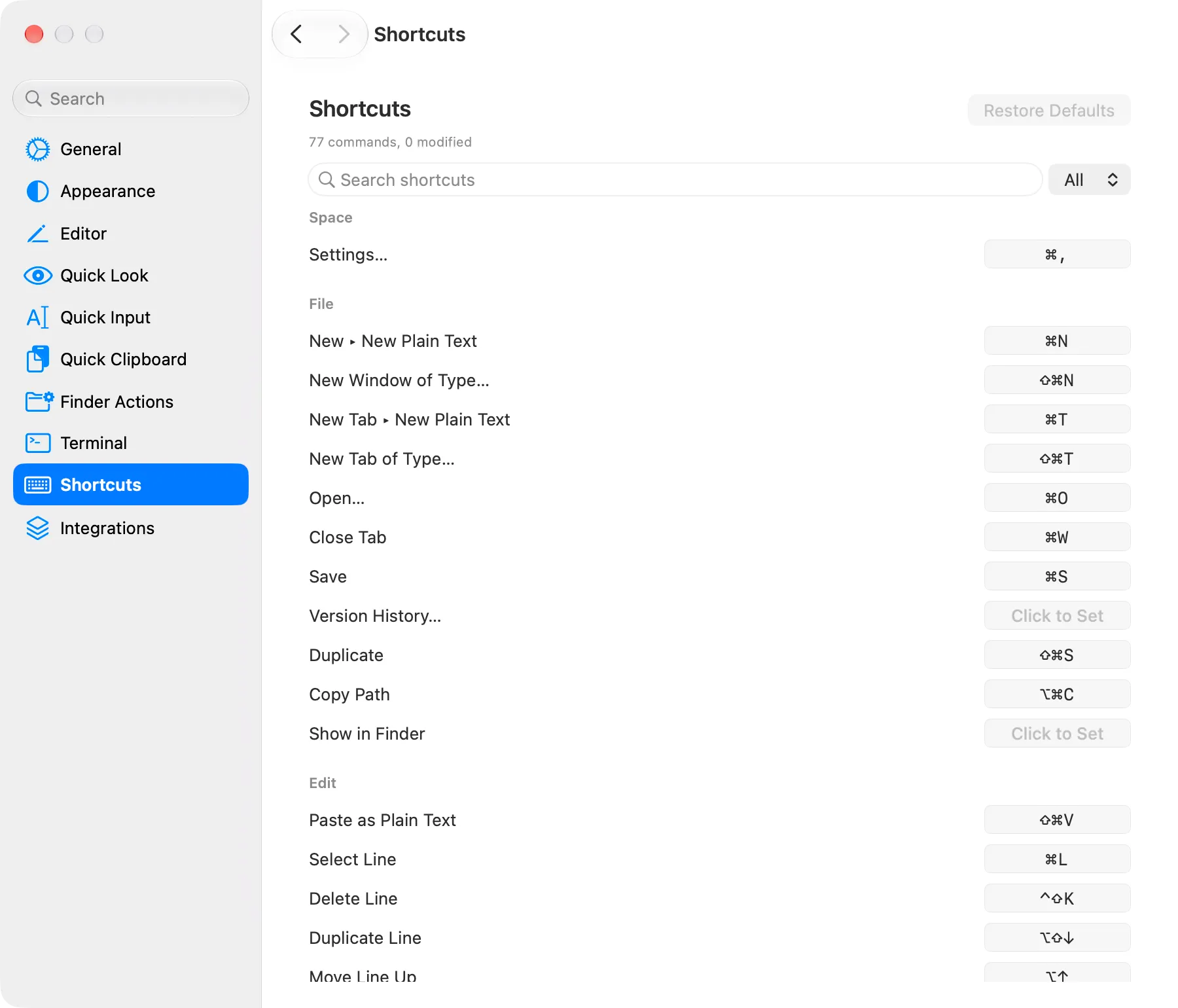
Edit Space command shortcuts here, including Quick Input and Quick Clipboard keys. Search by command or key, or filter to modified and conflicting shortcuts. See Keyboard shortcuts.
Integrations
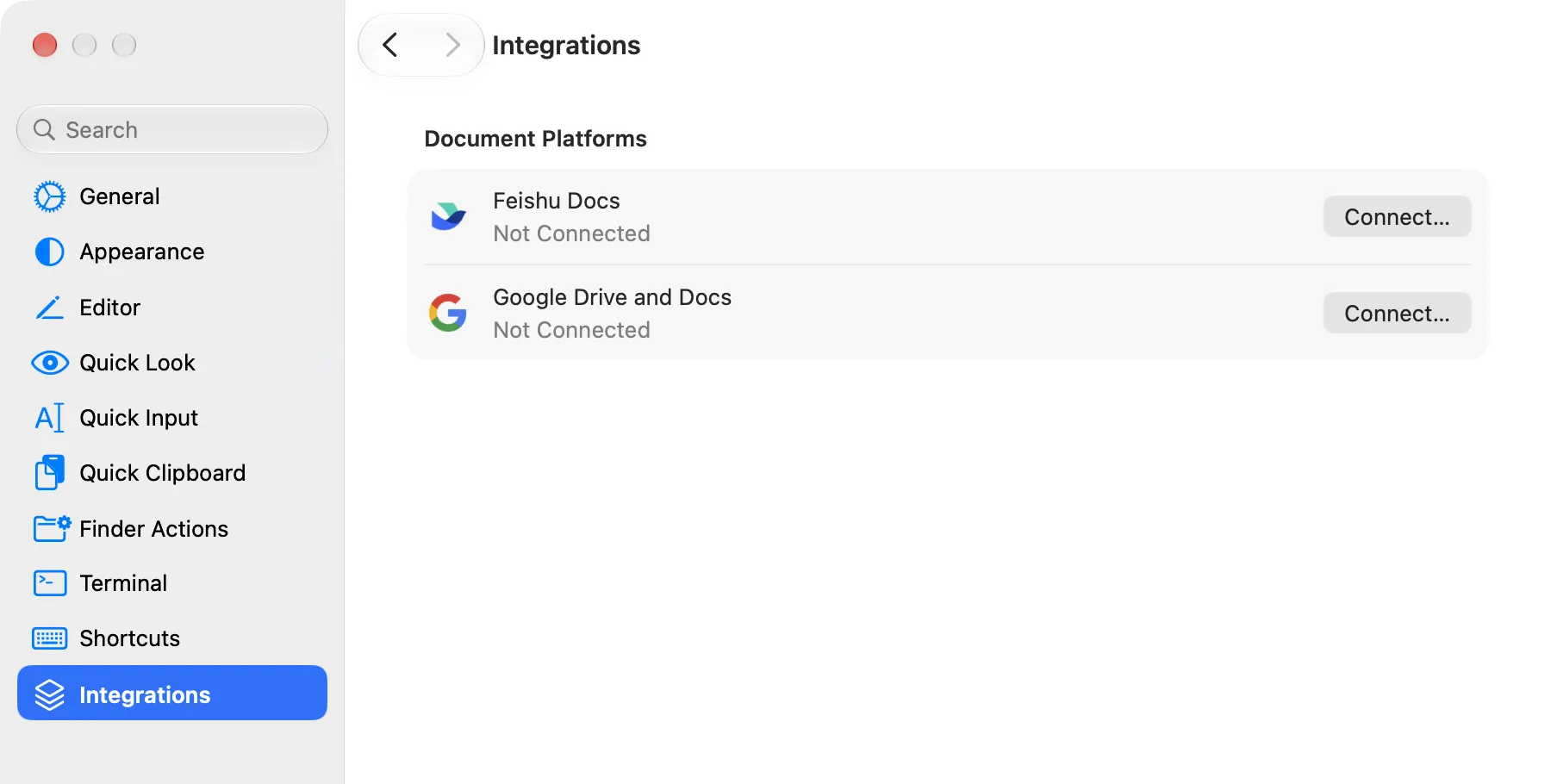
Section titled “Integrations”Connect or manage Google Drive and Docs or Feishu Docs on this Mac. Connecting makes authorized targets available for supported documents. To share a file offline, use File > Export As…. Compare export and publishing.