

Finder Actions
Work beside the files you selected in Finder. Space adds contextual actions for creating documents, opening folders in a terminal, copying paths and moving or copying files to favorite locations.
Enable the extension
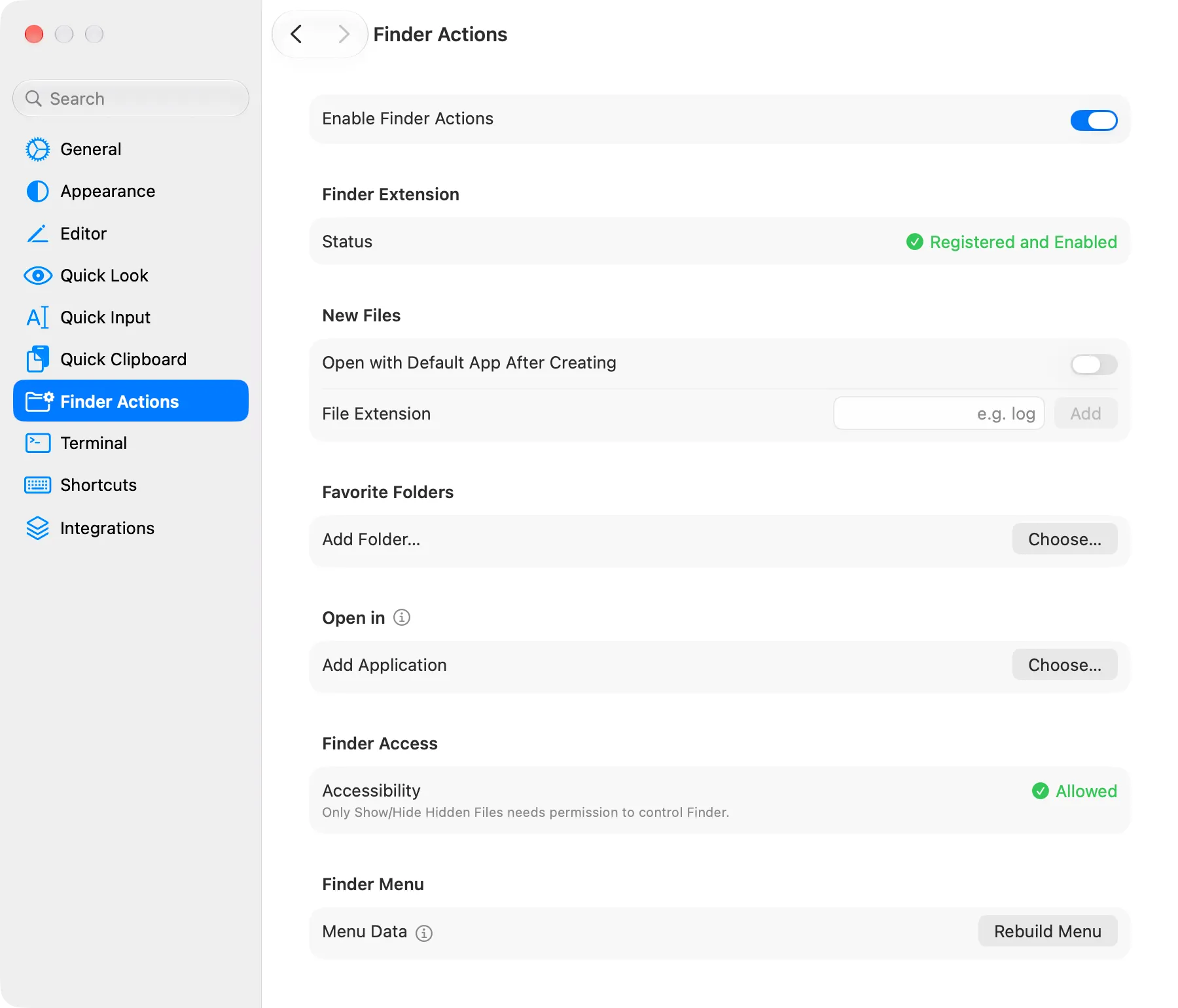
Section titled “Enable the extension”Open Settings > Finder Actions. The feature starts on, and Space checks extension registration. macOS may still require you to enable the Finder extension in System Settings. Check the Finder Extension status when actions are missing; use the recovery action if automatic activation fails.
Choose an action
Section titled “Choose an action”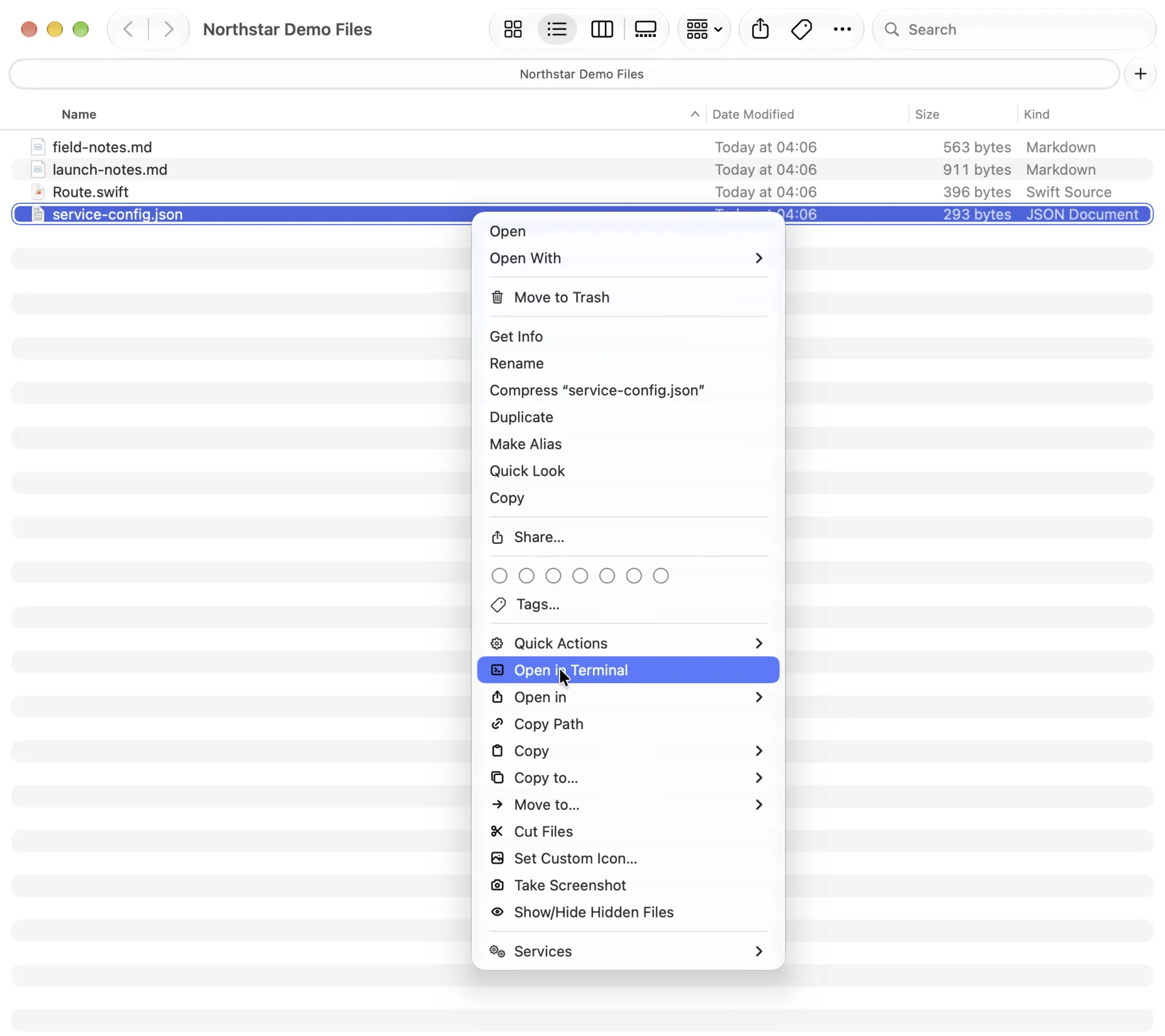
| Task | Finder context |
|---|---|
| Create a document | A folder or its background |
| Open in Terminal | A folder background or supported selection |
| Copy Path | A folder background or selected files |
| Copy or move to a favorite | Selected files or folders |
| Show/Hide Hidden Files | A supported Finder context; separate Finder permission |
The available menu follows the selection. A background menu is not identical to a selected-file menu. New-document formats, favorite folders and Open in choices are configured in Finder Actions settings.
Finder stays in the foreground when a Space action shows a result, progress window, conflict choice, or file picker. These panels accept clicks and keyboard input without bringing the Space document window or menu bar forward. An Open in action can bring the application you selected to the foreground.
Copy a useful path
Section titled “Copy a useful path”- Select a file in Finder.
- Open the context menu and choose Copy Path.
- Paste the path into a document or terminal command.
For a path with spaces, quote it when using it in a shell:
cat "./Release notes.md"This command reads the example path; copying a path itself does not modify the file.
Permissions and file changes
Section titled “Permissions and file changes”Show/Hide Hidden Files requests permission to control Finder when you invoke it, or when you choose Request Access in settings. See how to allow it. Declining that permission does not disable unrelated file actions. Creating, moving or pasting cut files changes real files; check the target folder before performing an action.
Finder Actions is separate from the Quick Look extension. Turning one off does not imply the other is off. A stale Finder menu cannot execute its action after Finder Actions has been disabled.
If the menu is missing
Section titled “If the menu is missing”Return to Settings > Finder Actions, check registration and follow the offered recovery route. Reopen the Finder context menu after the status changes. Settings overview, Troubleshooting