

Keyboard shortcuts
Open Settings > Shortcuts. Search by command name or key combination. Use All / Modified / Conflicts to narrow the list. The header shows how many commands have changed.
| Common task | Default shortcut |
|---|---|
| Find in the editor | ⌘F |
| Switch Markdown source and rendered view | ⌥⌘M |
| Hide or show the embedded Terminal (Direct) | ⌃` |
| Open the external Terminal (Mac App Store) | ⌃` |
| Switch embedded terminals in the rail (Direct) | ⌥⌘← / ⌥⌘→ |
| Open settings | ⌘, |
Change a shortcut
Section titled “Change a shortcut”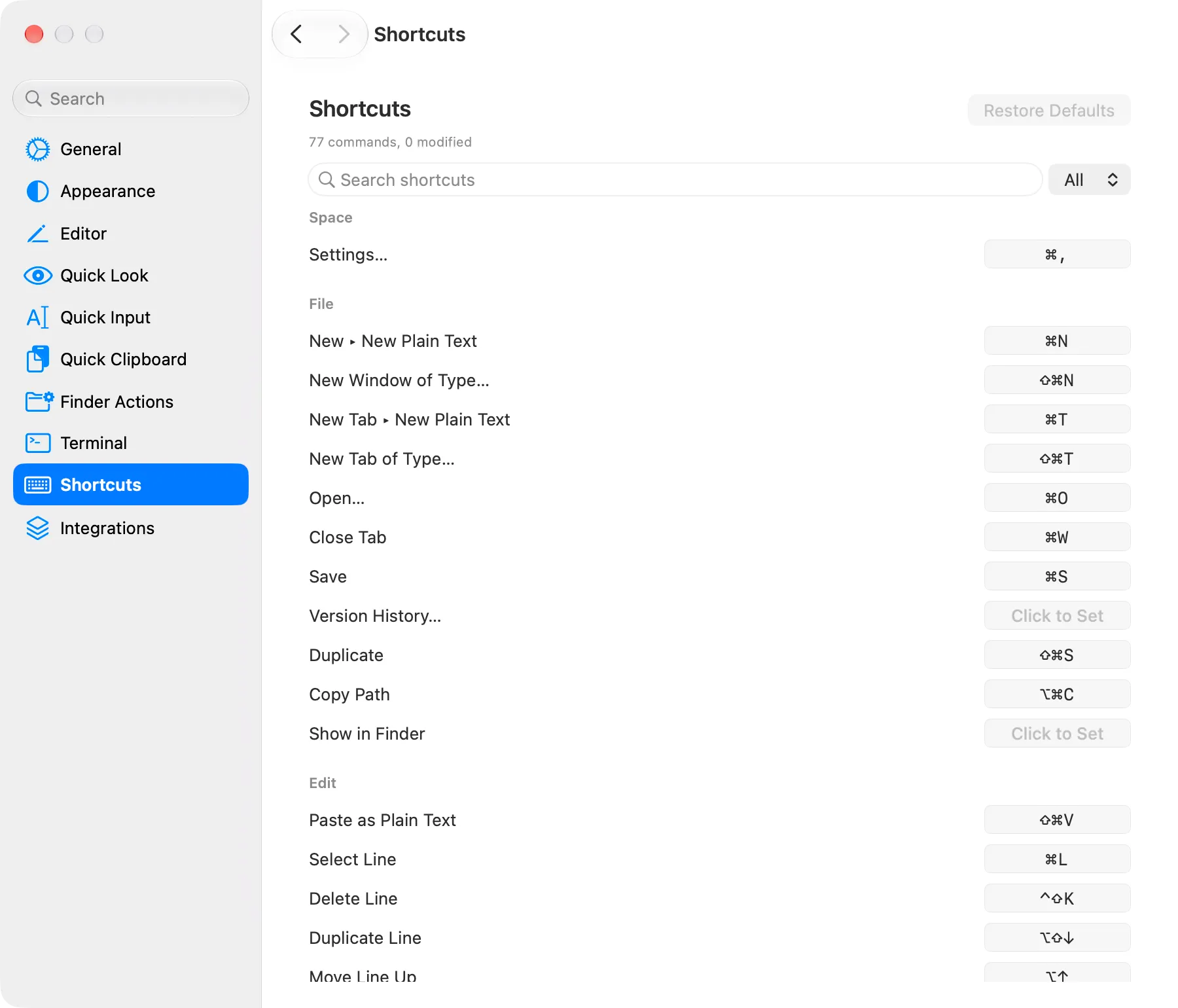
- Click a command’s key, double-click its row or focus the row and press Return.
- Press the new combination. It applies to open windows immediately.
- Press Escape to cancel. For commands that allow an empty shortcut, press Delete to clear it.
If the combination is used by another Space command in the same context, the page identifies the command and offers the available resolution. A command’s context matters: a Quick Input key and a Quick Clipboard key can share a combination when they cannot be active at the same time. Some essential application shortcuts cannot be cleared.
Hover over or focus a modified row to restore that command’s default. Restore Defaults in the header restores all shortcuts shown on this page after confirmation. Quick Input and Quick Clipboard settings still control their other behavior; their shortcut keys are edited here.
Terminal commands are in the top-level Terminal menu. The Direct version also keeps View > Show Terminal / Hide Terminal; the Mac App Store version provides Open in Terminal instead of an embedded panel.