

Troubleshooting
Fixes for the problems people hit most: a preview that shows nothing, and a file that opens somewhere else.
Start with the symptom
Section titled “Start with the symptom”| What you see | First check |
|---|---|
| macOS blocks the first launch, or Open Anyway is missing | Check the app and recent launch attempt |
| An access alert keeps returning or a feature cannot use its permission | Check the feature and Space entry |
| Blank or plain-text Finder preview | Quick Look registration and supported types |
| Double-click opens another app | Finder’s Open with setting |
| The file opens before Find is fully available | Large-file indexing |
| A document view shows an error | Return to source |
Recovery steps
Section titled “Recovery steps”macOS blocks Space
Section titled “macOS blocks Space”- Check the exact warning. If it mentions an unverified developer or says Apple could not check the app, verify the DMG you downloaded from the official download page and follow the first-open steps.
- If Open Anyway is missing, open Applications > Space once more and return to System Settings > Privacy & Security > Security. Check for a message naming Space. If your Mac is managed and offers no exception, check with its administrator.
- If macOS reports malware, damage to your Mac or a damaged app, stop and discard the affected copy. Download the correct build again and check both files with SHA-256. If the warning repeats after verification, contact Space Support with the exact warning and the version and build shown on the download page.
A permission prompt keeps returning
Section titled “A permission prompt keeps returning”- Identify which action triggered the alert. Optional feature permissions lists the individual Space and macOS settings for each action.
- Quit Space. In the relevant macOS pane, check the entry for the installed copy in Applications. In Accessibility, you can add that copy if it does not appear. Turn on its switch and reopen Space. Follow any macOS request to quit and reopen after changing Input Monitoring.
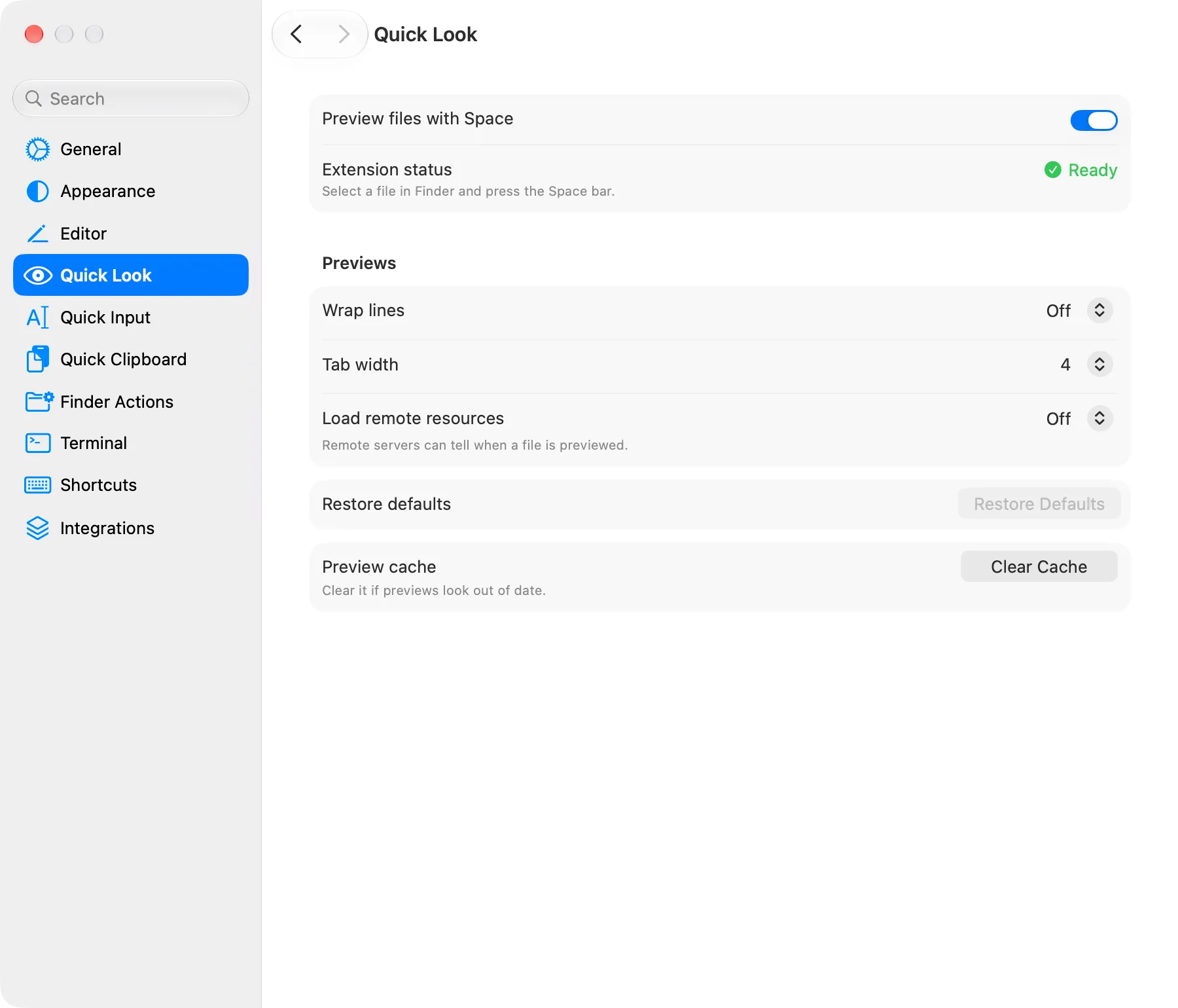
- Retry the same action and check its status in Space. For Quick Look, check Extension status and preview a supported file with the space bar. For Quick Input, try sending to a normal editable field.
Preview shows as plain text or nothing at all
Section titled “Preview shows as plain text or nothing at all”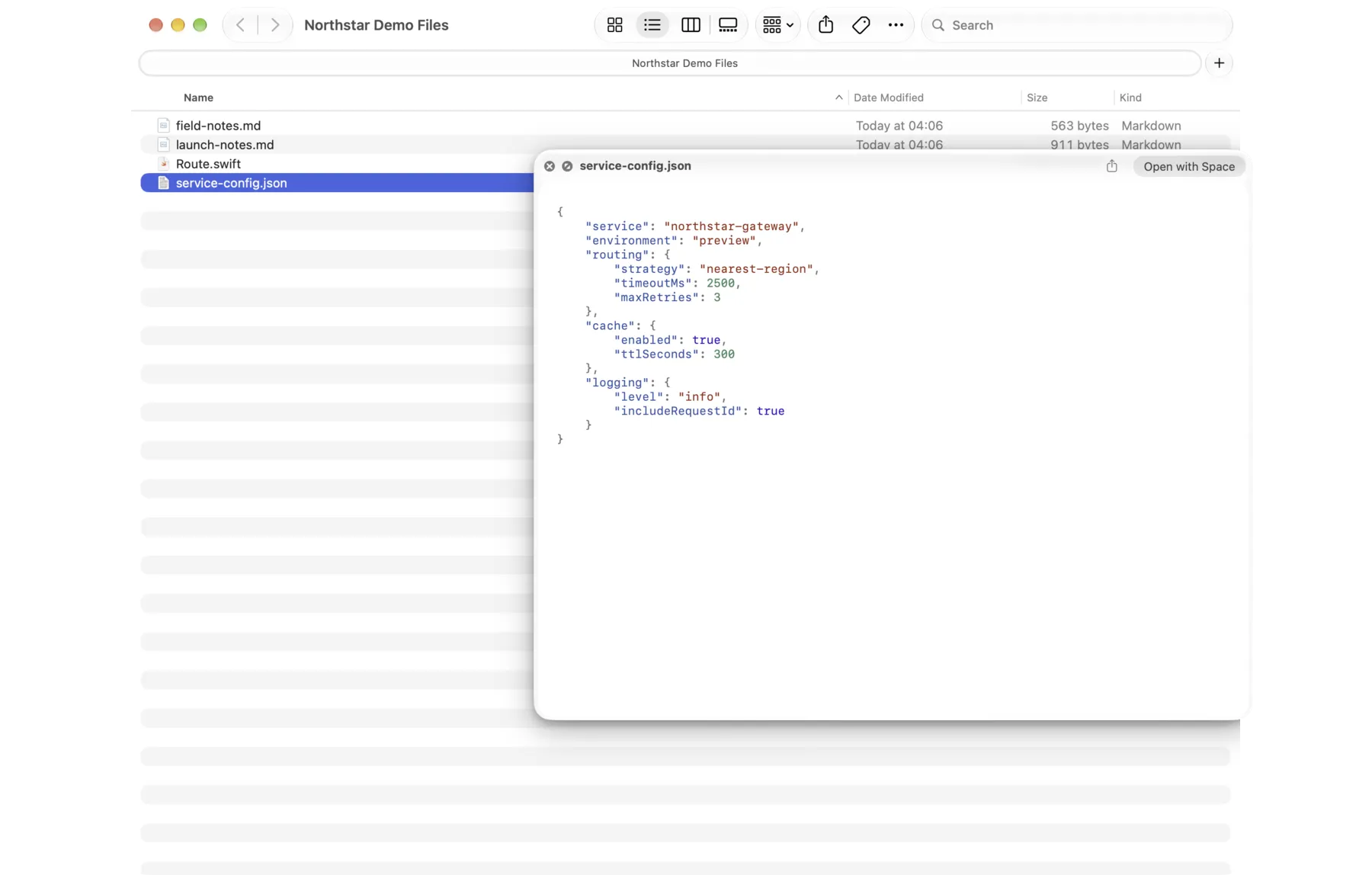
- Check Help > Supported File Types… for the extension or exact name, such as
Dockerfile. - Check Settings > Quick Look for registration. The Direct version shows status in Space. The Mac App Store version opens macOS extension settings.
- Test a known type, such as a Markdown or JSON file, to distinguish registration from file-specific behavior.
A file opens in another app instead of Space
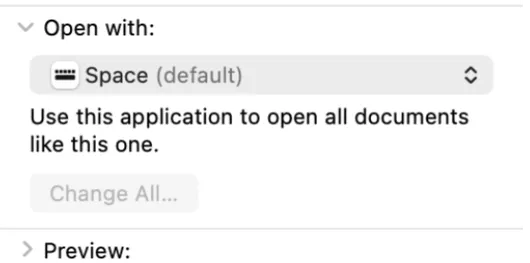
Section titled “A file opens in another app instead of Space”Select the file in Finder, choose Get Info, and check the Open with section — it shows who currently owns that type on this Mac and lets you change it, either for this one file or for every file of that type via Change All…. If a type you expect Space to own is opening elsewhere, that’s where to look; the answer is specific to this Mac and to that one file type, since another app may have claimed it here but not on a different machine. Space doesn’t have its own in-app control for this — Install and preview a file explains why.
.ts files won’t switch to Space
Section titled “.ts files won’t switch to Space”This one has no per-machine fix: Apple has assigned .ts to a video streaming format at the system level, so Space cannot become its handler regardless of settings.
The Quick Look extension isn’t enabled
Section titled “The Quick Look extension isn’t enabled”Three steps, in order — skipping one leaves the next one unreachable:
- Move Space.app into the Applications folder and open it once.
- Open macOS extension settings and turn on Space Preview under Quick Look.
- Select a file in Finder and press the Space bar.
The expected result is a file preview in Finder. See the illustrated installation and Quick Look setup to check the result.
A large file opens but some capabilities are limited
Section titled “A large file opens but some capabilities are limited”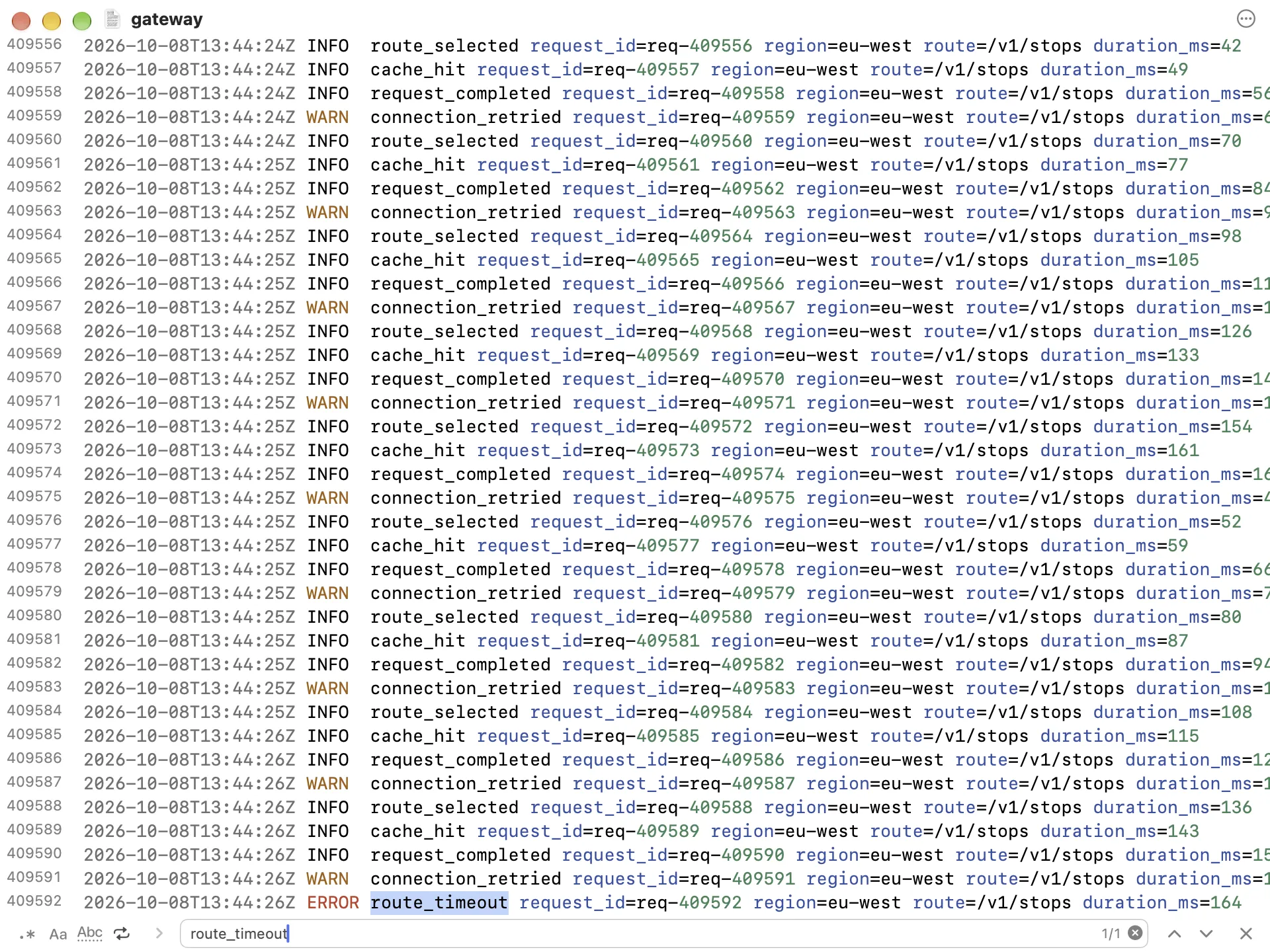
Files of 8 MiB and above use mapped text editing: Space decodes the visible text on demand and makes the document editable from first view. Nothing is cut off, and the usual text keys work, including Shift-arrow selection, Option-arrow word moves, Forward Delete, Control-D and Control-K. Background indexing strengthens line numbers, full-document statistics, complete syntax state and global Find as it progresses. Until indexing completes, Find matches within a line: a search that contains a line break says so instead of quietly finding nothing.
The indexed percentage appears only while global indexing is active. Browse-mode search can be cancelled while it scans; cross-line searches become available when indexing reaches the exact document view. A completed search remembers its match list, so Return moves between cached positions without scanning again. Editing the file invalidates that list.
A sequential-stateful encoding can also wait for a decoder checkpoint before Space can safely edit an arbitrary cold byte. That is a scoped editing wait, not a separate read-only mode. Separately, a file whose text encoding can’t be written back byte-for-byte — a genuine round-trip risk, not a size issue — opens read-only; the tab carries a lock, a notice above the text explains why, and Export As offers a way to save an editable UTF-8 copy. Open and save files covers these file-preservation boundaries.
A diagram or Markdown document shows an error instead of the content
Section titled “A diagram or Markdown document shows an error instead of the content”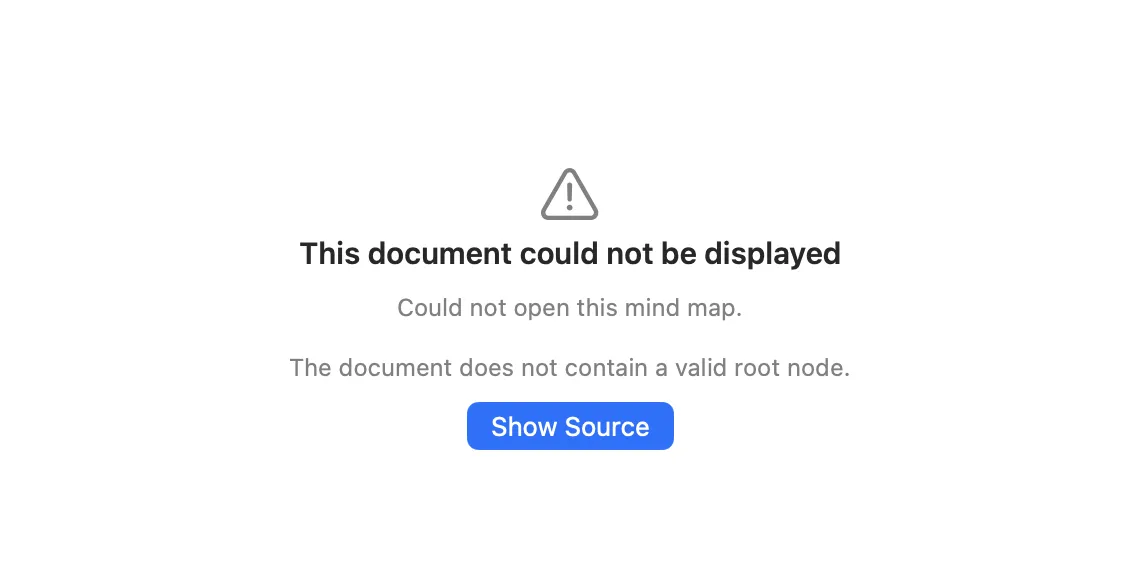
Mermaid, PlantUML, Draw.io, Excalidraw, mind map and Markdown documents show a plain-language error and a Show Source button when the editor itself runs into a problem — a malformed diagram, an offline package that failed to start — instead of a blank page. Click Show Source to get back to editable text and fix the underlying content; nothing is lost. See Diagrams and Drawings.
- Most of these problems are per-machine, not per-file — if a file previews fine on one Mac and not another, Finder’s Get Info > Open with is the most likely place to find why.
- Checking Help > Supported File Types… and Settings > Quick Look first will resolve the majority of “why doesn’t this open in Space” questions before you need to dig further.
Related settings
Section titled “Related settings”- Help > Supported File Types… — every type Space recognizes, its extensions, and what opens it; the same list is also a button on the About page.
- Quick Look — extension setup and display controls. Every pane is listed in Settings.