

Install and preview a file
Install Space, open it from Applications, then enable Finder previews. Use the feature permissions below when macOS asks for access.
Install and preview a file
Section titled “Install and preview a file”- On the download page, choose Apple silicon or Intel. In Apple menu > About This Mac, Chip identifies an Apple silicon Mac and Processor identifies an Intel Mac. Check the macOS requirement and verify the DMG.
- Open the
.dmg, drag Space.app to Applications, then eject the disk image. Open Space from Applications. If macOS blocks this first launch, use the first-open guide. - In System Settings, open General > Login Items & Extensions. Find Space’s Quick Look extension and turn on Space Preview. If your Mac groups extensions under each app, use the info button beside Space in Login Items.
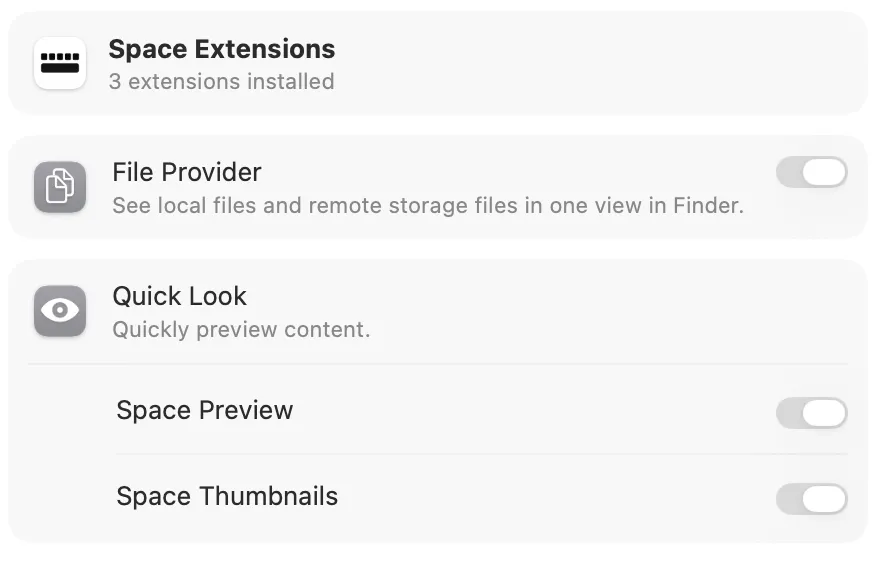
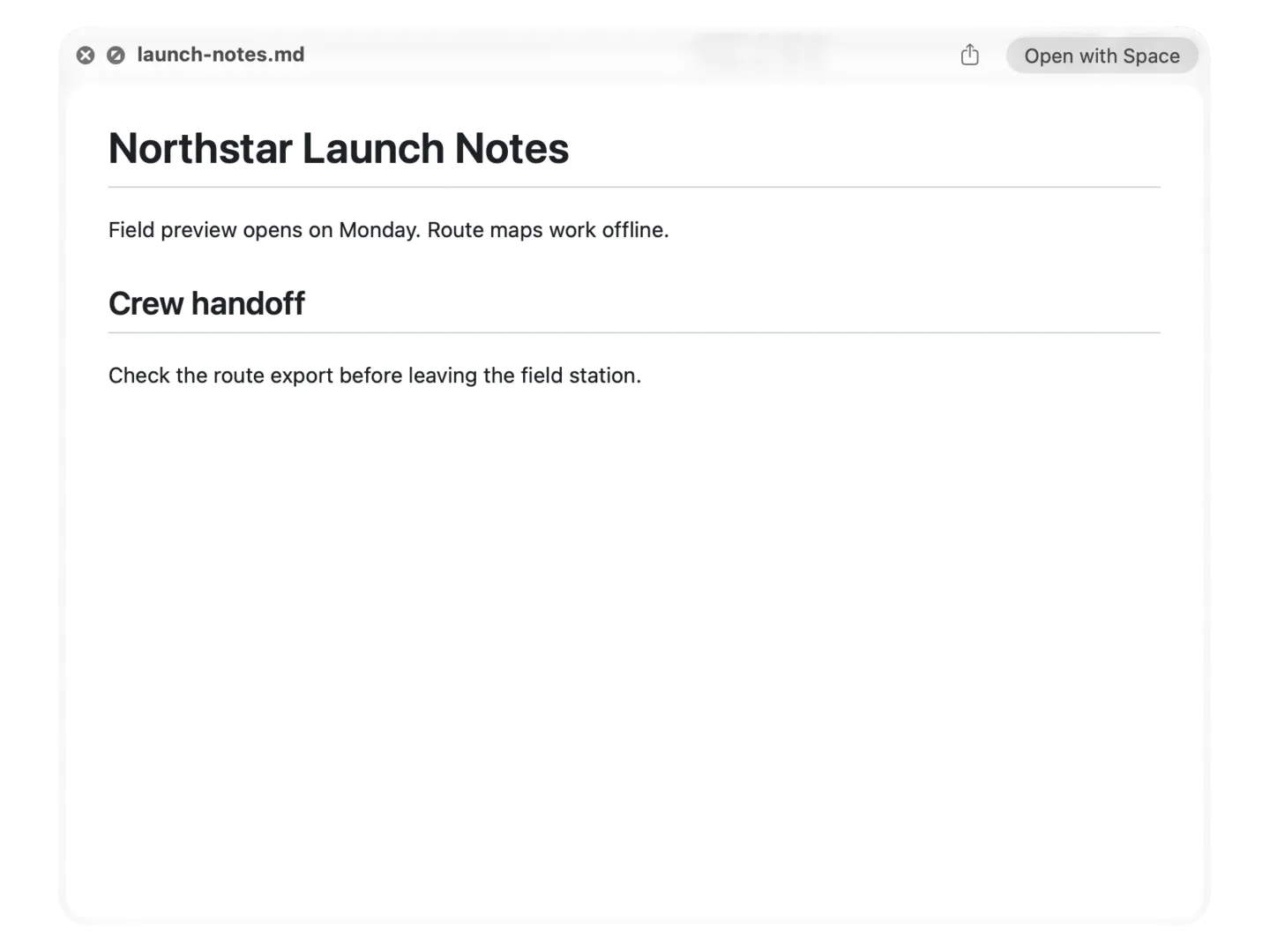
- Select a supported file in Finder and press Space. A
.livemdfile with a heading such as# Preview checkis a useful test.
Download, security and Quick Look setup
Section titled “Download, security and Quick Look setup”Verify a download
Section titled “Verify a download”Download the DMG and its matching .sha256 file from the same build. Put them in the same folder. In Terminal, go to the folder containing both downloads. Use the actual folder path if you saved them outside Downloads.
cd ~/DownloadsType shasum -a 256 -c followed by a space, drag the .sha256 file into Terminal, then press Return. Continue when the result ends in OK. If it says FAILED or the DMG is missing, check that both files are for the same build and redownload the pair if necessary.
If macOS blocks the app
Section titled “If macOS blocks the app”A notarized download may still show the ordinary “downloaded from the Internet” confirmation. Review it and open Space if it is the copy you installed. If a build listed as notarized instead triggers an unverified or unchecked warning, verify the download again and contact Space Support if the warning persists.
Use the steps below only for a trusted build explicitly supplied as unnotarized, such as a test build, after you verify its source and SHA-256. If macOS says the app contains malware, will damage your computer, or is damaged, stop and see Troubleshooting. Use your organisation’s support process if the Mac is managed.
- In Finder, open Applications, double-click Space, and dismiss the warning. This gives macOS the recent launch attempt it needs to show the exception.
- Choose Apple menu > System Settings > Privacy & Security. Scroll to Security, find the message for Space, then select Open Anyway. Apple says the button can be available for about an hour after the attempt. If it has disappeared, try opening this copy of Space again.
- Read the confirmation and select Open if you want to continue. Authenticate in the macOS prompt if asked. The exception applies to this app. Once Space opens, go on to Quick Look setup.
flowchart TD A["Verify DMG"] --> B["Open Space"] B -->|"Opens"| C["Set up Quick Look"] B -->|"Developer warning"| D["Open Anyway"] B -->|"Malware or damage"| E["Stop and check"] D --> CFirst-launch flow. Apple’s guide shows what Open Anyway looks like in System Settings. Apple’s illustrated guide
Turn on Quick Look
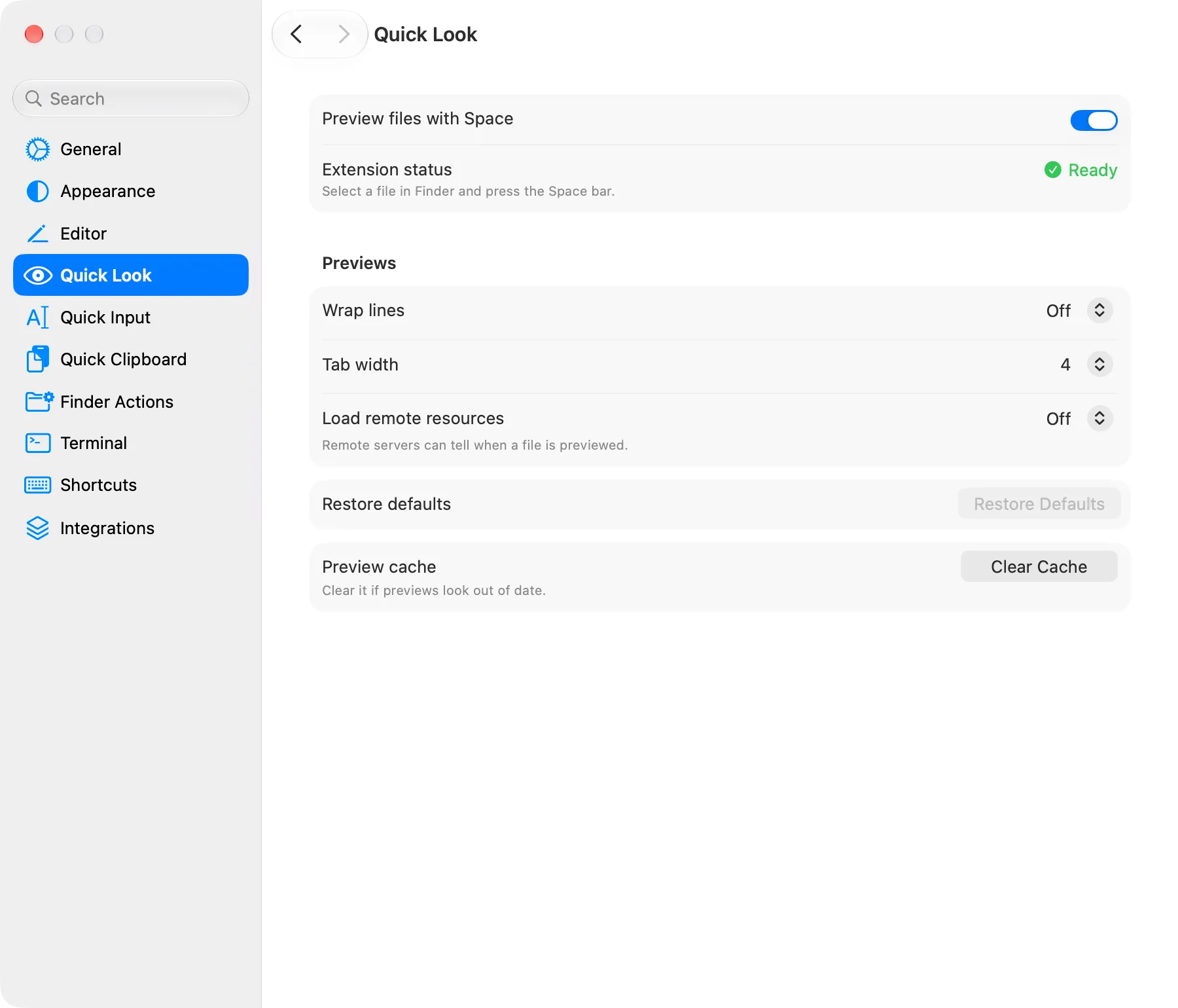
Section titled “Turn on Quick Look”In the Direct version, the Quick Look page in Space Settings reports whether macOS has enabled the extension and identifies any remaining setup step. In the Mac App Store version, use its System Settings… button to manage the extension with macOS. See Quick Look Preview for supported content, or Troubleshooting if a file still previews as plain text.
Choose a default app for a file type
Section titled “Choose a default app for a file type”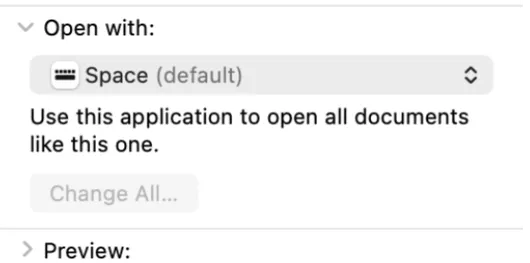
macOS and other installed apps determine which app opens a file when you double-click it. If the default is not the one you want, select a file in Finder, choose Get Info > Open with, select an app, then choose Change All…. This changes the macOS association for that file type; it does not change Space’s Quick Look preview setting.
Grant access for optional features
Section titled “Grant access for optional features”Use the setting for the feature you tried. Installing Space or opening a file through Finder is a separate step from these permissions.
| What you want to do | Where Space asks | Where to allow or review access |
|---|---|---|
| Send from Quick Input or paste from Quick Clipboard into another app | Try sending, or use Settings > General > Accessibility > Request Access. | System Settings > Privacy & Security > Accessibility. Turn on the Space entry, return to General and retry sending to a normal text field. |
| Identify the source window for screenshots in Quick Clipboard | Settings > Quick Clipboard > Screenshot Source Detection > Request Access. Enable image capture to use this control. | Privacy & Security > Input Monitoring. Enable Space and follow any macOS request to quit and reopen it. Clipboard history is available when source detection is off. |
| Show or hide hidden files through Finder Actions | Use Show/Hide Hidden Files or Settings > Finder Actions > Finder Access > Request Access. | Privacy & Security > Accessibility. Allow the Space entry named in the prompt, return to Space, then retry the Finder action. |
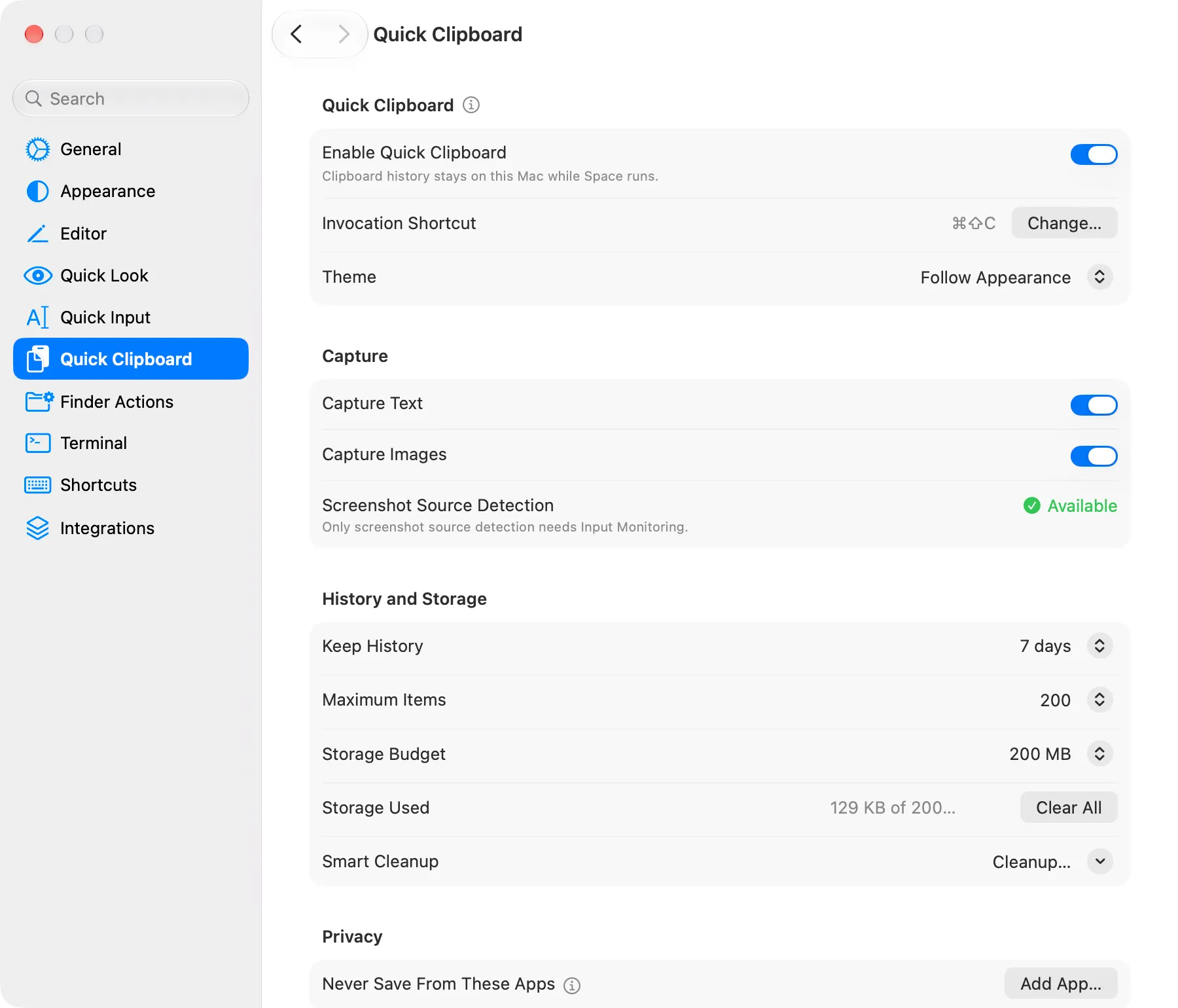
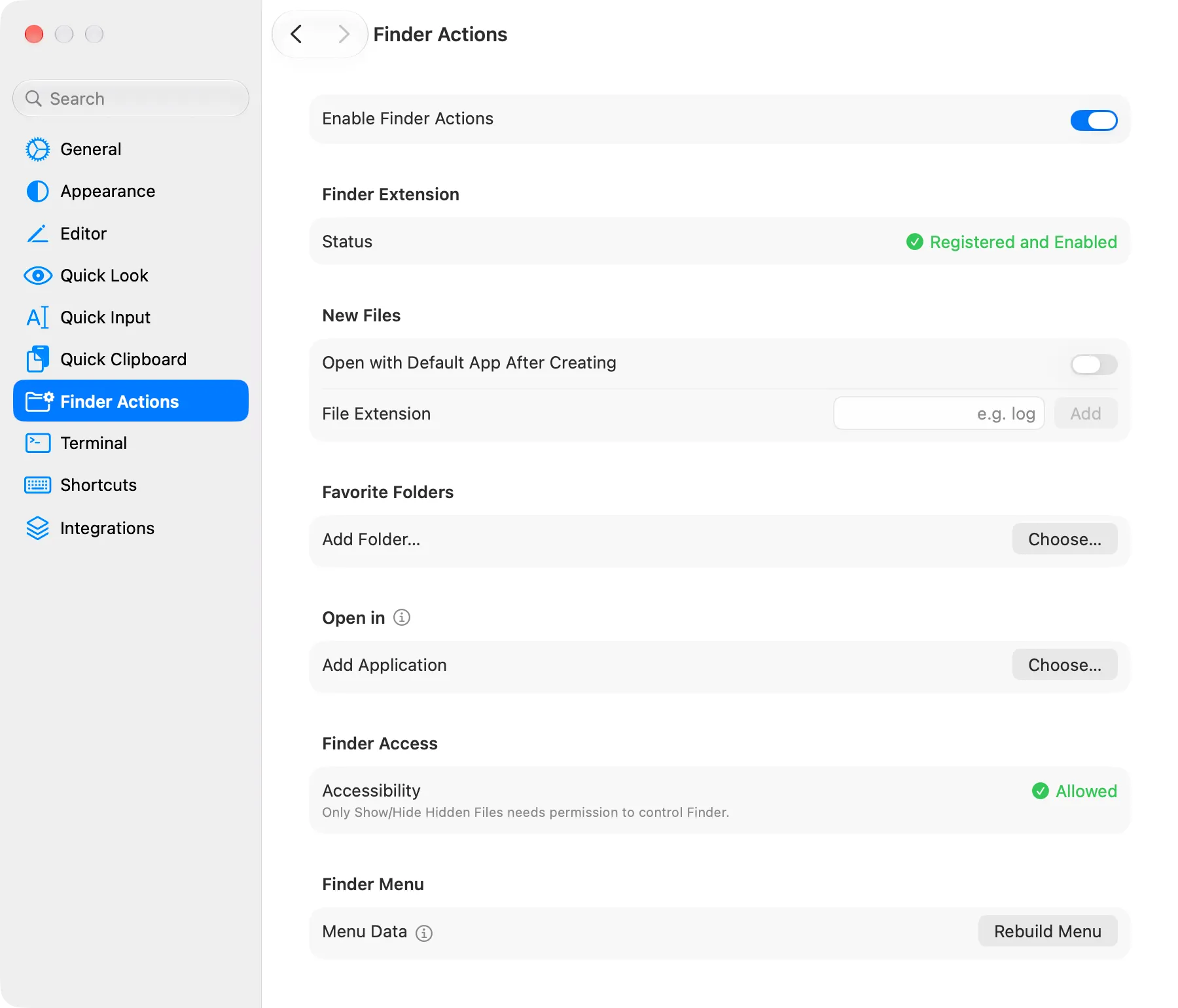
In a permission alert, choose Open System Settings if you need the feature. If you dismissed the alert, open the relevant pane from the table and find the Space entry. In Accessibility, use the add button to select Applications > Space.app if the app is absent. You can turn off access later in the same pane. Apple’s Accessibility guide and Apple’s Input Monitoring guide.
If Space keeps asking even though its entry is on, quit Space, check that the enabled entry points to the copy in Applications, and reopen it. Retry the feature from its own settings. See Troubleshooting if the status still does not update.
- If double-clicking a file no longer opens what you expect, Finder’s Get Info > Open with shows exactly who is registered to open that type on this Mac.
- Not sure whether Space supports a type at all? Help > Supported File Types… lists every extension it recognizes and what opens it.
- Once previews work, Open and save files covers the other half: what happens when you open a file to change it.
- The Direct version rechecks the Quick Look extension’s status when you return from System Settings. The Mac App Store version leaves extension management to macOS.
- A checksum helps detect a damaged or changed download when the release provides one.
Related settings
Section titled “Related settings”- General — new document defaults, what happens when you close an untitled document, Space’s interface language, Dock visibility, the
spacecommand line tool, and Restore default settings. - Help > Supported File Types… — every type Space recognizes, its extensions, and what opens it.