

Preview Markdown in Finder with Quick Look
To preview a Markdown file on your Mac, select it in Finder and press the Space bar. Space’s Quick Look extension also previews JSON, source code, and logs. If Finder still shows the old preview, see how to enable the Quick Look extension.
[!CAUTION] Quick Look does not write to the file. Open it in Space when you need to edit or authorize additional local resources.
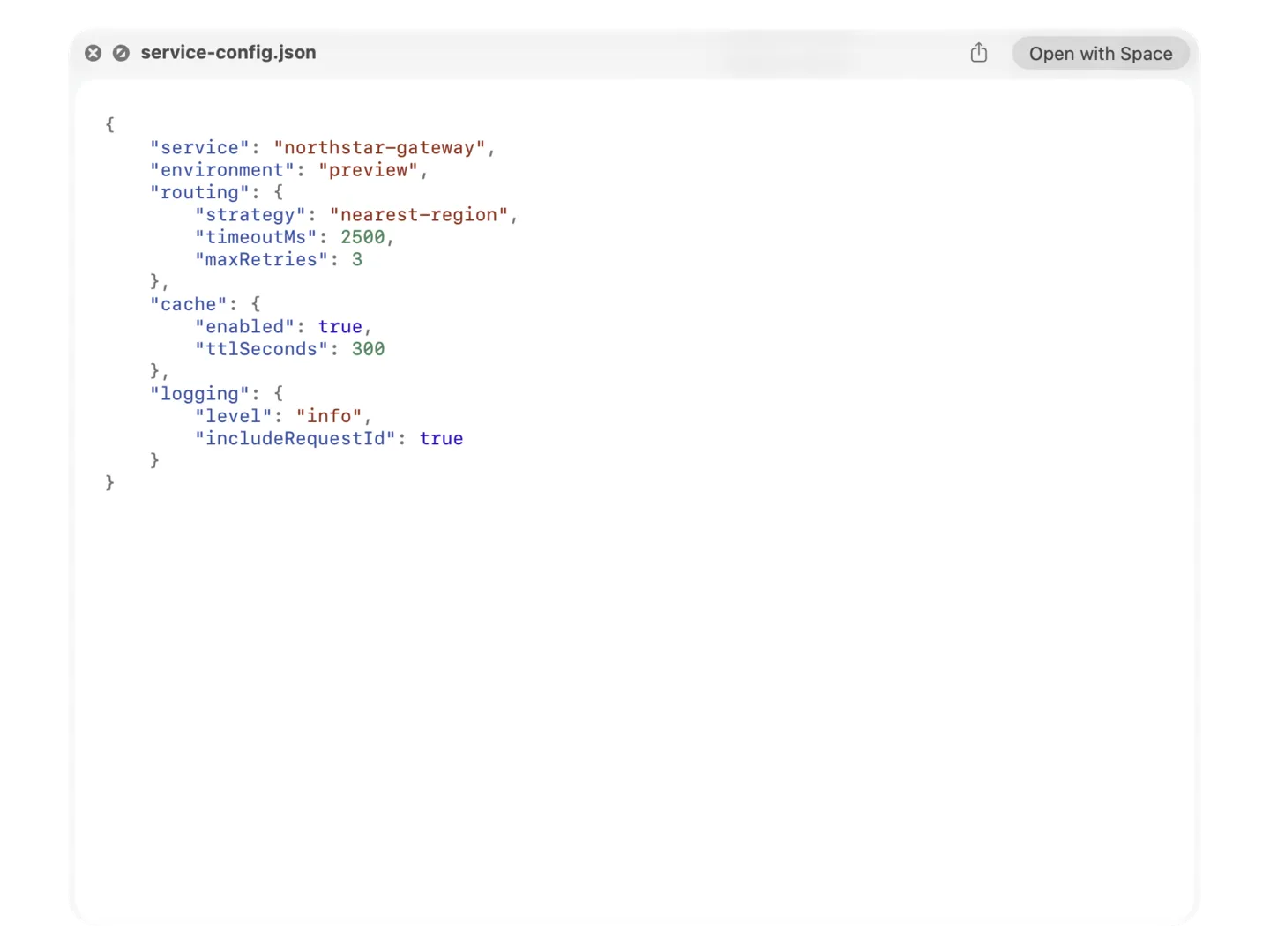
Use the preview
Section titled “Use the preview”Select a file in Finder and press Space. Press Space again to close it.
Open the editor
Section titled “Open the editor”Choose Open with Space in the preview. Search, fold or edit in the document window.
Supported content
Section titled “Supported content”File types
Section titled “File types”Space recognizes 128 file types, including extensions and exact filenames such as Dockerfile, Makefile and .gitignore. An extension with no dedicated rule is still shown as plain text rather than an error page, and files with no extension at all — or dotfiles — can be previewed too. An extension that isn’t in the catalog at all can’t be previewed by any Quick Look extension; that’s a platform limit, not something Space can work around.
Source code
Section titled “Source code”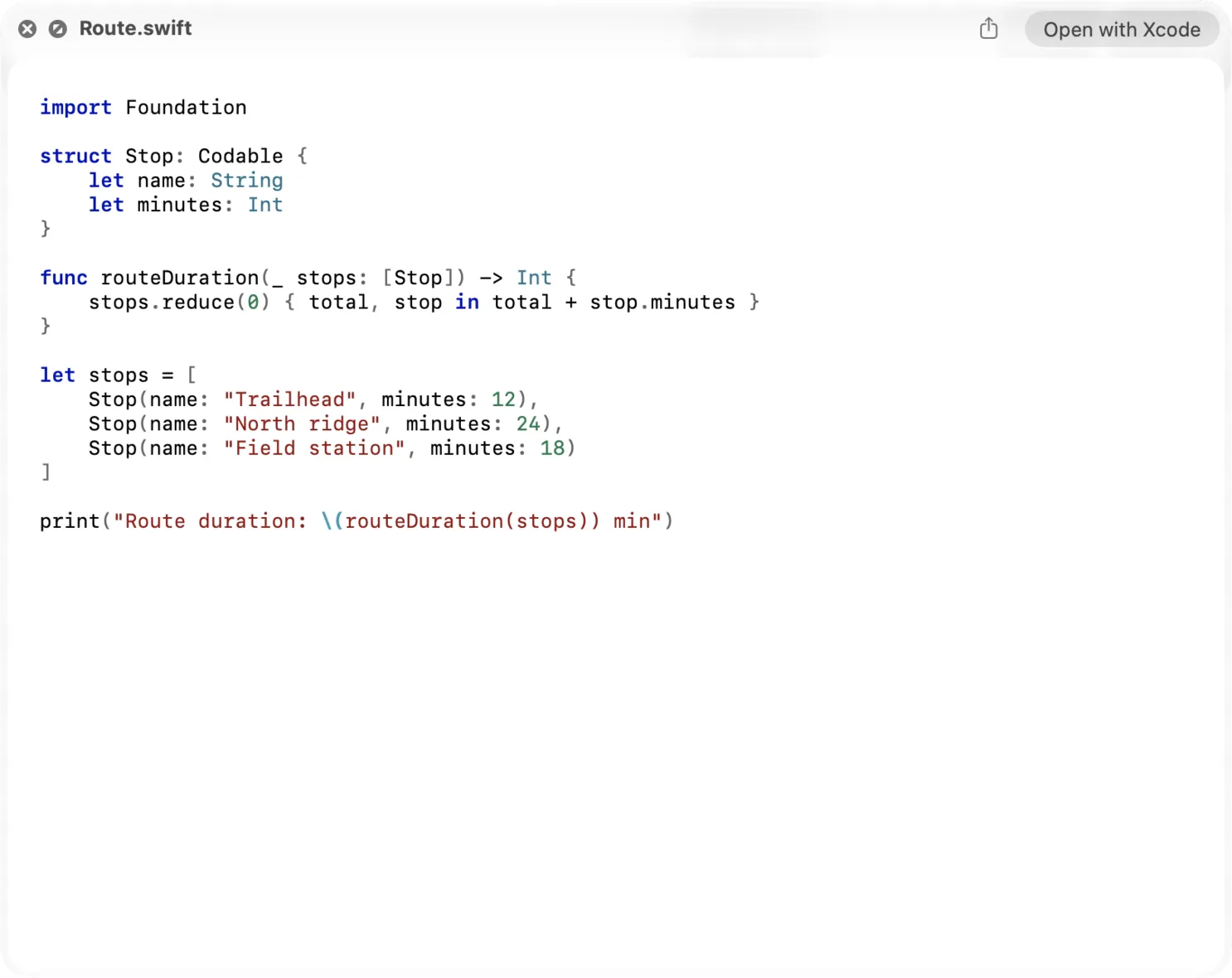
Syntax highlighting covers more than 30 languages in a single pass, so comments and strings never bleed into each other. Quick Look is a read-only glance, so the preview has no line-number gutter and no folding triangles; folding lives in the editor — see Code Folding.
JSON and JSON Lines
Section titled “JSON and JSON Lines”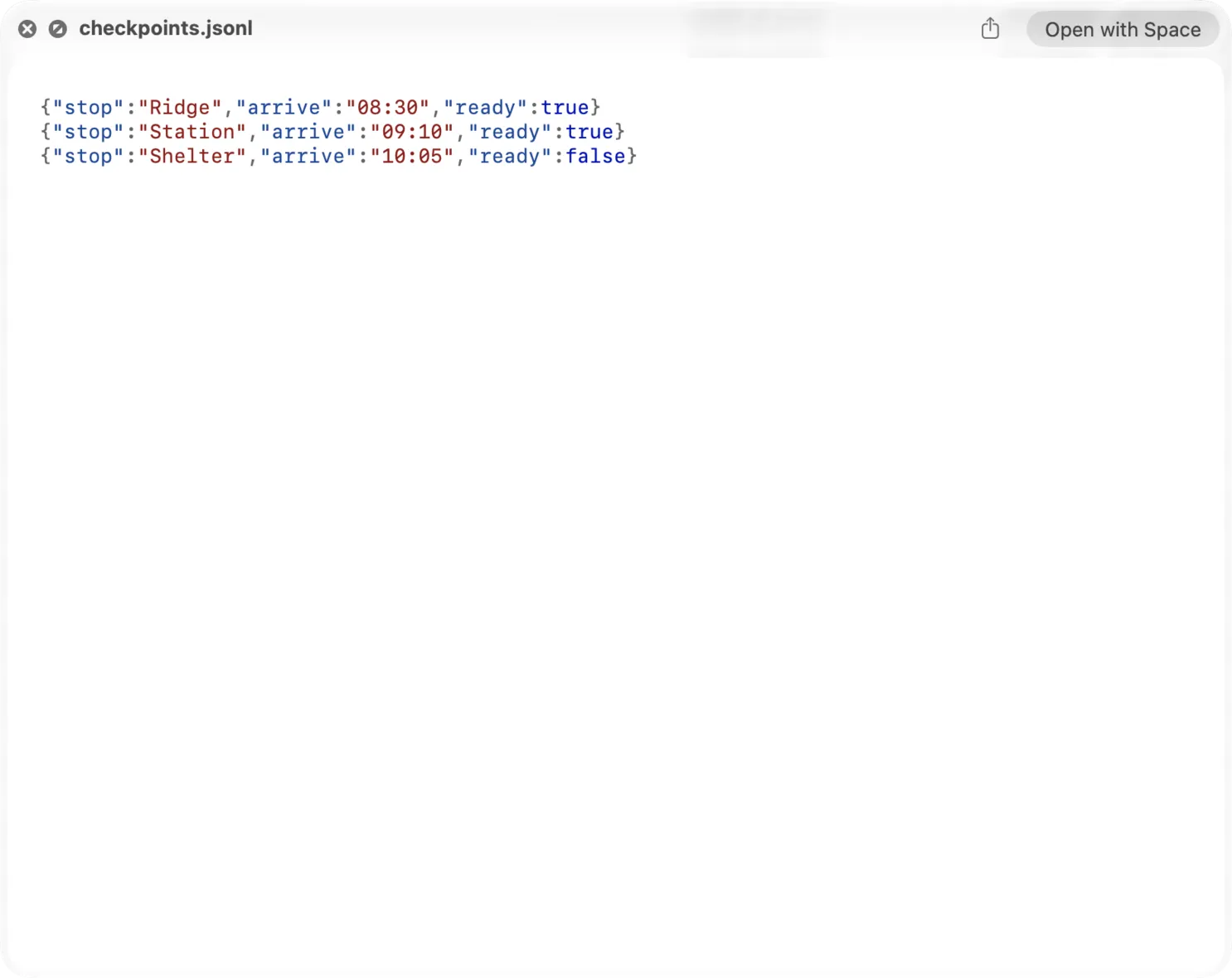
Both are treated as code and highlighted. Quick Look does not provide search; open the file in Space Edit to find text. A minified .json file is expanded for display only — the preview shows it re-indented, but the file on disk is untouched. JSON Lines files are shown one record per line, matching the format’s own convention. To lay a record out across multiple lines, open the file in Space and use the triangle on its line.
Markdown and SFM
Section titled “Markdown and SFM”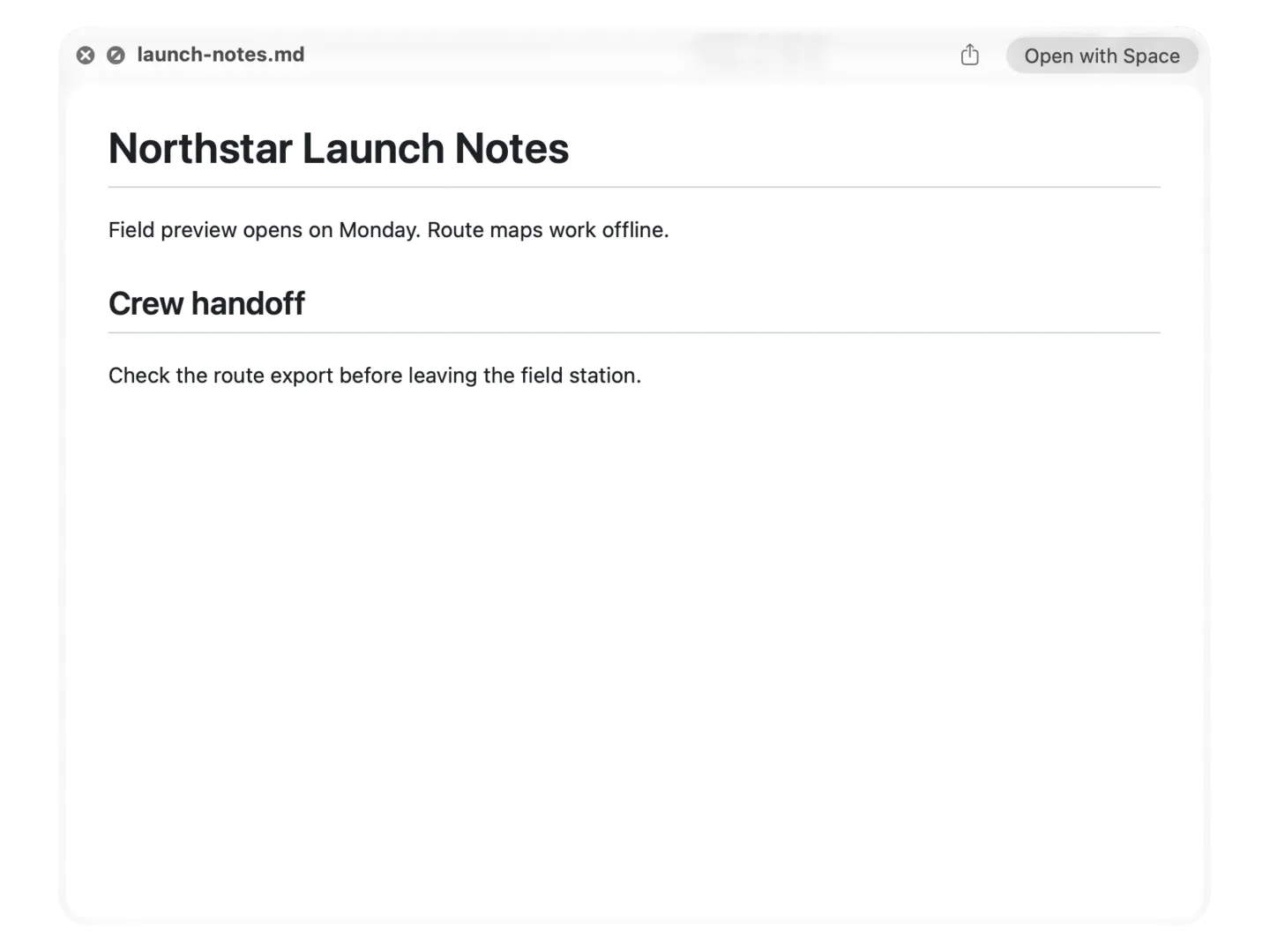
The preview renders Markdown and the supported SFM extensions in place. Common content includes headings, paragraphs, emphasis, links, lists, task lists, tables, quotes, code blocks and footnotes.
| Content | Read-only result |
|---|---|
| GFM alerts and SFM highlights | Styled callouts that preserve their meaning and source text |
| SFM columns | Side-by-side blocks that stack in source order in a narrow view |
| Front matter | A highlighted metadata panel; a supported title can become the visible heading when the document has no level-one heading |
| Math | Inline $…$ and block $$…$$ formulas when the expression is supported |
| Diagram fences | Supported Mermaid, PlantUML, Draw.io and Excalidraw diagrams as read-only results |
| Collapsible details | Expandable in the preview; opening or closing does not edit the file |
The renderer keeps unsupported or invalid blocks readable as source. Draw.io and Excalidraw are pictures in the preview; edit their canvases in Space. For the supported syntax and boundaries, see the SFM reference.
Markdown preview uses Space’s read-only renderer and shares its document presentation with the editable rendered view. Quick Look disables source-writing controls: task checkboxes do not toggle, images cannot be dragged, and tables have no editing handles. The editing workflow is described in Markdown in Space and Write and edit Markdown.
Quick Look has separate macOS file access from Space. If a referenced image or media file cannot be read, open the document in Space to check its path and access, or move the file beside the document and reopen Quick Look. See Troubleshooting for other preview failures.
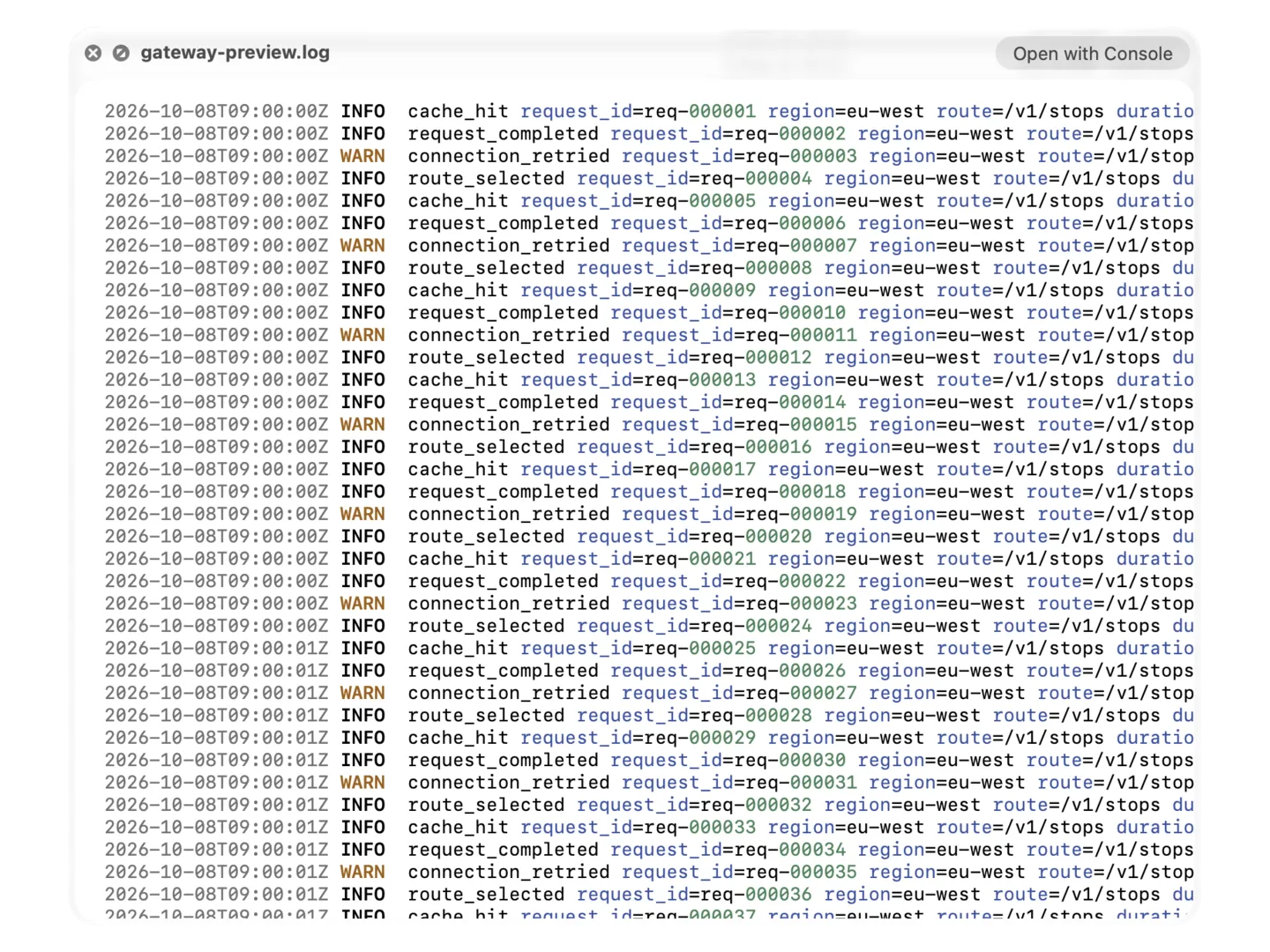
Highlighted by field: timestamps, ERROR, WARN, INFO and DEBUG, thread names, key=value pairs, URLs, IP addresses, exception names and stack frames.
For .ipynb source-file handling and the absence of a dedicated notebook interface, see Notebook file compatibility.
Standalone diagrams and drawings
Section titled “Standalone diagrams and drawings”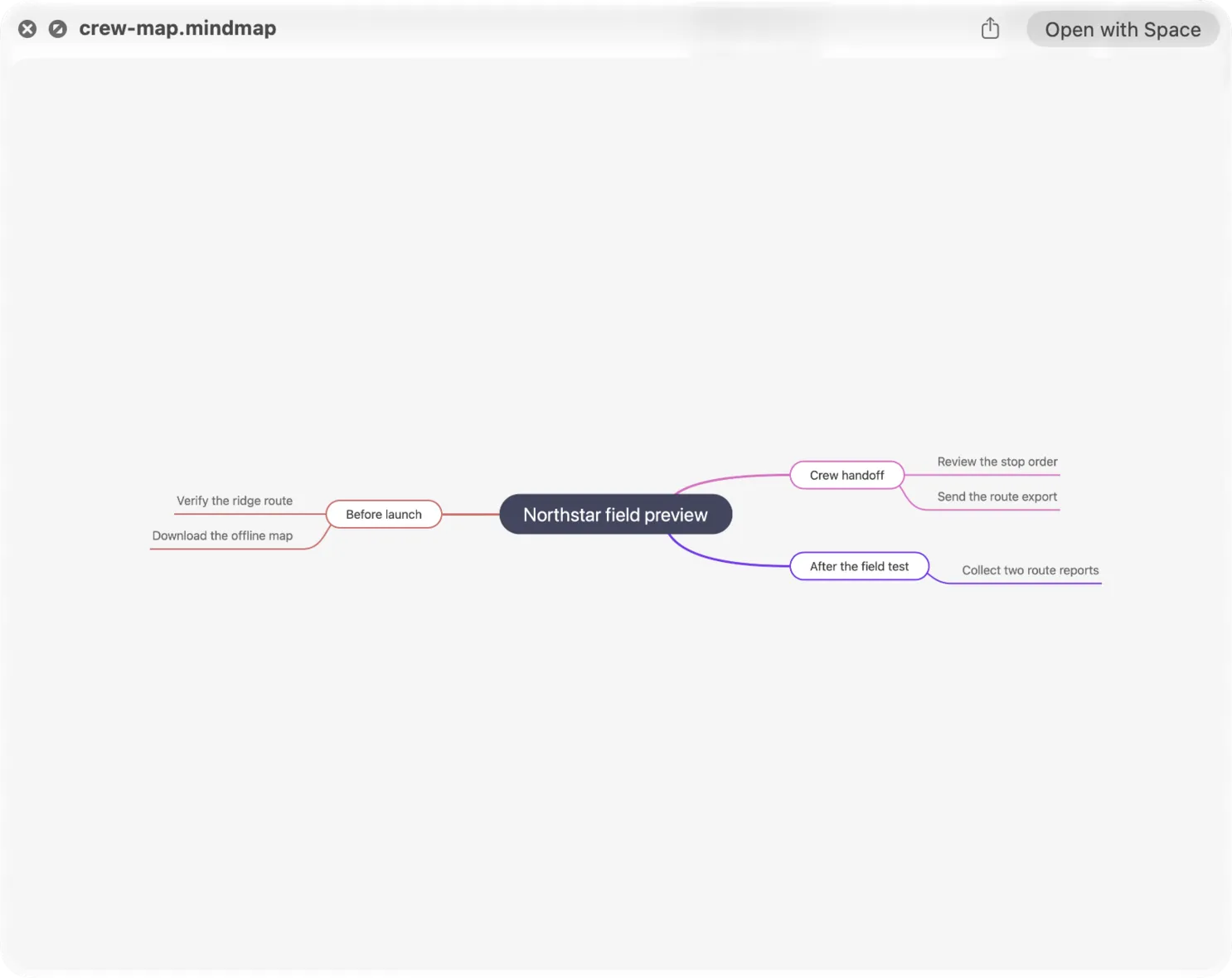
Mermaid, Draw.io, Excalidraw, PlantUML and mind map documents can show a rendered diagram instead of source. The preview is read-only and does not change the file. Sources larger than 4 MiB, malformed documents and unsupported forms fall back to readable source. Some diagram types use the bundled local renderer; see Diagrams and Drawings for the online and offline editor boundary.
Property lists
Section titled “Property lists”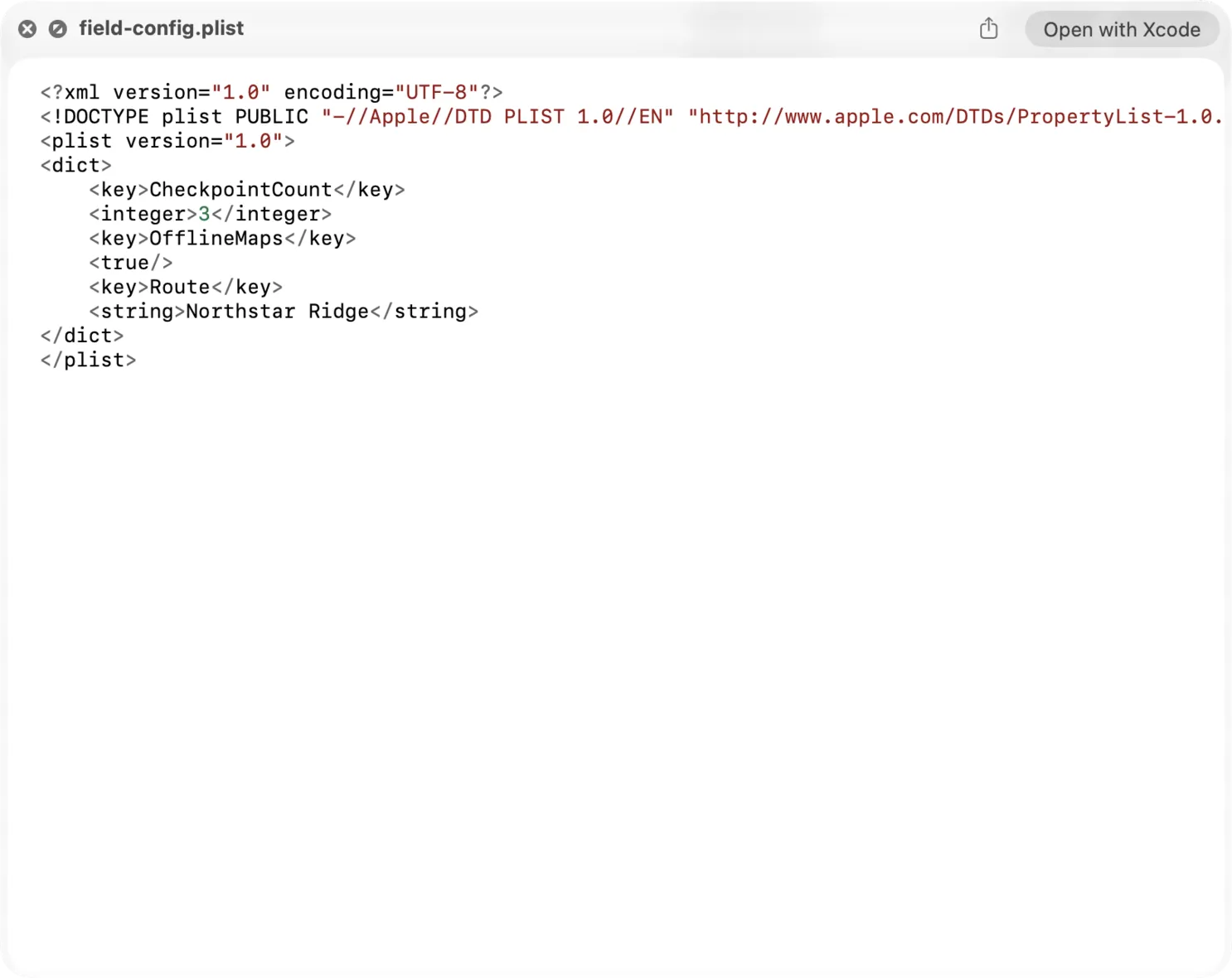
XML-format .plist files are shown and colored like any other XML source. Binary-format property lists are converted to readable XML for display; this direction only works one way, so binary plists are always read-only in Quick Look.
When the preview shows nothing useful
Section titled “When the preview shows nothing useful”If a file previews as plain text when you expected highlighting, or doesn’t preview at all, see Troubleshooting — the usual causes are an extension the catalog doesn’t recognize, another app claiming the type ahead of Space on this machine, or the Quick Look extension not being turned on yet.
Preview and editor differences
Section titled “Preview and editor differences”- Theme colors and reading styles are shared with the editor; Quick Look remains read-only.
- A
.jsonlfile’s expand/collapse state per record is scratch state for the preview only; reopening the preview starts from the file’s real, unexpanded contents again. - Compressed and minified JSON is one of the few cases where what you see in the preview and what’s on disk deliberately differ — the file itself is never reformatted by looking at it.
Related settings
Section titled “Related settings”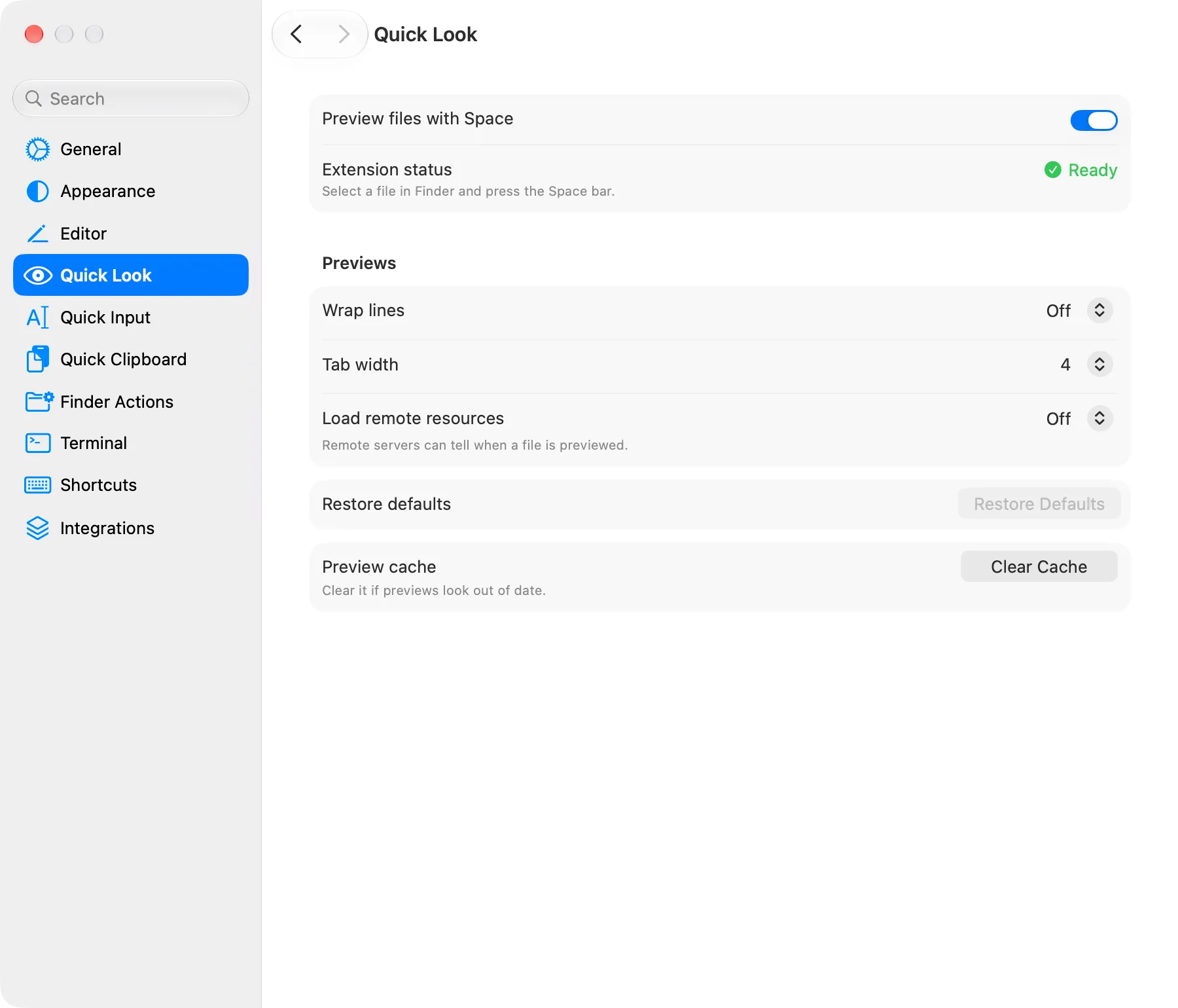
- Direct: In Settings > Quick Look, find Preview files with Space and its extension status.
- Mac App Store: Open Settings > Quick Look > System Settings… to manage registration in macOS.
- Both: Wrap Lines and Tab Width can follow Editor or use their own values. Remote-resource loading starts off.
- Appearance — Light and Dark theme choices apply to previews as well as the editor.
- Minified JSON is re-indented for display using the Quick Look pane’s Tab Width, which follows the Editor’s Tab width until you pick your own. Quick Look does not detect indentation — see Format and indent.