

Quick Clipboard
Quick Clipboard starts on and keeps local copies of text and images while Space is running. Press ⇧⌘C to find a recent copy. Turn off capture in Settings > Quick Clipboard when you want to pause that history.
text:releaseimage:diagrampinned:meetingExample search queries. A scope prefix and a keyword narrow the same local history.
Open and reuse
Section titled “Open and reuse”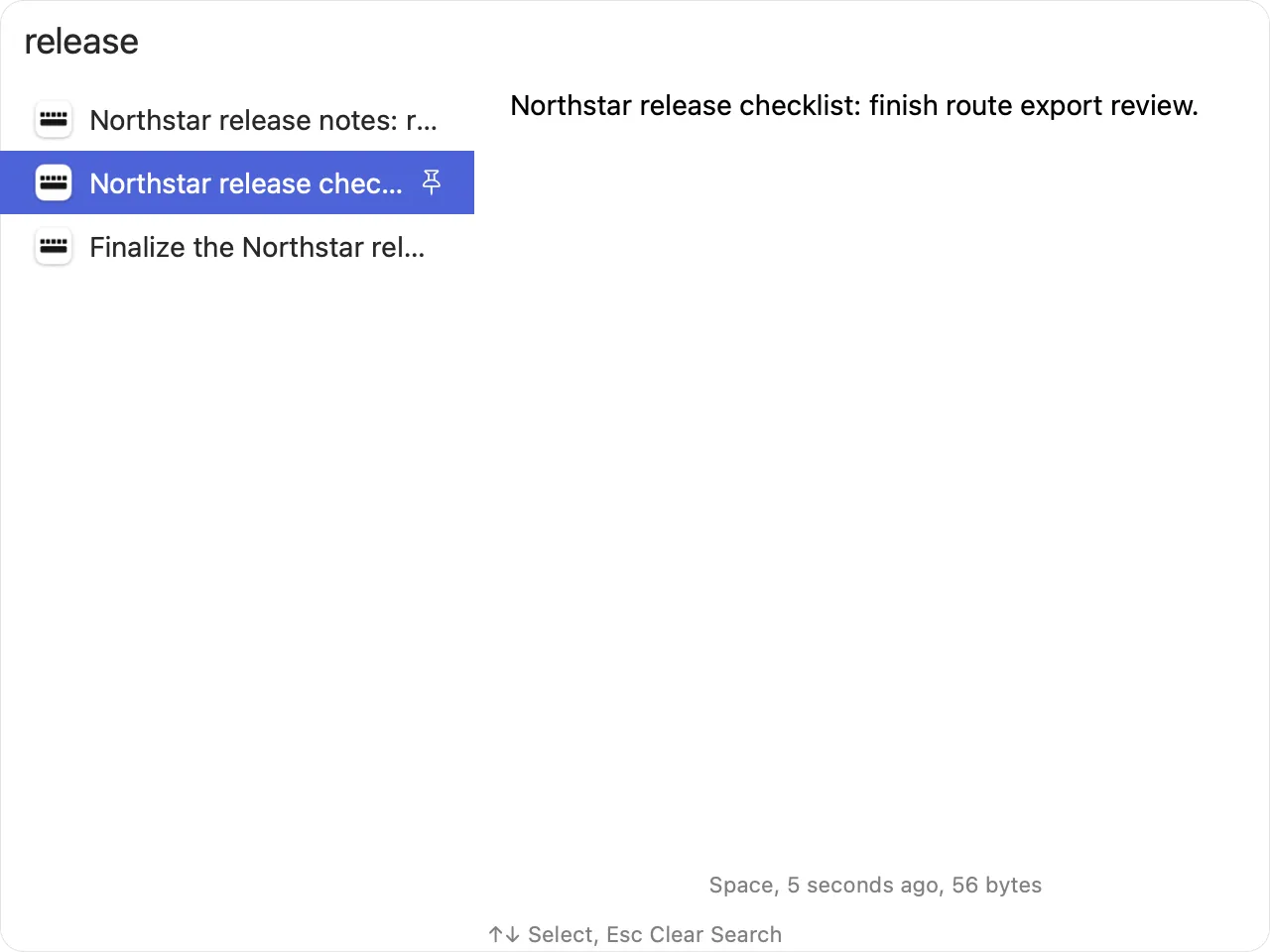
- Press ⇧⌘C, or choose Window > Show Quick Clipboard.
- Search by content, pinyin, initials or source. Select an item to preview it.
- Press Return to send it to the previously focused input, or ⌘Return to copy it again.
| In the panel | What happens |
|---|---|
| Escape | Clears an active search, then closes the panel when search is empty |
| 1–9 | Jumps to a recent result. Hold Shift to extend selection |
| Pin button | Keeps an item in history |
| Delete | Removes the selection and offers an 8-second ⌘Z Undo |
| Context menu | Offers reuse, pinning, renaming and deletion |
| Click outside | Closes the panel |
The read-only preview shows the original text or image, with source, time and file details below. Clear matches for code and color values get syntax colors or a color swatch. Drag the divider to adjust the preview width. Space keeps the previous app in the foreground while the panel receives search and selection keys.
Advanced search
Section titled “Advanced search”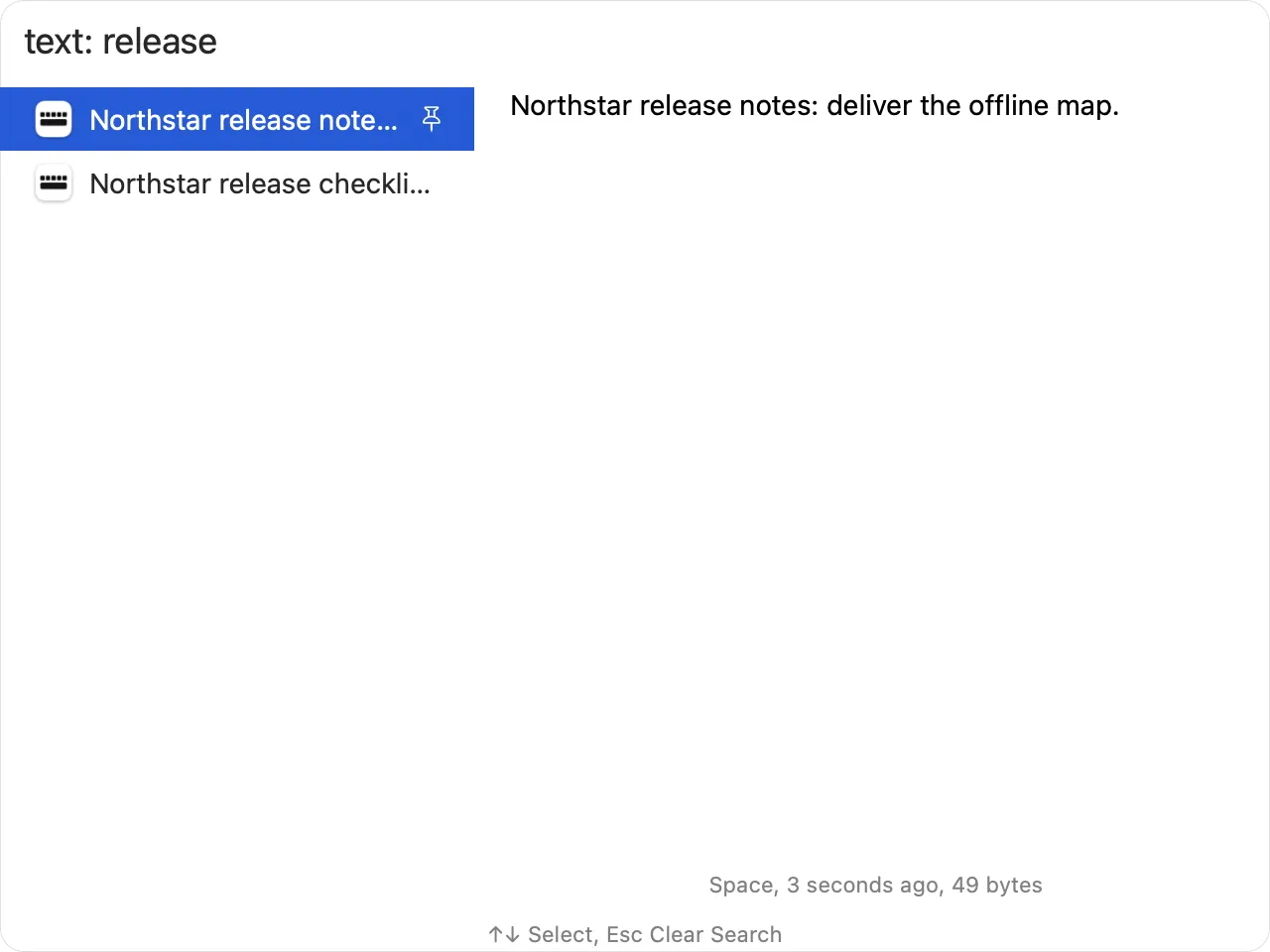
Use text: to search only text records and image: to search only image records. Both text:keyword and text: keyword are valid, as are the equivalent image forms. An ordinary keyword keeps its existing behavior, and an unrecognized prefix such as foo:keyword is treated as a plain keyword. Type scope and keywords are combined with AND. Use pinned: for pinned records, optionally with a keyword such as pinned:meeting. A full-width colon is accepted for all scope prefixes.
Explicit reuse actions
Section titled “Explicit reuse actions”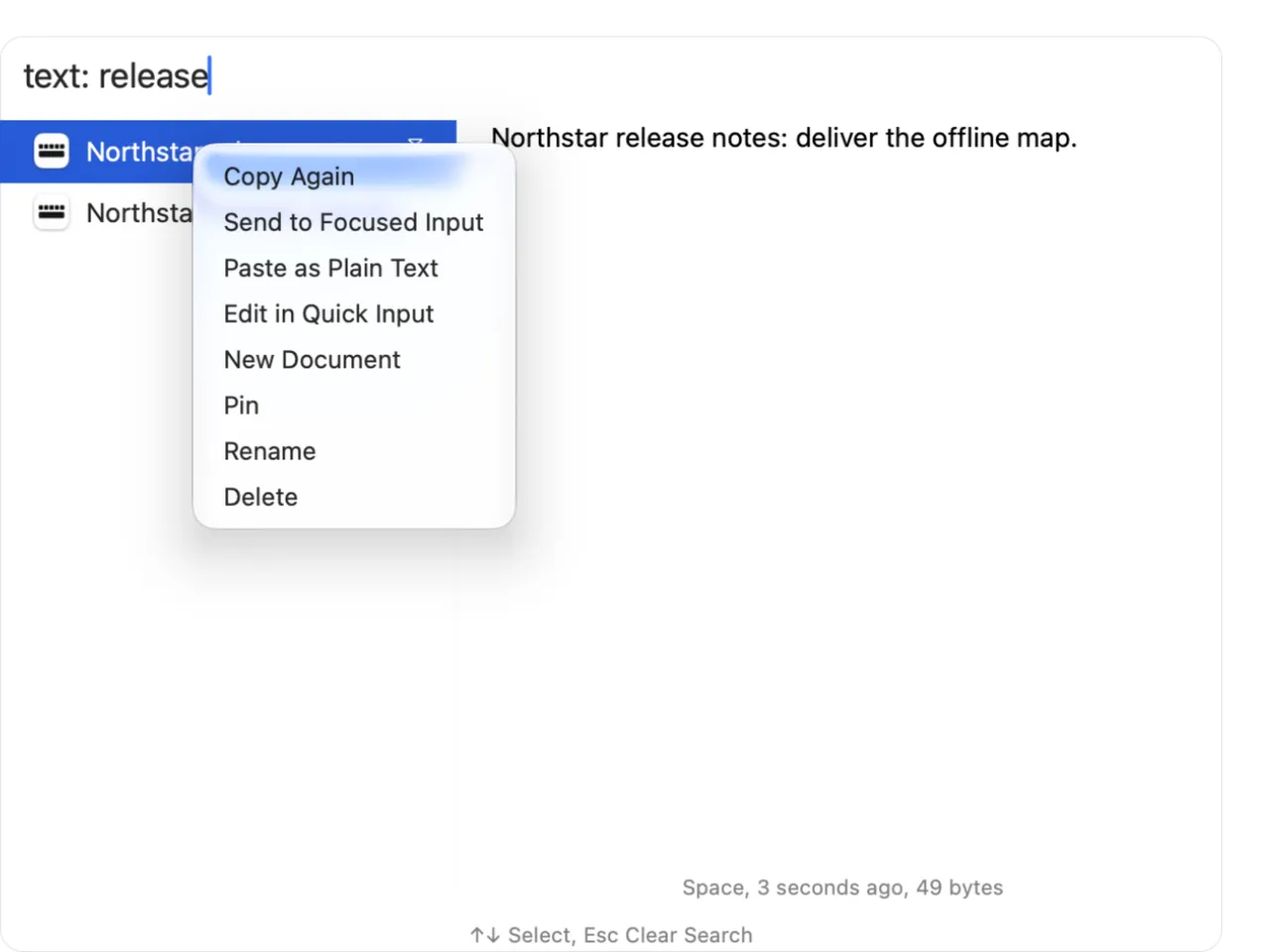
| Action | What it does |
|---|---|
| Copy Again | Writes the selected snapshot back to the system clipboard and closes the panel. |
| Send to Focused Input | Restores the app that was frontmost before the panel appeared, checks that its focus is editable, writes text or PNG data to the clipboard, and delivers the standard Paste command. |
| Paste as Plain Text | Sends the stored UTF-8 text through the same explicit paste path; image records continue to send PNG. |
| Edit in Quick Input | Puts text into Quick Input. If that temporary buffer already holds different text, Space asks before replacing it. |
| New Document | Creates a new, unsaved plain-text document; images do not have this action. |
Paste actions require Accessibility permission when a target input is available. See how to allow it. If the target app is gone, its focused control is no longer editable, or the paste fails after the clipboard is updated, Space writes the selected item back to the clipboard and closes. Secure Input still blocks paste and leaves the panel open.
The Quick Clipboard settings page displays the current invocation shortcut. Choose Change… beside it to locate the command in Settings > Shortcuts, where all Quick Clipboard shortcuts can be changed. The action shortcuts work while the Quick Clipboard panel is focused. Space blocks two panel actions from using the same shortcut; clearing a field disables that shortcut. Edit in Quick Input preserves the input target that was focused before Quick Clipboard appeared.
Capture boundary
Section titled “Capture boundary”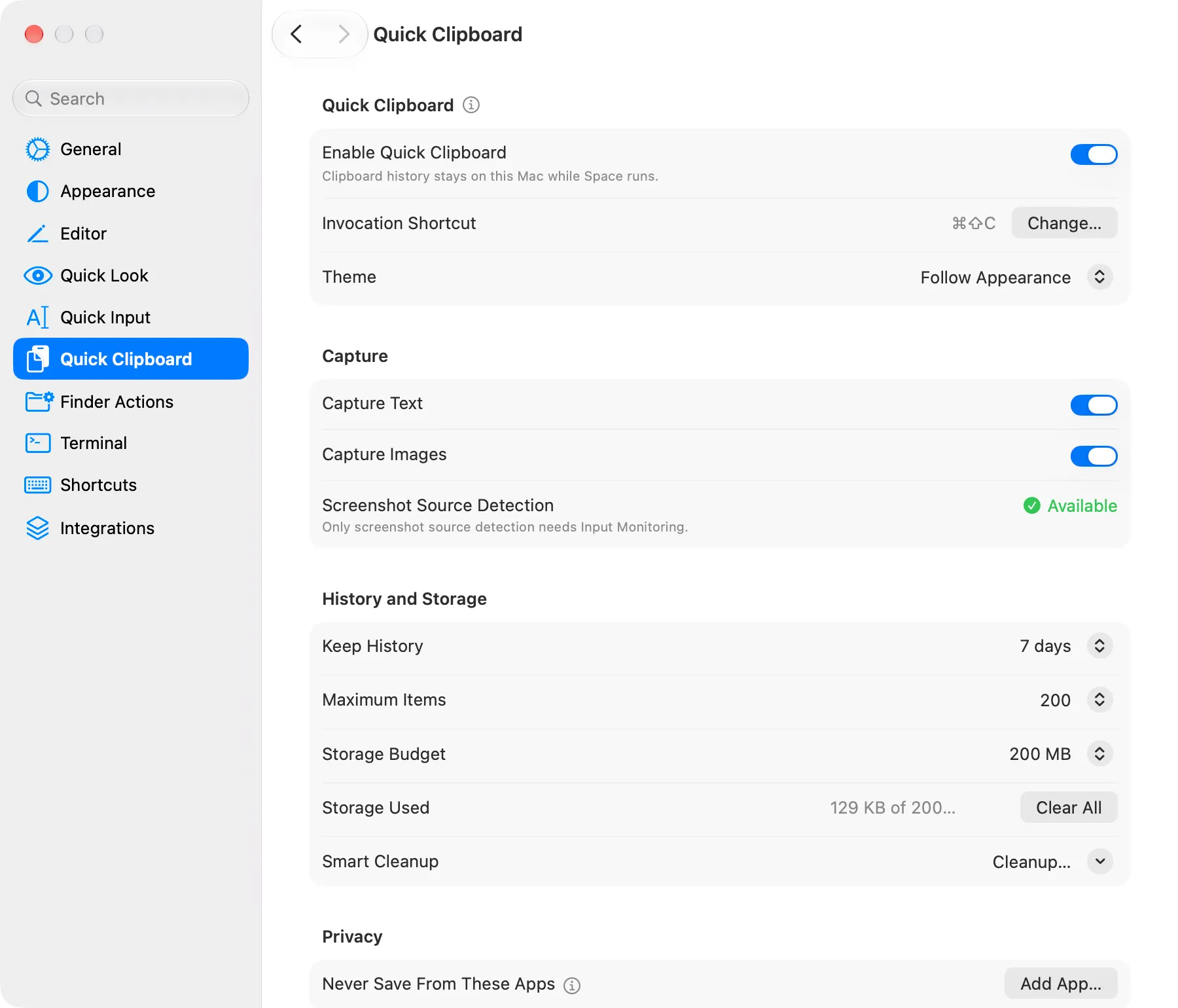
Quick Clipboard captures only plain text and PNG image data. TIFF images are converted to PNG; a multipage TIFF becomes one record per page, with its page number shown in the list and preview. File URLs are not recorded. If text and image data are present together, the image wins.
Screenshot Source Detection uses Input Monitoring to identify a screenshot’s source window. Text and images remain available if you leave it off. To allow access:
- In Settings > Quick Clipboard, choose Request Access beside Screenshot Source Detection.
- If macOS needs a manual change, enable Space in System Settings > Privacy & Security > Input Monitoring.
- Return to Space and review the permission status in the settings shown above.
Space stops the listener when image capture or Quick Clipboard is off. This feature uses Input Monitoring only.
Quick Clipboard never records clipboard items marked transient, concealed, or auto-generated by the public nspasteboard.org conventions. While macOS Secure Input is active, capture pauses. Apple Passwords is always skipped; you can add more apps under Settings › Quick Clipboard › Privacy. These filters have no off switch.
Ignoring apps reduces, but does not remove, privacy risk. An app that handles passwords without marking or enabling Secure Input can still put sensitive text on the clipboard. Review the history and delete anything you do not want to keep.
Storage and retention
Section titled “Storage and retention”The Direct version stores items under ~/Library/Application Support/app.spacetext/Quick Clipboard/. The Mac App Store version uses its own sandbox. Directories are private to your user account. Text keeps its original UTF-8 bytes; repeated copies of equivalent text or identical PNG bytes update the existing record instead of creating duplicates. The first 32,768 Unicode scalars are indexed for search; Chinese items also match pinyin and pinyin initials. Longer items remain fully readable in the preview but not fully searchable.
| Limit | Default | Choices |
|---|---|---|
| Retention | 7 days | 24 hours, 7 days, 30 days, or until limits are reached |
| History size | 200 items | Change Maximum items in Settings |
| Storage | 200 MB | 100 MB, 200 MB, 500 MB or 1 GB |
Cleanup removes the oldest matching unpinned items first. Delete All Except Pinned… keeps pinned records. Clear All permanently deletes everything, including pins. Space warns if pins alone exceed the storage budget.
Turning Quick Clipboard off stops capture and unregisters the global shortcut. Existing history remains until you clear it or it ages out.
Appearance and privacy
Section titled “Appearance and privacy”The panel follows Space’s light and dark theme slots and stays readable when the system appearance or Space theme changes. All scrolling stays inside the list and preview areas.
Quick Clipboard is local only. It has no network access, analytics, telemetry, or sync. Space must be running for capture to occur. Its default window is 720 × 540 and can be resized down to 600 × 430.