

Format and indent
The Format menu reshapes the current document using rules you can tune per language, and the editor can indent new lines for you as you type.
Try formatting JSON
Section titled “Try formatting JSON”Save this input as config.json and choose Format > Format Document:
{"project":"Space","ready":true,"files":["README.md","config.json"]}The same values become easier to scan:
{ "project": "Space", "ready": true, "files": [ "README.md", "config.json" ]}Source/result example. Formatting writes a change; a Quick Look preview does not.
Run a formatting command
Section titled “Run a formatting command”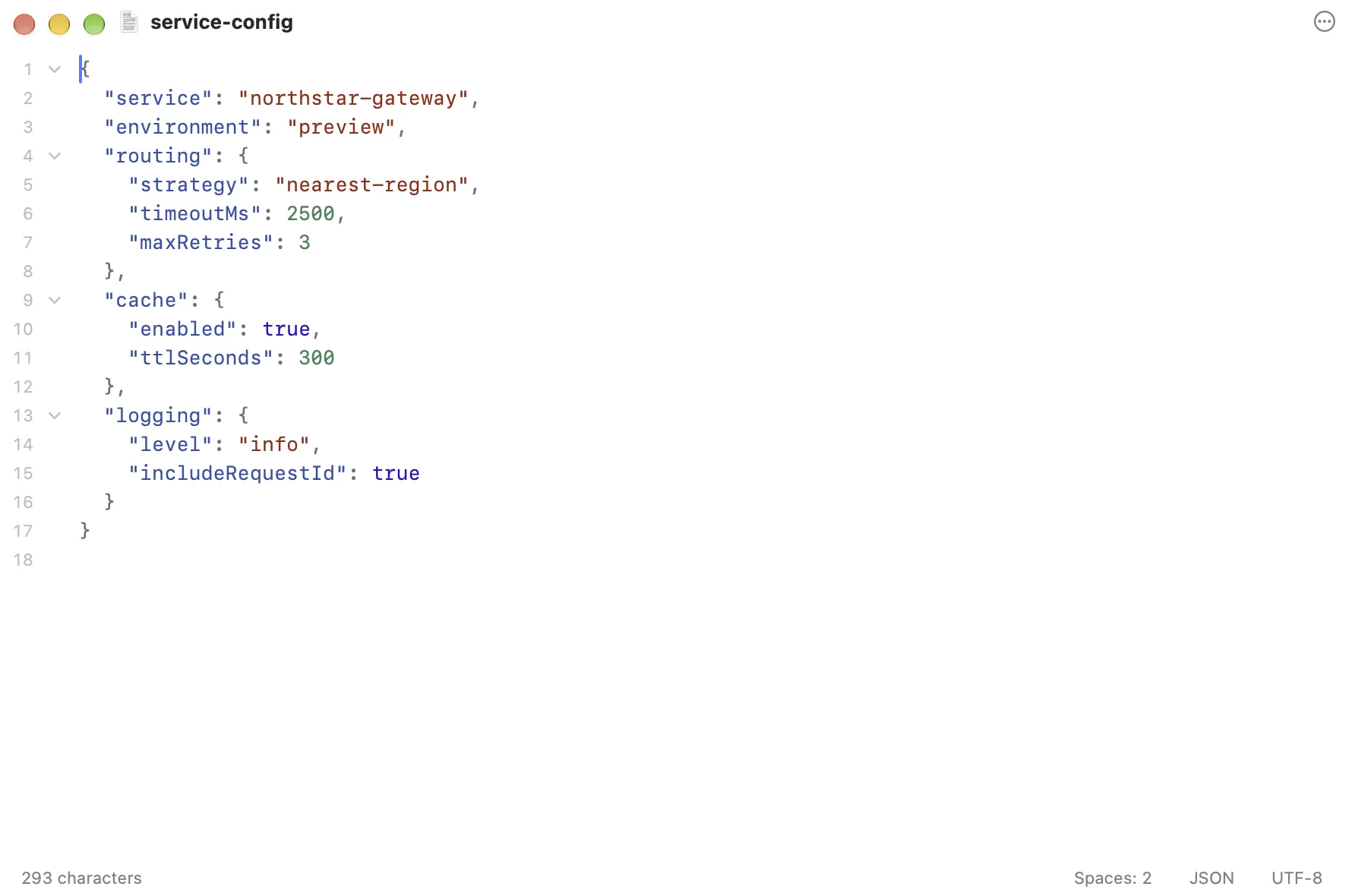
| If you want to… | Choose in Format |
|---|---|
| Apply a language’s formatter | Format Document |
| Rebuild only the leading indentation | Re-Indent |
| Save compact JSON or JSON Lines | Minify Document |
The command menu shows which actions are available for the current file and their shortcuts. Typing assistance follows Settings > Editor > Text Editing.
Formatting support and indentation rules
Section titled “Formatting support and indentation rules”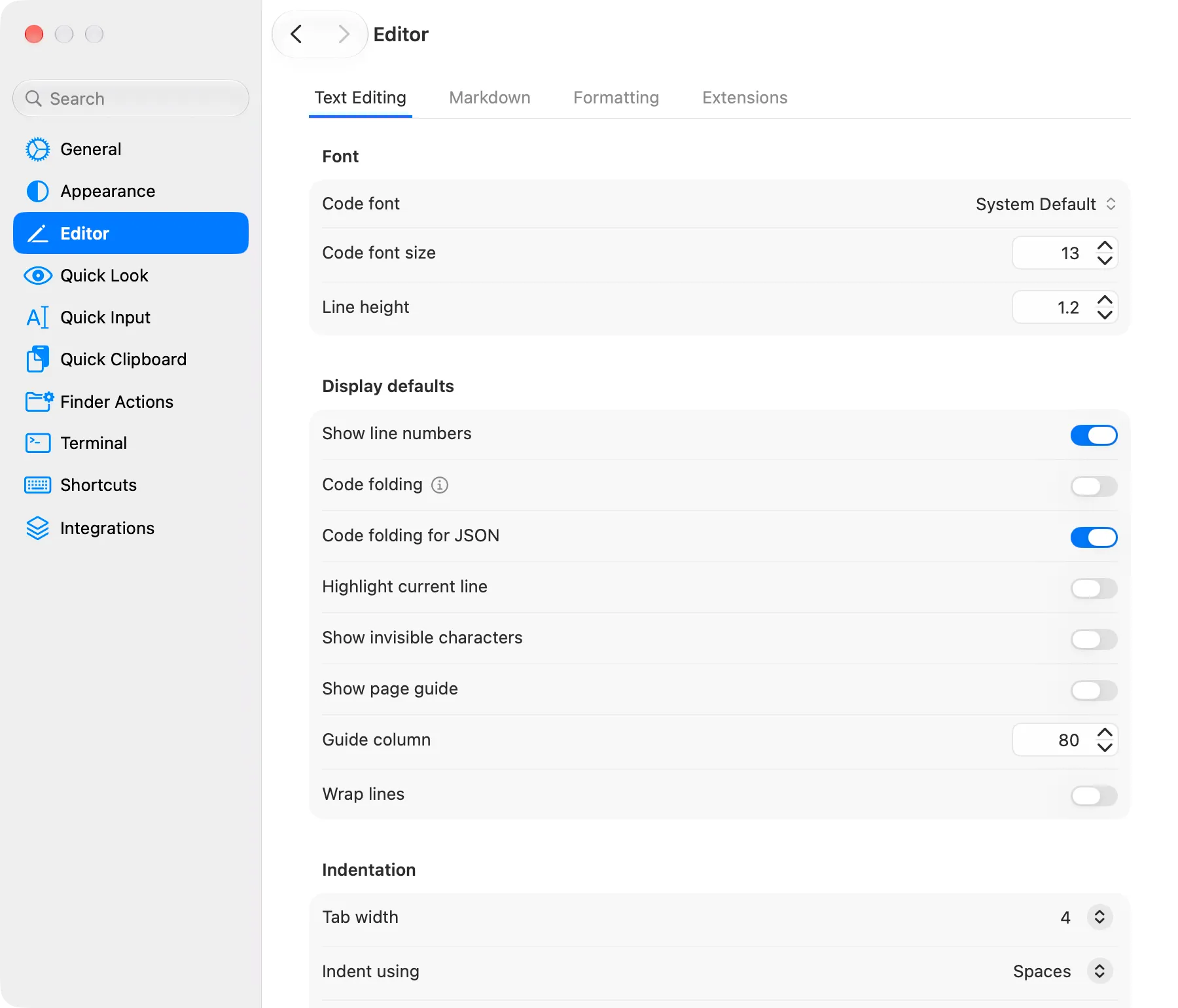
Format Document and Re-Indent
Section titled “Format Document and Re-Indent”The Format menu has five commands:
| Command | Shortcut | What it does |
|---|---|---|
| Format Document | ⇧⌘F | Reformats the whole file to the current syntax’s rules |
| Minify Document | ⇧⌘M | Collapses the file to a compact single-line form, where that makes sense |
| Re-Indent | ⌃I | Recomputes indentation for the selection, or for the whole file with nothing selected, without touching anything else on the line |
| Shift Right | ⌘] | Indents the selected lines one level |
| Shift Left | ⌘[ | Un-indents the selected lines one level |
Not every syntax supports every command. JSON, CSS, SQL, TOML and XML get exact, structure-aware formatting for Format Document. Languages whose blocks are delimited by braces get Re-Indent based on bracket depth. Python, YAML, and several shell-like languages (Shell, Ruby, Perl, Lua, INI) get lighter cleanup — trimming trailing whitespace and fixing the final newline — because their block structure isn’t bracket-based and can’t be safely re-indented mechanically. Plain text, logs, Markdown, diffs, Makefiles and assembly are left alone; commands that don’t apply to the current syntax are disabled rather than doing something silently wrong. If a precise formatter can’t parse the file, it declines to touch it rather than emitting a half-formatted result.
Format Document and Minify Document act on JSON and JSON Lines documents. JSON documents are edited as source text; Format Document and Minify Document reshape the file’s own text — to collapse a block without rewriting it, see Code Folding.
How a document’s indentation is decided
Section titled “How a document’s indentation is decided”Indentation belongs to each document, not to one global setting. For every open file Space picks the first of these that has an answer:
- What you set for that document — Indent Using Spaces, Tab Width or a conversion from the status bar’s indentation menu, or the same items under Format > Indentation. This is remembered for that file, like line numbers and wrapping, and it never changes Settings or any other document.
- What Space detects from the file’s own contents, when Detect indentation from file contents is on.
- Your defaults in Settings > Editor > Indentation: Tab width, Indent using and Indent width.
Each piece is decided separately, so a document-specific width can combine with the detected indentation style. The Tab key, Shift Right and Left, smart indentation, Re-Indent, Format Document and folding all use the result, so editing and formatting agree for that file. The status bar button shows it (Spaces: 4 or Tab Size: 4), and the first line of its menu says where it came from: Detected from File, From Settings or Set for This Document. Use Default Indentation appears there, and under Format > Indentation, once you have set the file yourself; it goes back to the other sources. Use Default View Settings in the toolbar’s View menu clears it along with the other per-document choices. Detect Indentation from Content in the same menu detects now and keeps the result as your setting for that document, and Convert Indentation to Spaces or to Tabs rewrites the existing indentation.
Detection reads the first 256 KiB, ignores blank lines and the continuation lines inside /* … */ comments, and calls the file tab-indented when at least three lines start with a tab and they outnumber the lines that start with spaces. Otherwise it looks at how much each indented line differs from the one before and takes the most common step of 2, 3, 4, 6 or 8 spaces. A file with too few indented lines gets no answer and falls through to your defaults. Nothing is saved: the file is looked at again every time it opens, so a change made by another tool is picked up.
Space treats .editorconfig as an ordinary text file and does not use it to change indentation or saving behavior. Quick Look uses its own Tab Width setting and does not detect indentation.
The Formatting settings
Section titled “The Formatting settings”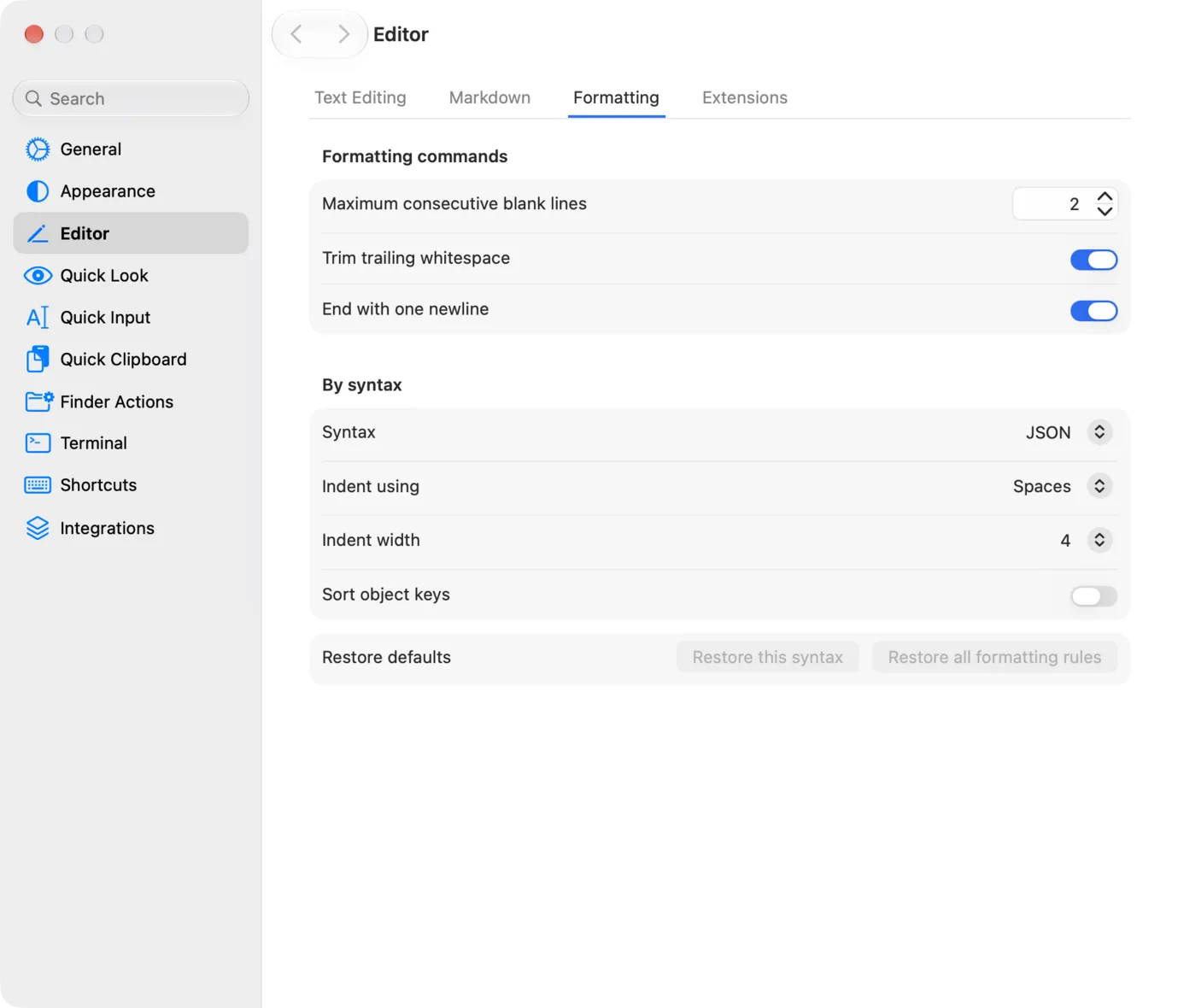
Open Settings > Editor > Formatting for the rules the Format commands use. The page has two sections:
- All Syntaxes: Maximum consecutive blank lines, Trim trailing whitespace, End with one newline. These apply to Format Document and Re-Indent. Indentation is not here — it follows the document, as above, with your defaults in Settings > Editor > Indentation.
- By Syntax lets you override rules for one language at a time. Overrides are per-language and don’t affect any other language. Indent using and Indent width can be overridden, and a small dot marks the ones that differ from the default.
- Language-specific options where they apply: JSON gets Sort object keys; XML gets Wrap attributes; CSS gets One declaration per line; SQL gets Keyword case and Comma position (leading or trailing). Blank lines, trailing whitespace and the final newline follow the shared rules above and are not overridden per language; formatting always uses the usual style for colon spacing and closing slashes.
- Restore defaults clears either the current language’s overrides or this page’s rules (Restore This Syntax and Restore All). Restore All leaves the indentation defaults in the Editor settings alone.
Smart indentation
Section titled “Smart indentation”As you press Return, Space can continue the current line’s indentation and add or remove a level around brackets. There are three modes:
- Smart (the default) — adds a level of indent after an opening bracket, and can insert a blank indented line between a bracket pair you just opened.
- Match Previous Line — keeps the previous line’s indentation without reasoning about brackets.
- Off — new lines start at the left margin.
Smart bracket-awareness only applies to code-like languages and JSON; Python, YAML, Markdown, plain text and logs always fall back to maintaining indentation, since guessing structure from indentation alone is unreliable for them. The indent unit (spaces or tabs, and width) is the document’s own, the same one Format Document and Re-Indent use, so editing and formatting never disagree about how deep a line should be.
Closing brackets and quotes
Section titled “Closing brackets and quotes”While you type in the source editor, Auto-close brackets and quotes (Settings > Editor > Typing, on by default) adds the closing half of a pair: (), [] and {} everywhere, plus the quotes of the current language, and backticks in Markdown source. Select text first and typing an opening character wraps the selection instead. A few rules keep it out of the way:
- An opening bracket only closes when the next character is the end of the line, a space, or one of
; : . , = } ] ) >, so it never splits a word. - A quote only closes when the character before it is not part of a word and the cursor is not already inside a string or comment.
- Typing the closing character right after Space added it moves over it instead of adding a second one, and Delete between a pair Space just added removes both. A closing character you typed yourself is never swallowed.
- Plain text, logs, the rendered Markdown view are left alone, and so are multiple cursors and text being composed with an input method. Each pair is one undo step.
Quotes inside a preprocessor line such as #include " are not closed, and a quote inside a multi-line comment or string may be closed once too often; one Delete removes the pair.
- Each of these commands can be given a different key — see Keyboard shortcuts.
- If Format Document is grayed out, the current syntax either has no formatter or the file failed to parse — Re-Indent or the sanitize-only cleanup (trim whitespace, fix final newline) may still be available.
- Minify Document doesn’t force a final newline the way Format Document does — it leaves the file’s own choice about a trailing newline alone.
- Overriding a rule for one language in the Formatting settings doesn’t touch the general rule other languages still follow.
- To change indentation for one file only, use the status bar button; to change it for every file whose contents provide no detected indentation, use Settings > Editor > Indentation.
Related settings
Section titled “Related settings”- Formatting — Maximum consecutive blank lines, Trim trailing whitespace, End with one newline, per-syntax overrides, Restore defaults.
- Editor — Tab width, Indent using, Indent width and Detect indentation from file contents under Indentation; Auto-indent and Auto-close brackets and quotes under Typing. Auto-indent controls the smart/maintain/off mode described above. Every row on both pages is listed in Settings.