

SFM syntax reference
Space Flavored Markdown (SFM) is the Markdown format Space uses for readable, portable documents. It includes CommonMark and GitHub Flavored Markdown (GFM), plus source-visible structures for highlights, columns, metadata, diagrams, media, and other rich content.
This page is a syntax reference and live rendering sample. The examples below are rendered by this site’s read-only SFM renderer. Space remains the editor: the renderer provides read-only rendering and does not edit, save, or write Markdown. For the editing workflow, see Markdown in Space and writing and editing. For diagram editing and export, see Markdown diagrams.
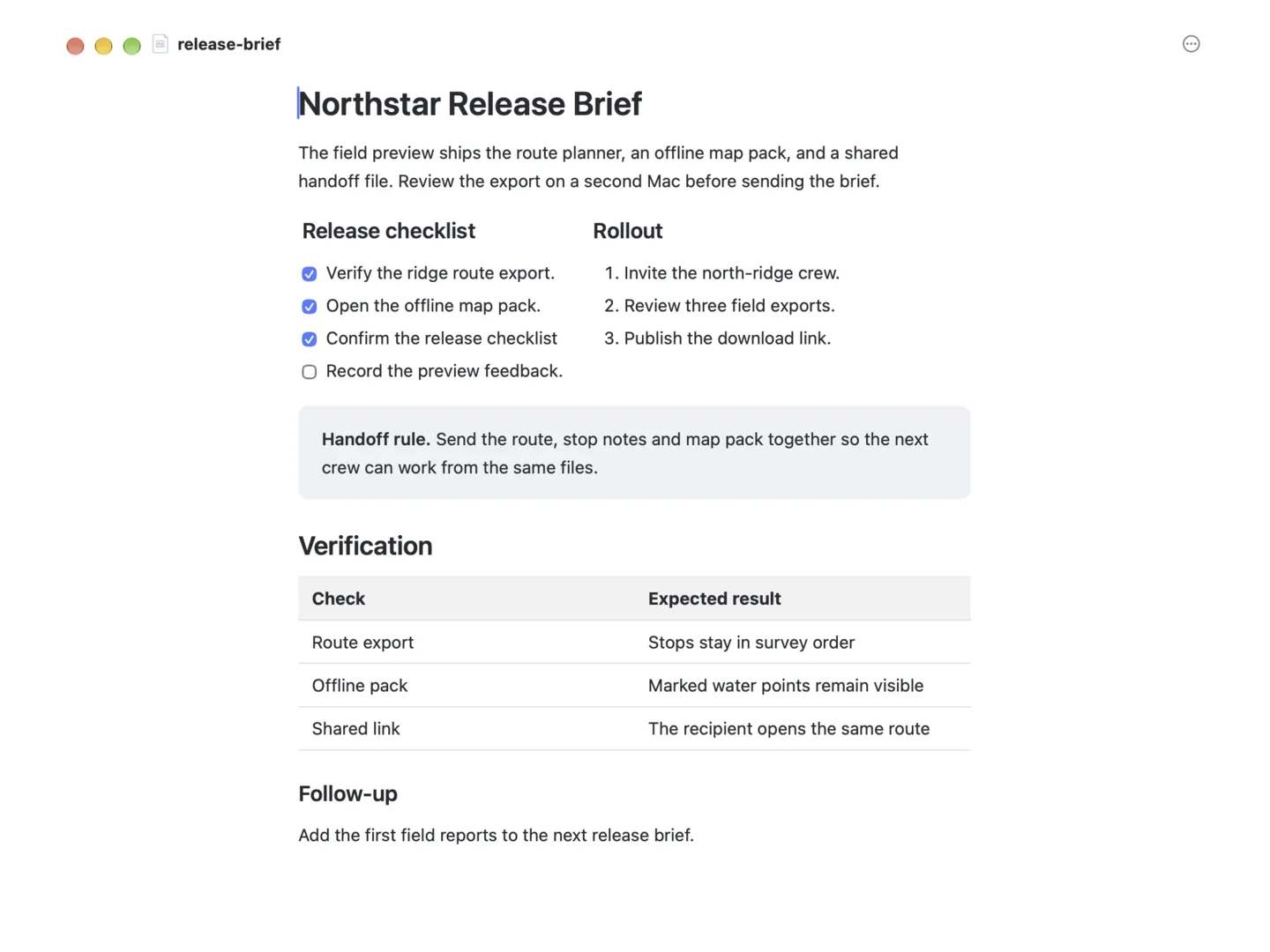
Open or download the SFM showcase
How to use this reference
Section titled “How to use this reference”Copy the Markdown source, compare it with the rendered result, and open the showcase in Space to try editing.
The developer documentation describes the web renderer, integration and API ahead of the planned public npm release.
The package implements a bounded subset of Space’s renderer. A syntax shape not supported by the package is kept readable as escaped source instead of being executed as arbitrary HTML. “Supported” below means the documented example is implemented; it does not mean every edge case of the underlying Markdown or diagram language is supported.
At a glance
Section titled “At a glance”| Area | Source form | Reader result |
|---|---|---|
| Markdown and GFM | Headings, paragraphs, emphasis, links, lists, tasks, tables, quotes and footnotes | Semantic read-only HTML |
| Space blocks | Alerts, custom highlights, columns and collapsible details | Styled blocks that retain their source syntax |
| Document metadata | YAML, TOML or JSON front matter at the beginning of a file | Highlighted metadata panel; title may supply the visible document heading |
| Inline additions | Emoji shortcodes, ==highlight==, formulas and color values in inline code |
Glyphs, marked text, math and color swatches |
| Images and media | Markdown/HTML image forms and direct-source audio/video tags | Loaded only through host-provided resource handling |
| Diagrams and data | Mermaid, PlantUML, Draw.io, Excalidraw, mind maps, GeoJSON, TopoJSON and ASCII STL fences | Static, read-only diagrams or source fallback |
| Reader controls | Typed options passed to render() |
Appearance, typography, line numbers, heading numbering, outline and media-loading behavior |
Markdown and GFM
Section titled “Markdown and GFM”Headings, paragraphs and inline text
Section titled “Headings, paragraphs and inline text”Use one to six # characters for headings. Paragraphs are separated by a blank line. Two trailing spaces or a backslash make a hard line break; a blank line starts a new paragraph. Three or more hyphens, asterisks or underscores on a line make a thematic break.
# A document title
Two paragraphs can contain **bold**, *italic*, ~~strikethrough~~,`inline code`, and an escaped \*literal asterisk\*.
This line ends with a backslash \so the next sentence starts on a new line.
---
The same forms are live here: bold, italic, strikethrough, inline code, and escaped *literal asterisks*.
Headings receive linkable IDs. Repeated headings are disambiguated with a suffix; Unicode headings, including Chinese text, keep readable anchors. A heading-numbering reader option can add display-only numbering without changing the source.
Links and automatic links
Section titled “Links and automatic links”Inline links may include a title. Reference links support full, collapsed and shortcut labels. Bare email addresses and simple domain names can become links. The package only creates navigable links for allowed schemes; relative links require a host resolver.
[Space](https://spacetext.app "Space website")
[Reference][docs][docs]: https://spacetext.app/docs/
www.example.com and reader@example.com
Live links: Space documentation and https://example.com.
Unsafe protocols and ambiguous addresses remain non-navigable. For relative links, a site should resolve the Markdown address against its own route or document base URL.
Block quotes
Section titled “Block quotes”Prefix each quoted line with >. Quotes can contain paragraphs, emphasis, inline code and nested quoted lines.
A quote can contain bold text and
code.It can also contain a second paragraph.
Lists and task lists
Section titled “Lists and task lists”Use -, * or + for unordered lists and a number followed by a period for ordered lists. Lists can nest. GFM task items use [ ] and [x]; in the reader their checkboxes are read-only.
- First item- Second item  - Nested item
1. First step2. Second step
- [x] Completed- [ ] Still to do- First item
- Second item
- Nested item
- First step
- Second step
- Completed
- Still to do
Simple nested lists and task lists are rendered. Complex loose lists, deeply nested blocks, multiline formatting, or unsafe descendants may be shown as source rather than partially restructured.
Tables
Section titled “Tables”Space offers two table forms in Markdown. Basic tables use GFM pipes. Advanced tables use an HTML <table> block, so merged cells remain readable in other Markdown readers. Use the Advanced Table command in the Slash Menu, or convert a Basic Table from its toolbar. Conversion is one way. Other readers may show different colors and column widths.
<table> <tr><th>Class</th><th>Course</th><th>Average</th></tr> <tr><td rowspan="2">Class 1</td><td>Language</td><td>95</td></tr> <tr><td>Mathematics</td><td>96</td></tr></table>Keep a blank line before and after an HTML table. Write formatting inside cells as HTML, such as <strong> and <a>, because Markdown syntax inside an HTML block is not parsed by standard Markdown readers.
Advanced cells can also contain HTML headings, lists, task lists, quotes, code blocks, and images. Their structure is saved inside the table as HTML; write those blocks with HTML tags for other Markdown readers. Space’s reading view shows that structure: task-list checkboxes appear as static marks, and list, quote, and heading shapes are preserved. Basic GFM table cells remain inline text and formatting.
Mermaid, PlantUML, Draw.io, Excalidraw, Mind Map, GeoJSON, TopoJSON and ASCII STL inserted into an advanced cell keep editable source in an HTML code block. When preview generation succeeds, Space writes a PNG beside the document in .space-table-previews/ and refers to it with a relative path inside the table. Keep that folder with the Markdown file when sharing it. Other Markdown readers can display the image and source; if preview generation fails, the source remains visible and editable in Space.
Select a cell, a range, a row, or a column to show table actions for that selection. A text cursor inside a cell keeps the table toolbar hidden. Hover the table’s block handle to preview whole-table actions; the toolbar stays open while the pointer moves onto it. Use the solid dots at the table edges to insert rows or columns. Drag a row or column handle to move it; the toolbar’s Delete action follows the selected row, column, or whole table. Advanced tables offer separate horizontal and vertical cell alignment menus. Select text inside an advanced cell to apply text color or underline to just that text.
GFM tables use pipes and a delimiter row. Colons in the delimiter set left, center or right alignment. An outer pipe is optional. Escape a literal pipe inside a cell with \|.
| Left | Center | Right || :--- | :---: | ---: || plain | **bold** | 1 || `a\|b` | [link](https://example.com) | 22 || Left | Center | Right |
|---|---|---|
| plain | bold | 1 |
a|b |
link | 22 |
The delimiter row also carries relative column widths. When its cells have different lengths (dashes plus colons), the columns share the table width in that proportion; cells of equal length, including the common --- form, keep the default content-fit layout. Counting follows Pandoc pipe tables, with one difference: Pandoc applies the ratios only when a table exceeds its page width, while Space applies them at every width.
| Name | Description || :-- | -----: || alpha | Short text || beta | A considerably longer description |The sample above describes the source form. In Space, columns split proportionally, dragging a column border writes the ratio back to the delimiter row, and the Auto-fit Columns action restores the default. Renderers that attach no meaning to dash counts keep the table valid — GitHub shows it as an ordinary table with its default layout — while Pandoc applies the ratios directly. The web reader currently lays tables out with its default content-fit widths.
Tables keep native table semantics. Ambiguous column counts, unsafe cell content and unsupported table structures fall back to readable source. A narrow host may need to provide its own horizontal overflow treatment for very wide tables.
Footnotes
Section titled “Footnotes”Define a reference with [^label]: and refer to it with [^label]. Repeated references share the definition; multi-paragraph definitions are supported. The reader creates a footnote list and return links.
This sentence has a footnote.1 The same note can be referenced again.1
Safe inline HTML
Section titled “Safe inline HTML”SFM documents may use a constrained set of semantic inline tags, such as <kbd>, <mark>, <sub>, <sup>, <abbr>, <time> and <bdo>. Common paragraph and division alignment forms are also recognized. Comments are hidden. Unknown or unsafe tags and attributes do not execute; unsupported markup is escaped or reduced only where the renderer has an explicit safe rule.
Press Command + K, mark important text, and write H2O or x2.
Arbitrary HTML components, scripts, event handlers, stylesheets and unsafe URLs are not a general extension mechanism. Use SFM blocks below for document structure.
Front matter
Section titled “Front matter”Front matter is metadata at the very beginning of a Markdown file. YAML uses ---, TOML uses +++, and JSON uses an opening { and a closing } on their own lines. The original metadata and delimiter lines remain in the document source and are shown in a highlighted panel. If the body has no level-one heading, a supported title value can supply the visible document heading without adding a heading to the Markdown body.
YAML:
This fenced Markdown file is shown as source and then passed through a second instance of the same renderer, so the metadata panel and promoted title below are live output:
---title: Project notesauthor: Spacetags: [design, sfm]status: draft---
The title comes from front matter because this body has no level-one heading.
TOML:
+++title = "Project notes"author = "Space"tags = ["design", "sfm"]+++JSON:
{ "title":"Project notes", "author":"Space", "tags":["design","sfm"]}The examples above show the source forms. This reference page itself has website routing metadata, so its page metadata is handled by the site rather than passed to the SFM renderer as a document front matter sample. Complex YAML/TOML/JSON interpretation is not promised; rendering preserves the source and applies syntax highlighting.
Alerts and custom highlights
Section titled “Alerts and custom highlights”GitHub-style alerts
Section titled “GitHub-style alerts”An alert is a block quote whose first line names one of five semantic kinds: NOTE, TIP, IMPORTANT, WARNING or CAUTION.
[!NOTE] Notes explain context without interrupting the main flow.
[!TIP] Tips suggest a useful next step.
[!IMPORTANT] Important blocks call attention to a key detail.
[!WARNING] Warnings describe a condition that deserves attention.
[!CAUTION] Caution blocks mark an action that can cause an error.
Nested alert-like quotes inside lists remain ordinary quotes unless they match a supported alert context.
Custom highlighter blocks
Section titled “Custom highlighter blocks”HIGHLIGHT adds a customizable block. Its default icon is the right-pointing hand (👉); omit icon to keep it, or set a supported emoji or icon="none". Text, border and fill colors accept six-digit HEX. Keep the body as ordinary Markdown.
> [!HIGHLIGHT]> Keep one concise takeaway beside the rest of the document.[!HIGHLIGHT] Keep one concise takeaway beside the rest of the document.
For a quiet highlight, remove the icon and border and choose a gray fill.
> [!HIGHLIGHT] {icon="none" border="none" fill="#eff0f3"}> **Review before sharing.** Open the PDF and check wide tables and diagrams.[!HIGHLIGHT] {icon=“none” border=“none” fill=“#eff0f3”} Review before sharing. Open the PDF and check wide tables and diagrams.
Custom highlight styles are preserved as source attributes. Invalid colors, unsupported icons or unsafe nested content fall back to source.
Inline highlights
Section titled “Inline highlights”Wrap text in == markers. Basic emphasis may be nested inside the highlight.
Keep the ==source of truth== visible, or highlight ==**a key phrase**==.Keep the ==source of truth== visible, or highlight ==a key phrase==.
Code spans do not activate highlight markers: ==literal source==.
Columns
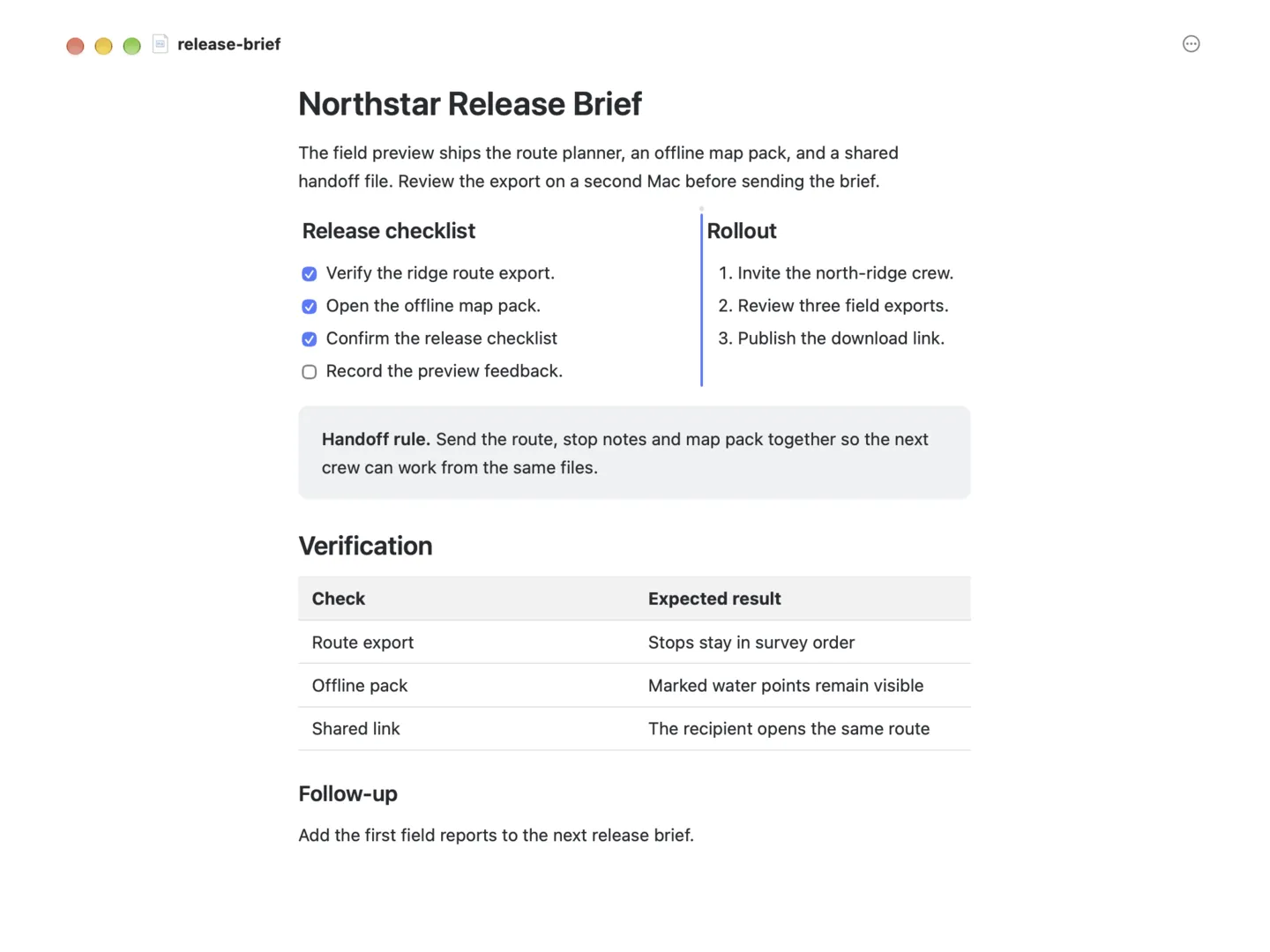
Section titled “Columns”Columns use a fenced-div container. The outer widths list contains one positive integer per column; values are relative proportions, not percentages. Each inner .space-column holds Markdown. Two through ten columns are accepted, subject to matching width and column counts. On a narrow reader, columns stack in source order.
Resize columns visually
Section titled “Resize columns visually”Drag the divider between columns in the rendered editor, then save. Space writes the new relative proportions into the widths attribute.
Equal and weighted columns
Section titled “Equal and weighted columns”:::: {.space-columns widths="2 1"}::: {.space-column}## Main columnThis column receives twice the width.:::::: {.space-column}## Side columnRelated detail goes here.:::::::Main column
Section titled “Main column”This column receives twice the width. It can include emphasis, a link, and enough text to show natural wrapping.
Side column
Section titled “Side column”Related detail, inline code, and ==highlighted text== go here.
Equal columns use widths="1 1". Three equal columns use widths="1 1 1"; the same pattern continues up to ten. Ratios such as 3 2 and 4 1 1 change the relative widths.
Column backgrounds and borders
Section titled “Column backgrounds and borders”Columns have no background or border by default. Add background and border when a visual distinction helps explain the content. Each accepts a three- or six-digit HEX color. This example leaves the first and third columns plain, and marks optional context in the second:
::::: {.space-columns widths="1 1 1"}::: {.space-column}Main content:::::: {.space-column background="#f3f4f6" border="#8b8b8b"}Optional context:::::: {.space-column}Check before sharing::::::::Main content Optional context Check before sharing
The package supports common paragraphs, lists, headings and inline formatting inside columns. Not every possible nested Markdown block or Space editing control is represented in the read-only renderer. The reader does not expose the editor’s drag handles or column actions.
Collapsible details
Section titled “Collapsible details”Use a <details> block with a <summary> line. Add open to show the body initially. Blocks may be nested in the supported form; clicking the disclosure changes only the reader view, not the source file.
<details><summary>Show additional context</summary>
This content starts collapsed and can contain **formatted text**.
</details>
Collapsed details
The body appears when the summary is opened. It can contain formatted text.
Initially expanded details
The open attribute makes this content visible initially.
Emoji and color values
Section titled “Emoji and color values”Emoji shortcodes
Section titled “Emoji shortcodes”Recognized gemoji shortcodes become Unicode glyphs in normal Markdown text. Unknown names, escaped shortcodes and code spans remain literal.
Live: :smile: :rocket: :heart: :warning: :tada:.
Literal code: :smile:. Unknown shortcode: :unknown-sfm-emoji:.
Color swatches in inline code
Section titled “Color swatches in inline code”Supported six-digit HEX, RGB and HSL color values inside inline code receive a visual swatch. The code remains the authoritative value. Plain text, fenced code, invalid HEX and alpha colors do not get a swatch.
HEX #0969DA, RGB rgb(9, 105, 218) and HSL hsl(212, 92%, 45%).
No swatch: #12345, rgba(9, 105, 218, 0.5), and a color inside a fenced code sample.
Inline formulas
Section titled “Inline formulas”Single-dollar formulas are controlled by the reader’s inlineMath option. Space’s backtick-isolated form is also supported. Dollar amounts and code spans are not formulas.
The rule is $a^2 + b^2 = c^2$.Use $`a_1 * b_2`$ when Markdown symbols belong inside the formula.The price is $5, and `$x$` is code.The rule is $a^2 + b^2 = c^2$. Space’s isolated form is $a_1 * b_2$. A price stays literal: $5.
Block formulas
Section titled “Block formulas”Double-dollar blocks and math fences render as block formulas independently of inlineMath.
$$\sum_{k=1}^{n} k = \frac{n(n+1)}{2}$$
```math\int_0^1 x^2\,dx = \frac{1}{3}```
$$ \sum_{k=1}^{n} k = \frac{n(n+1)}{2} $$
\int_0^1 x^2\,dx = \frac{1}{3}The math engine loads only when a document contains supported formulas. Invalid or unsupported TeX remains readable as source.
Code blocks
Section titled “Code blocks”Use fenced code blocks and optionally name a language. Unknown languages and oversized or unsupported blocks remain plain code; the source text is preserved. The package highlights a bounded set of languages and aliases, including Swift, JavaScript/TypeScript, Python, JSON, HTML/XML, CSS/SCSS/LESS, shell, SQL, Java, C/C++/Objective-C/C#, Rust, Go, Ruby, PHP, Perl, Lua, Kotlin, Dart, Scala, GraphQL, Protobuf, Makefile, Assembly, Markdown, YAML, TOML, INI, Diff, HCL/Terraform and Zig.
struct Document { let title: String let isReadable: Bool}const reader = render(container, markdown, { codeLineNumbers: true });reader.update(nextMarkdown);The codeLineNumbers reader option controls line numbers. It does not change code source. Code highlighting and line-number visibility are independent; unknown languages keep their original text without guessed coloring.
Hover over a code block, or focus it with the keyboard, to reveal its copy button. Touch devices keep the button visible. Copying reads the code text and leaves line numbers out of the clipboard.
Images
Section titled “Images”Markdown and sized HTML images
Section titled “Markdown and sized HTML images”Markdown images use the ordinary  syntax. Space can also save an HTML <img> with a numeric width after resizing an image in the editor.

<img src="notes.assets/architecture.png" alt="Architecture overview" width="320">Image loading is host-controlled. The package does not read local files or request arbitrary URLs on its own. A website must resolve and authorize each reference, then return an accepted image Blob. Unsupported or unavailable images retain a readable placeholder.
Light and dark image variants
Section titled “Light and dark image variants”An HTML <picture> may declare a dark and light candidate followed by a fallback <img>. The host supplies the image bytes; only safe candidates are considered. The sample below describes the source form; use the previous image as a fallback when hosting your own paired assets.
<picture> <source media="(prefers-color-scheme: dark)" srcset="diagram-dark.png"> <source media="(prefers-color-scheme: light)" srcset="diagram-light.png"> <img src="diagram-light.png" alt="System diagram"></picture>Audio and video
Section titled “Audio and video”Space writes media as a standalone HTML element with a direct src. Keep the element on its own line and leave its body empty. The package accepts <audio> and <video> in this form; nested <source> children and arbitrary player markup are not the Space source format.
<audio controls preload="none" src="media/voice.m4a"></audio>
<video controls preload="none" src="media/demo.mp4"></video>
The host chooses mediaLoading: "manual" (default) or "lazy". Lazy mode asks the host for an authorized media URL when the player nears the viewport. A returned URL goes directly to the native browser player, allowing progressive playback when the server supports range requests and the browser supports the encoding. The package does not autoplay media or bypass site permissions. Codec, seeking, cross-origin policy and streaming behavior depend on the host, server and browser.
Diagrams and structured data
Section titled “Diagrams and structured data”Diagram fences keep their source in the Markdown. The read-only package may replace a supported diagram with a static image and retains a source fallback when parsing or rendering is unavailable. These examples demonstrate representative syntax, not the full grammar of each underlying format.
Mermaid
Section titled “Mermaid”Mermaid fences support a selected set of text diagram types, including flowcharts, sequence, class, state, entity-relationship, Gantt, pie, journey, timeline, Git graph, quadrant, requirement, XY chart, block, Sankey, mind map, packet, radar, Venn, simple C4 and selected architecture diagrams.
flowchart LR A[Write in Space] --> B{Share a document} B --> C[Read on a website] B --> D[Keep editing in Space]sequenceDiagram participant Author participant Reader Author->>Reader: Share Markdown Reader-->>Author: Read the rendered pageInteractive directives, HTML, remote icon packs, unsupported diagram forms and inputs outside the package’s limits remain source. “Mermaid supported” does not mean every Mermaid syntax or configuration is available.
PlantUML
Section titled “PlantUML”The plantuml and puml fences render supported local UML, mind map and work-breakdown forms. External includes, network references and paging are not loaded.
@startumlAlice -> Bob: Share a documentBob --> Alice: Read it on the web@enduml@startwbs* Share SFM** Create in Space** Read on a website@endwbsSupported examples include sequence, use-case, class, activity and component diagrams, plus @startmindmap and @startwbs. Unsupported directives, external resources, oversized input and renderer failures preserve source. Complex syntax and PlantUML standard-library coverage are not implied.
Draw.io
Section titled “Draw.io”The drawio fence accepts supported uncompressed mxfile XML and produces a static diagram image. The package uses a sandboxed viewer; it does not expose the Draw.io editor.
<mxfile><diagram id="page" name="Page-1"><mxGraphModel><root><mxCell id="0"/><mxCell id="1" parent="0"/><mxCell id="a" value="Write" vertex="1" parent="1"><mxGeometry x="40" y="40" width="100" height="40" as="geometry"/></mxCell><mxCell id="b" value="Read" vertex="1" parent="1"><mxGeometry x="220" y="40" width="100" height="40" as="geometry"/></mxCell><mxCell id="edge" edge="1" parent="1" source="a" target="b"><mxGeometry relative="1" as="geometry"/></mxCell></root></mxGraphModel></diagram></mxfile>Custom stencils, compressed or complex multi-page files and unsupported viewer resources may fall back to source. The diagram remains read-only.
Excalidraw
Section titled “Excalidraw”The excalidraw fence reads supported Excalidraw scene JSON and exports a static SVG. It does not include an interactive canvas.
{"type":"excalidraw","version":2,"elements":[{"id":"box","type":"rectangle","x":20,"y":20,"width":160,"height":80,"angle":0,"strokeColor":"#1e1e1e","backgroundColor":"#a5d8ff","fillStyle":"solid","strokeWidth":2,"strokeStyle":"solid","roughness":1,"opacity":100,"groupIds":[],"frameId":null,"index":"a0","roundness":{"type":3},"seed":1,"version":1,"versionNonce":1,"isDeleted":false,"boundElements":[],"updated":1,"link":null,"locked":false}],"appState":{"viewBackgroundColor":"#ffffff"},"files":{}}The supported read-only export is narrower than the Excalidraw application. Images, links, frames and unsupported elements may cause source fallback.
Space mind maps
Section titled “Space mind maps”The mindmap fence accepts Space’s saved nodeData JSON and produces a static hierarchy image with a readable outline. It is separate from a Mermaid mindmap fence. It does not load the mind-map editor.
{"nodeData":{"id":"root","topic":"Shared document","children":[{"id":"read","topic":"Read on the web"},{"id":"edit","topic":"Edit in Space"}]},"direction":1}Supported content includes hierarchy, branch direction, labels, notes, tasks, selected colors and small embedded PNG/JPEG images. External images, invalid IDs, unsupported styles and inputs beyond renderer limits remain source.
GeoJSON and TopoJSON
Section titled “GeoJSON and TopoJSON”geojson and topojson fences render supported geometry offline, without an online basemap. Feature properties and identifiers appear in an accompanying text list.
GeoJSON features with geometry: null appear as Unlocated in that list with their properties, but have no marker or shape on the map.
{"type":"FeatureCollection","features":[{"type":"Feature","id":"harbor","properties":{"name":"Harbor"},"geometry":{"type":"Point","coordinates":[-122.4,37.8]}},{"type":"Feature","properties":{"name":"Route"},"geometry":{"type":"LineString","coordinates":[[-122.5,37.7],[-122.4,37.8]]}}]}{"type":"Topology","objects":{"square":{"type":"Polygon","arcs":[[0]]}},"arcs":[[[0,0],[0,1],[1,1],[1,0],[0,0]]]}Maps are static images. Invalid coordinates, unsupported geometry and inputs over the documented limits preserve source; this is not an interactive GIS viewer.
ASCII STL
Section titled “ASCII STL”An stl fence with ASCII STL text renders a static model image. The reader does not provide model rotation or editing.
solid triangle facet normal 0 0 1 outer loop vertex 0 0 0 vertex 1 0 0 vertex 0 1 0 endloop endfacetendsolid triangleBinary STL is not the documented source form. Invalid or over-budget models remain code.
Reader configuration
Section titled “Reader configuration”A website host can configure the read-only reader’s appearance, typography, outline and media loading. See the reader options and defaults.
Minimal web integration
Section titled “Minimal web integration”See how to mount, update and destroy the read-only renderer.
Mounting a host TOC
Section titled “Mounting a host TOC”See how to connect the rendered headings to a website’s table of contents.
Compatibility and support boundaries
Section titled “Compatibility and support boundaries”Space’s editor and the SFM reader share document syntax, but they serve different jobs. The editor can manipulate rich blocks and writes Markdown; the package only reads Markdown and creates a safe web view. It does not provide source editing, WYSIWYG editing, save operations, diagram editors, interactive maps or an interactive 3D viewer.
The renderer only activates resources through host callbacks. It does not make arbitrary local-file or network requests. Diagrams render offline where their packaged renderer permits it. Unsupported or unsafe content is kept readable as source where possible. Browser font metrics, media codecs, server range requests and static diagram engines can cause platform differences even when the Markdown source is identical.
This user reference lists the syntax currently exposed by the package and does not claim complete compatibility with every extension or every construct available in the Space editor.
Select text and open Text Color to change its foreground or background. Space preserves translucent backgrounds as inline HTML, for example <span style="background-color: rgba(130, 167, 252, 0.35)">review</span>.