

The space command
The Direct version of Space can install a space command so you can open files from Terminal without switching to Finder. The Mac App Store version does not install commands into your PATH; use Finder, File > Open…, or an existing document window instead.
Install the command
Section titled “Install the command”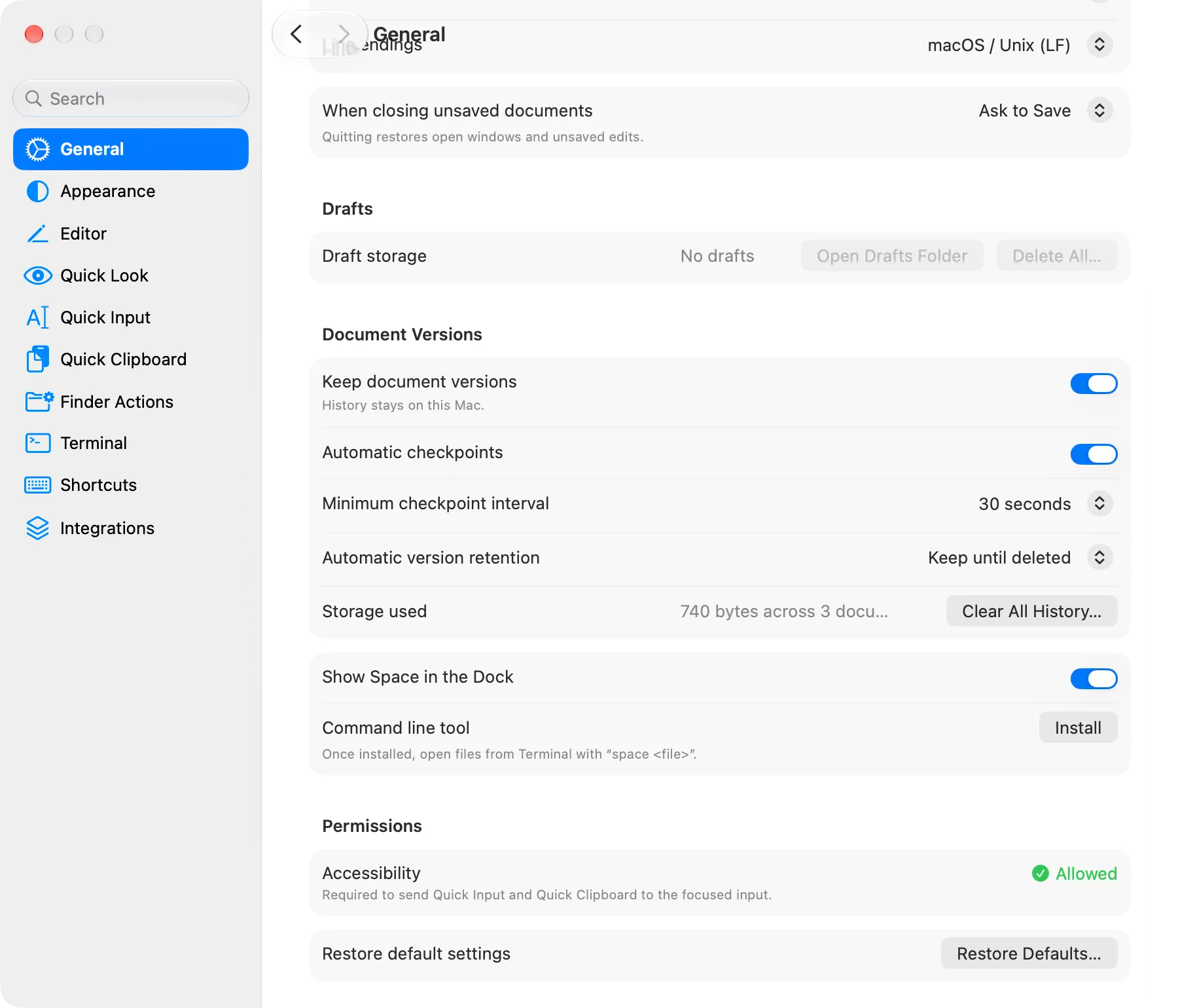
In the Direct version, open Settings > General and click Install next to Command line tool. In the Mac App Store version, that row explains the channel difference and does not show an install button.
Use and manage the command
Section titled “Use and manage the command”Installing
Section titled “Installing”Space ships a small script inside its own app bundle. Installing creates a symbolic link to that script — not a copy — in a directory on your PATH, preferring /usr/local/bin since that’s on PATH by default; if that location isn’t writable, Space falls back to ~/.local/bin in your home folder, which doesn’t need administrator access but may not already be on your PATH. Because it’s a link rather than a copy, updating Space automatically updates what the command points to — there’s nothing to reinstall after an update.
If a space command already exists and wasn’t installed by Space, Space won’t overwrite it; the settings row tells you which program owns it instead.
Using it
Section titled “Using it”From a Terminal in your document folder, pass the filename to Space. Quote a name that contains spaces:
space "./Release notes.md"The command opens the file in Space’s editor. Open and save files explains file association and window behavior.
If the command isn’t found after installing
Section titled “If the command isn’t found after installing”If Space had to fall back to ~/.local/bin and that folder isn’t on your PATH, the settings row says so right after installing, along with the exact path it used. Add that folder to your shell’s PATH to use the command directly, or invoke it by its full path in the meantime.
Removing it
Section titled “Removing it”Click Remove next to Command line tool in the same settings row. This only removes the symbolic link Space created; it won’t touch a command that belongs to another program.
If something else already uses the name space
Section titled “If something else already uses the name space”Space checks its preferred locations in order and never overwrites a space command it didn’t create itself. If /usr/local/bin/space belongs to another program, Space tries ~/.local/bin next rather than stopping; only if every candidate location is already occupied by something else does Install fail, and the settings row names the path that’s in the way. Clicking Remove is likewise limited to links Space itself created — it will never delete a command another program installed.
Checking the status from Terminal
Section titled “Checking the status from Terminal”Settings > General rechecks the filesystem every time you open it, rather than showing a remembered value. You can also check for yourself:
readlink /usr/local/bin/spaceA path pointing inside Space.app’s own Resources folder means Space installed it; anything else, or no output at all, means it isn’t.
- The settings row always reflects what is actually on disk — if you install or remove the command outside Space, reopening the General page picks that up.
- Because the command is a link into the app bundle, moving Space.app to a different location will break the link; reinstalling from the new location fixes it.
- Pass multiple existing paths to open them through the same routing as Finder. If any path is missing, the command reports it before opening the files.
Related settings
Section titled “Related settings”- General — Command line tool row (Install / Remove), right next to Show Space in the Dock. The whole pane is in Settings.