

Convert Markdown to PDF, HTML, or Word on Mac
Choose an editable file, a reading copy or a publishing target. Keep the Markdown and its assets together when someone needs the source.
| What to deliver | Start here |
|---|---|
| Same Markdown for another editor | Share the document and assets |
| Browser page or print copy | Export HTML or PDF |
| Editable Word or Markdown conversion | Choose a local format |
| Cloud document | Google Drive or Docs, Feishu Docs |
Share an editable document
Section titled “Share an editable document”Send the .md file together with its relative image folders. A document such as Notes.md can refer to Notes.assets/diagram.png; move both together to keep the reference intact.
Project/ Notes.md Notes.assets/ diagram.pngGFM-compatible readers understand standard headings, lists, tables and task lists. SFM extensions can look different or remain visible as source. Check compatibility feature by feature.
Export a rendered result
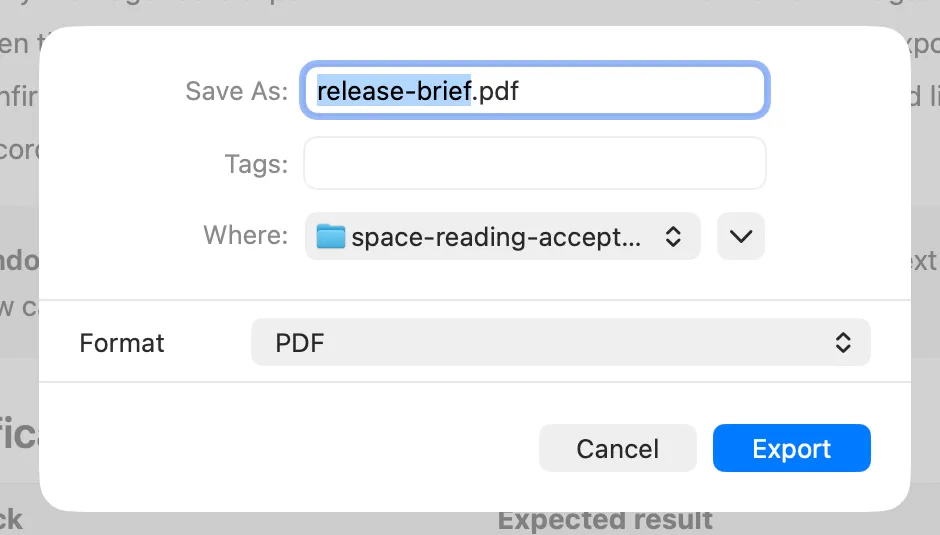
Section titled “Export a rendered result”- Choose File > Export As… and select HTML for a browser or PDF for a fixed-layout copy. Use File > Print… to send pages to a printer.
- Open the result and check wide tables, images and diagrams before sharing.
Convert Markdown for another editor
Section titled “Convert Markdown for another editor”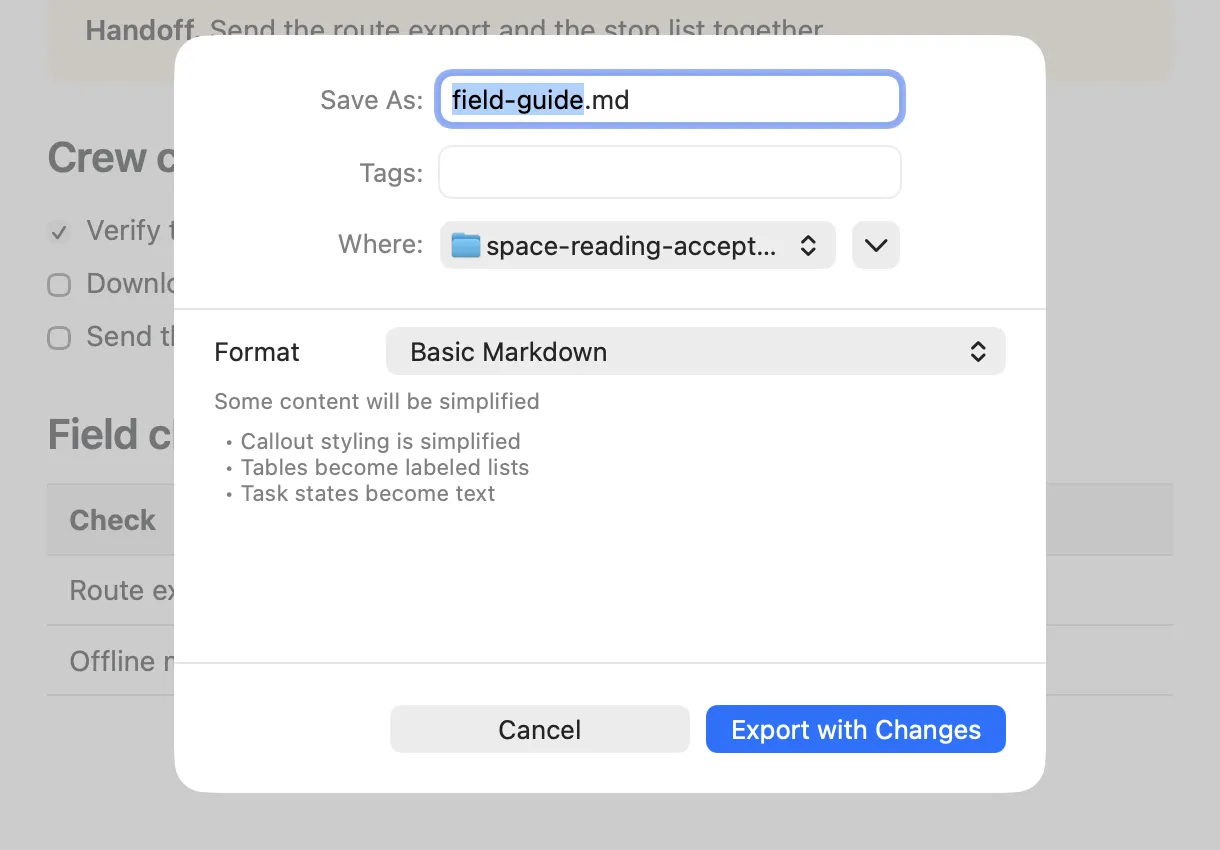
Choose File > Export As… to open the macOS save dialog. Set the format, filename, and destination there, then click Export. Space remembers the location of the last successful export. Unsupported formats remain visible but disabled; the dialog keeps that explanation brief. Plain Text alone offers an encoding option. Space checks conversions in the save dialog and shows actual simplifications before export. You can change formats or cancel without writing a file.
| Current document | Available export formats | Why other formats are unavailable |
|---|---|---|
| Markdown or SFM | HTML, PDF, Plain Text, Basic Markdown, DOCX, TextBundle, TextPack, Feishu Docs Import File, Google Docs Import File | All listed formats are available when the document has readable text. |
Plain text (.txt) |
HTML, PDF, Plain Text, Feishu Docs Import File, Google Docs Import File | Platform import files keep characters as plain editable text; other Markdown document packages require Markdown structure. |
| Code, JSON, or logs | HTML, PDF, Plain Text | Basic Markdown and document packages require Markdown structure. |
| Diagram, whiteboard, or mind map | PDF, Plain Text | HTML would present diagram source as a page instead of the rendered diagram; Markdown and document packages require Markdown structure. |
When a document has no readable text, Space disables export. Diagram blocks have their own image and source export actions; see Diagram export details.
For SFM, Basic Markdown uses CommonMark syntax: tables become labeled lists, task states become text, footnotes move to endnotes, columns follow reading order, and collapsible content is expanded. Static diagrams become images where supported; otherwise Space keeps readable source.
Basic Markdown with local images writes a neighboring asset folder. Move that folder with the .md file. TextBundle and TextPack include the Markdown and assets together. DOCX keeps editable headings, lists, links, tables, and supported images; check the result in the recipient’s word processor when layout matters. None of these formats preserves every SFM layout choice.
Prepare a file for Feishu Docs
Section titled “Prepare a file for Feishu Docs”In File > Export As…, choose Feishu Docs Import File. Space checks the current Markdown, SFM, or plain text document before writing a file and lists changes to its structure, appearance, or interactions. Expand an item to see the affected source. Confirm once to continue, or cancel without changing the source document. For .txt, Space keeps characters such as # and ** as literal text, including blank lines; they do not become Markdown headings or emphasis.
When the document fits in a single file, Space saves a .docx. If it needs diagram source, media, or other separate files, Space saves a .zip containing document.docx, an assets folder, a manifest, and instructions. Extract the ZIP and import document.docx into Feishu. Attach the listed assets manually where the document indicates. Importing the ZIP itself does not automatically attach those files to the online document.
Diagrams that cannot remain editable in a DOCX become static images, with their source files in the ZIP. Remote images and media remain links and are not copied. A missing or unreadable local resource stops the export. Keep the original Markdown for future edits.
Prepare a file for Google Docs
Section titled “Prepare a file for Google Docs”In File > Export As…, choose Google Docs Import File. The result is a .docx when the document needs no separate source or media files. When it does, Space saves a .zip with document.docx, the current SFM source, an assets folder, manifest.json, and import instructions. Extract the ZIP and import document.docx into Google Docs. The ZIP itself is not a Google Docs document; upload its listed assets separately if you need them in Drive. Export works without connecting a Google account.
Space converts a plain text .txt document to editable paragraphs. Markdown-looking characters stay literal. SFM diagrams may become static images in the DOCX; their editable source is kept in the package when needed. Missing local resources stop the conversion. The package’s source file uses UTF-8 text from the current editor state, so it may differ in encoding or line endings from the original disk file.
Publish to Google Drive or Google Docs
Section titled “Publish to Google Drive or Google Docs”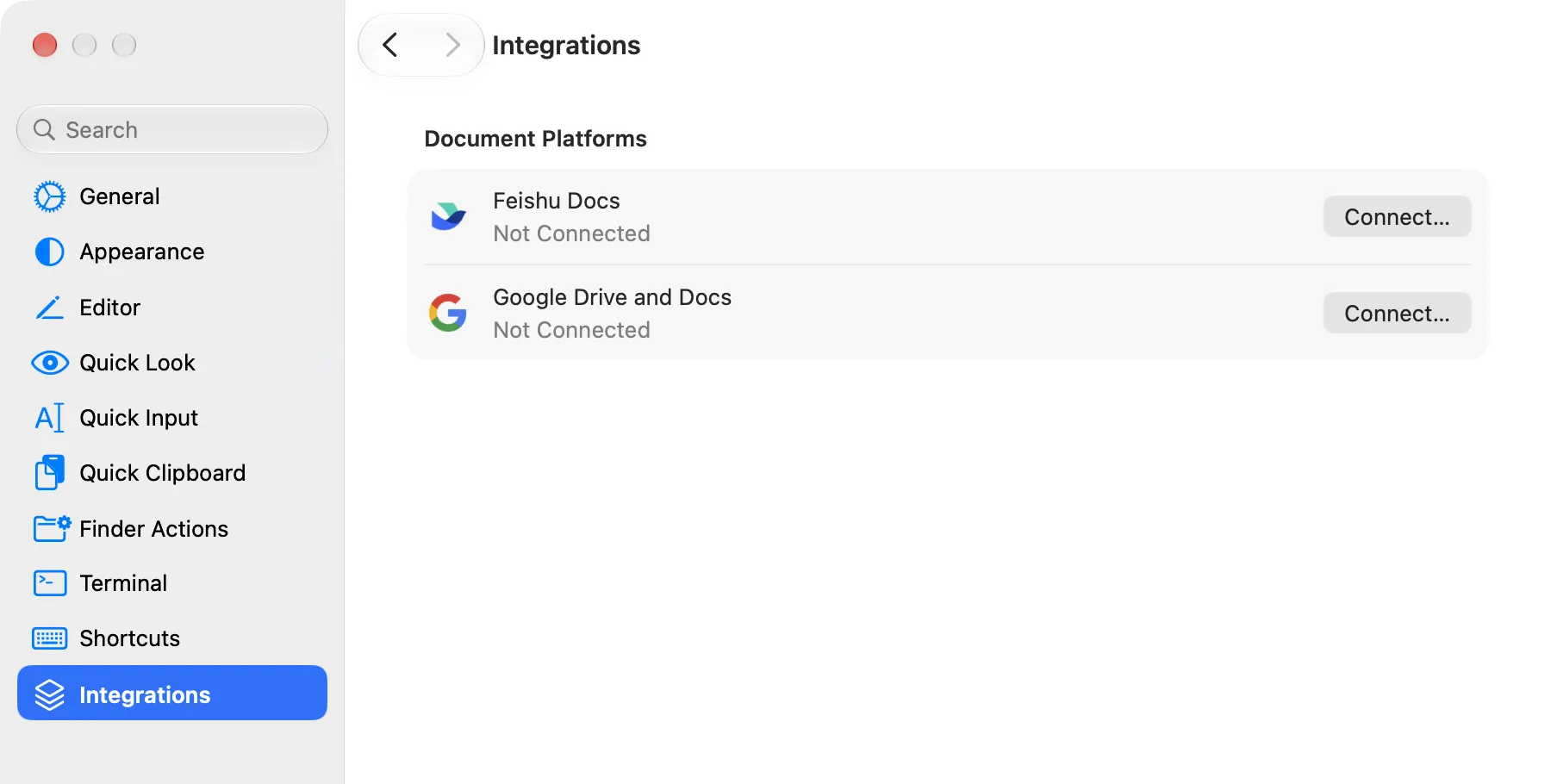
[!HIGHLIGHT] {icon=“none” border=“none” fill=“#eff0f3”} Connect your account in Settings > Integrations. Open File > Publish, choose the target, then confirm the folder. Check the destination before replacing an earlier publish.
Open Space > Settings > Integrations > Google Drive and Docs and choose Connect Google…. Space opens Google’s sign-in and consent page in your browser. The Google application is built into Space: you do not enter a Client ID, Client Secret, or create a Cloud project. Add another account or reauthorize an existing account in Integrations. Disconnecting removes this Mac’s connection, not the files already published to Google.
Space keeps the connected account’s ID, display name, email address when Google provides it, avatar URL, OAuth tokens and expiration in this Mac’s Keychain. Publishing sends the current document and required source or media files to the account and folder you confirm. Space does not send them to a Space-operated service. Disconnecting removes the local authorization but does not revoke the Google account globally or delete published files. See the Privacy policy for the complete data and retention summary.
When updating from an older Space build, macOS may ask once to read an existing Feishu or Google keychain item while Space moves it to the new com.space.integrations entry. Allow the request to keep the connected account; published documents are unaffected. Subsequent access is managed separately for each platform by macOS.
Google publishing workflow diagram.
flowchart TD accTitle: Google publishing workflow A["Connect Google in Integrations"] --> B["File › Publish › Google Drive or Google Docs"] B --> C["Choose the account and folder"] C --> D["Review the target and start publishing"] D --> E["Open the editable DOCX in Drive or the native Google document"]An authorized account makes Google Drive… and Google Docs… available under File > Publish and Quick Menu > Publish for Markdown, SFM, and plain text documents. An optional toolbar Publish item opens the same target list. If no platform is connected, the menu offers a route to Integrations. Being connected reflects saved authorization on this Mac; it does not mean the network is currently reachable.
Choose the title, account, and a folder through Google’s folder Picker. Space remembers the account and folder after each successful publish, separately for Google Drive and Google Docs; the next publish preselects them. If one target has not been used before, it starts with the latest successful Google account and folder from the other target. Account menus show a name and email separated by a hyphen, so accounts with the same name remain distinguishable. Google Drive… places an editable DOCX and the current Markdown or plain text source in that folder, with a separate asset package when needed. Google Docs… converts the DOCX into a native Google document in the selected folder. An uploaded .docx alone is a Drive file, not a native Google Docs document. Google Docs keeps separate source or media files in Drive when the main document cannot contain them. The original Space file is not changed by either action.
Choose a folder in My Drive or a writable shared drive. The Computers backup area may appear in Google’s Picker; its top-level computer folders are not supported as Space publish targets. If Space rejects one, choose another folder; the rejected location is not saved as your default. The publishing status shows Target: followed by the selected destination, with long names shortened in the panel.
Publishing again to the same folder with the same account and target replaces the files that Space recorded from the previous successful publish. A different folder creates new files. Space does not search for matching filenames, track edits made in Google, or merge changes. Replacing a Google document may overwrite edits and affect comments made there, so check it in Google when those changes matter. If the previous file was deleted or access was removed, Space stops instead of taking over a similarly named file.
Google publishing error codes
Section titled “Google publishing error codes”If publishing fails, Space shows a GGL- code instead of a system exception or Google’s raw response. Use the code below to decide what to do. Keep the document open in Space until you know whether a remote file was changed.
| Code | Meaning | What to do |
|---|---|---|
GGL-1001 |
The Google account needs authorization. | Open Settings > Integrations > Google Drive and Docs and reauthorize the account, then publish again. |
GGL-1002 |
The selected destination no longer exists or is not a folder. | Choose a different folder with Location, then publish again. |
GGL-1003 |
The account cannot write to the selected folder or file. | Check access in Google Drive, choose a writable folder, or use another account. |
GGL-1004 |
Google temporarily limited requests. | Wait a few minutes before publishing again. |
GGL-1005 |
Google or the network did not complete the request. | Check your connection and Google Workspace status, then try again. |
GGL-1006 |
A required local image, file, or media resource could not be packaged. | Check that the referenced local files still exist and can be opened in Space. |
GGL-1007 |
The Space document changed while the publish copy was being prepared. | Start publishing again from the current document. |
GGL-1008 |
A previously published Google file is no longer available. | Check it in Google Drive or choose a different destination to create a new file. |
GGL-1009 |
Google returned a file or document result that Space could not verify. | Check the destination in Google Drive. If a file was created, inspect it before trying again. |
GGL-1010 |
Space cannot determine whether Google created the file. | Check the selected folder in Google Drive before trying again; retrying may create a second file. |
GGL-1011 |
Publishing stopped or failed after an existing file may have changed, or cleanup of a new file failed. | Use Open in Google if offered and inspect the remote file before publishing again. |
GGL-1012 |
A diagram with visible content could not be rendered for publishing. | Open the diagram in Space, correct its source or rendering issue, and publish again. |
GGL-1099 |
Space could not classify the failure. | Try once more. If it persists, report the code, target, and approximate time to Space support. Do not send your credentials. |
How SFM content changes in Google
Section titled “How SFM content changes in Google”The table describes the intended delivery and why a mapping may change. How Google renders the published document in its web editor can differ from the DOCX. Treat each row’s editable shape and appearance as a conversion target rather than a guarantee. Space must stop when required content or local resources cannot be delivered; readable changes to appearance or interaction are shown before publishing.
| Space content | Drive files | Google Docs document | Reason for change |
|---|---|---|---|
| Headings, paragraphs, emphasis, lists, links, and tables | DOCX plus original source | Editable document structures where conversion preserves them | Docs can edit these common structures, but nesting, table styling, and link targets need target-side checks. |
| Front matter | Original fields remain in the source; visible fields enter the DOCX | title or name names the document; other fields appear in a document information table |
Metadata must remain readable after the document leaves Space. |
| Task states, alerts, code, highlights, and columns | Their content remains in the DOCX and original SFM | Editable text or layout substitutes where possible | Docs does not share every SFM container or interaction; the target’s styles and structure can differ. |
| Folding, formulas, and interactive maps or 3D models | Original source and any necessary data remain available | Expanded or static reading result with source data where needed | A readable document cannot preserve every Space interaction or editable formula form. |
| Images, diagrams, and local media | DOCX plus a separate asset package when required | Reading image in the document; source and media in the selected Drive folder when needed | The image keeps the reading result while editable diagram data or media needs separate delivery. |
| Empty Draw.io canvas | Original SFM source remains; no blank PNG is packaged | No empty image or block is inserted | A canvas without shapes or connections has no visual content. Diagrams with visible content still need a readable preview. |
| Remote resources and local relative links | Original references remain in the source | Remote URLs remain URLs; local paths may be displayed as text | Publishing does not make a local path public or silently download a remote resource. |
| Space theme, font, and code line numbers | Not exported | Not published | These are reading preferences rather than styles written by the author. |
Publish to Feishu Docs
Section titled “Publish to Feishu Docs”[!HIGHLIGHT] {icon=“none” border=“none” fill=“#eff0f3”} Connect Feishu in Settings > Integrations. Open File > Publish > Feishu Docs…. Review the conversion notice, select a destination, and open the published document from the result.
Open Space > Settings > Integrations > Feishu Docs to connect before publishing. Choose Use Existing App to enter the App ID and App Secret of a Feishu app you already control, or explicitly choose Create New App to register one. Space creates an app only after you choose the second option. App creation and account authorization have separate steps and buttons. If app creation succeeds but account authorization stops, choose the saved App ID under Continue with an app on this Mac to resume without creating another app. Add Account normally reuses a saved app; Use Another App is available when needed. If an account needs authorization again, choose Reauthorize and sign in to the same Feishu account through its original app. If that app’s credentials are missing from this Mac, enter its original App ID and App Secret in Restore Feishu App Credentials. Space does not create a replacement app or silently change the account identity. If the app lacks a required permission, update it in Feishu before retrying.
Space stores the Feishu App ID and App Secret, connected account ID, display name, email address when available, avatar URL, OAuth tokens and expiration in this Mac’s Keychain. Publishing sends the title, document structure, images and attachments to the account and location you confirm. Space does not send them to a Space-operated service. Disconnecting or removing an account clears its local authorization but does not delete published documents or the Feishu developer app. See the Privacy policy for the complete data and retention summary.
Integrations shows Authorized based on credentials saved on this Mac. It does not test whether Feishu is online. An ordinary network failure leaves the connection in place. When an account’s authorization is known to be invalid, return to Integrations and choose Reauthorize. If its original app credentials are missing, choose Restore App Credentials. An account requiring repair can also be removed through its account menu using Remove from Space…. An authorized account has a Disconnect… button. Both removal actions open a separate confirmation and remove only the account’s local authorization; Feishu documents and the developer app remain. Other authorized accounts stay available.
Feishu publishing workflow diagram.
flowchart TD accTitle: Feishu publishing workflow A["Connect Feishu in Integrations"] --> B["File › Publish › Feishu Docs"] B --> C["Choose the account and destination"] C --> D["Review the conversion notice and publish"] D --> E["Open the published Feishu document"]For a Markdown, SFM or plain text document, choose File > Publish > Feishu Docs… or Quick Menu > Publish > Feishu Docs…. You can also add the optional Publish icon to the window toolbar; it opens the same target list and is hidden by default. Feishu Docs appears in these menus when at least one account is authorized on this Mac. If no publishing platform is connected, choose Connect a Publishing Platform… in the Publish menu to open Integrations. Connecting does not publish the document; return to it and choose a target when ready. An offline Mac still shows an authorized target, although the publish request may fail until the network returns. Export As remains available without a Feishu connection. Markdown and SFM use structured conversion; a .txt document or unsaved plain text draft is published as literal editable paragraphs, with no Markdown parsing or asset extraction. Code, JSON, and log documents are not eligible.
The Feishu publish panel shows the document title first, followed by destination and authorized account. Space performs conversion and API requests on this Mac. In the location picker, choose Document Library, Cloud Drive, or Knowledge Bases at the top, then choose a path in that space. The three choices use distinct person-and-documents, cloud, and books icons; only the selected space’s tree is shown. Expand a real row to browse inside it, select the destination name, then choose Use This Location. Folder, document, and spreadsheet icons identify each real row type. In Cloud Drive folders, documents and other files appear as leaves for context; only folders can be selected as publishing locations. In Document Library and Knowledge Bases, document nodes without children can still be selected as destinations. Switching spaces does not change the confirmed location. Use This Location remains unavailable until a path is selected in the current space; switching back restores a path selected earlier in this visit. Cancelling the picker keeps the previous location. Space remembers the last successful account and location, including nested folders and knowledge base nodes. Feishu account menus use a name and email separated by a hyphen when the email is available, or a short account ID when it is not. If one space fails to load, switch to it to see Retry; the other spaces remain available. Choose a location explicitly before publishing. Check the title and click Publish. Space checks the document before sending it. Readable changes to formatting or interaction continue without a second confirmation. If required content or local resources cannot be preserved, Space stops before writing and explains the problem. Local files used by the document are sent to the selected account. During publishing, one progress bar shows completed writing work, with the count beside it and the current step below; creation and final checks show activity when a reliable count is unavailable. Choose Cancel Publishing to stop and wait while Space checks the outcome. If a new document was created, Space attempts to remove it; if an existing document may contain partial changes, the result provides a Feishu link for review. If Feishu may have created a document but Space did not receive confirmation, publishing stops; check the selected Feishu location before starting another publish.
Publishing the same Space document to the same location with the same Feishu account replaces the previously published document’s full body and title. Space uses a small local record to find that document. It does not check for edits made in Feishu, show a diff, or merge changes. Text, formatting, and comments added in Feishu may be replaced or lose their anchors. Check the target in Feishu if those changes matter to you. Choosing a different location creates a new document and leaves the earlier document available. A copied Space file starts with no publishing record; records do not sync to another Mac.
If the previously published document was deleted or your account can no longer access it, Space stops and explains the failure. Reconnect the account or choose another location to create a new document. If a failed or canceled publish offers Check in Feishu, use it to check for partial content before retrying. Space shows this action only when the remote document may need review; it does not mark that attempt successful.
Publishing carries text, lists, tables, native callouts and columns, formula elements, diagrams, images and local media attachments. Embedded PNG, JPEG, GIF, and WebP images can be uploaded with the document. Some SFM interactions and appearance choices do not exist in Feishu; Space warns when these may change and asks you to check the result in Feishu. If Space cannot make the content readable and complete, publishing is blocked. The panel names the affected file or content and tells you what to change; close the panel, make the change, then open Publish again to check the current document and its files. The mappings below are confirmed against a full SFM sample, not a guarantee for every combination.
How SFM content changes in Feishu
Section titled “How SFM content changes in Feishu”Export and Publish have different capabilities. Export creates a DOCX file, or a ZIP containing document.docx and separate assets, for you to import. Publish writes directly through Feishu’s document API. Feishu’s editor may offer a feature that its DOCX importer or public API does not preserve; the table describes what Space currently produces. The conversion map explains changes to each feature; the preflight stops only when required content cannot be delivered safely.
| SFM content | Export file and Feishu import | Direct Publish | Why it changes |
|---|---|---|---|
| Headings, paragraphs, emphasis and web links | Editable DOCX text | Editable Feishu text and heading blocks | The two editors share these basic document structures. |
| Front matter | title or name names the document; other fields become an editable “Document Information” table |
The same title and table | Metadata stays visible after the document leaves Space; the body H1 stays in place. |
| Lists and tables | Editable lists and tables; some cell styling may change | Editable list and table blocks; unsupported cell content stops publishing | Both targets have native structures, but their cell and nested-content rules differ. |
| Task checkboxes | The checked state is written as [x] or [ ] text |
The checked state is written as text in a list | Feishu’s editor offers tasks, but this integration writes task state as text in a list rather than as an editable Feishu task. |
| Relative file links and heading anchors | The visible text and original path remain; navigation may not work | The visible text and original path remain; navigation may not work | The destination has different file and anchor identities. |
| Footnotes | Notes are readable near the end; back-links may not work | Notes are readable near the end; back-links may not work | Space cannot carry its original reference targets into Feishu unchanged. |
| Alerts and callouts | The label and content remain; colors, borders and icons may become plain text | Note, Tip, Important, Warning, and Caution use distinct Feishu icons and matching color families. The icon sits beside the type title; the editable body starts on the next line. Custom colors or icons that cannot be preserved are reported before publishing. | A DOCX importer does not preserve the SFM container. Feishu’s native callout has its own icon and color palette, so author-defined appearance may change even when the five default meanings remain clear. |
| Highlighted text and custom colors | Text remains; highlighting and custom colors may change | Supported text styles remain; unsupported colors are reported before publishing. | The target’s color palette and DOCX importer do not reproduce every SFM color or highlight effect. |
| Columns, widths and colored panels | Content follows reading order in one column | Safe two-column content can become native, editable Feishu columns with its width ratio; unsupported backgrounds, borders or nesting are reported or expanded in reading order. | DOCX import linearizes the layout. Direct Publish can use Feishu’s grid blocks, but not every SFM panel style or nested block fits them. |
| Quotes and dividers | Readable quote text and a divider remain; quote styling may change | Safe quote content can become a native quote container; dividers use a native block. | Feishu can keep quote grouping through its API, while DOCX import may change its visual treatment. |
| Collapsible sections | All content is expanded | All content is expanded | Readers can still see content even when the original expand/collapse control is unavailable. |
| Inline and standalone formulas | LaTeX source remains readable; formula layout may change | Valid formulas can become editable equation elements. A standalone formula currently sits in its own text block; its layout may differ from Feishu’s dedicated formula block, and some TeX expressions may convert differently. | The DOCX importer keeps readable source. |
| Local images and SVG | Images are embedded when possible; SVG may be rendered as a bitmap with its source in the ZIP | Images are uploaded; a source file is kept where needed | A bitmap preserves the reading view when the destination cannot use the source format directly. |
Light/dark <picture> variants |
The default image appears; other variants travel in the ZIP | The default image appears; other variants are attached to the document | The target does not follow Space’s appearance switch automatically. |
| Local audio, video and files | Separate files travel in the ZIP when DOCX cannot contain them; attach them after importing | Space uploads them into the document where the target accepts them | A ZIP is a delivery package, not a Feishu document with automatically attached files. |
| Remote images and media | Links remain links | Links remain links | Space does not silently copy remote resources during delivery. |
| Mermaid | A readable image and source file travel together | Feishu shows editable Mermaid source beside its preview. If the component is unavailable, a readable image and source attachment are the fallback. | A DOCX import cannot carry that component. The direct Publish result uses Feishu’s diagram component when available. |
| PlantUML, Draw.io, Excalidraw and mind maps | A readable image and original source travel together | A readable image and source attachment are used unless a verified editable target is available | Feishu’s editor can create some diagrams and manually import Draw.io. Those editor actions alone do not establish an equivalent public API conversion. |
| Empty Draw.io canvas | No image is added | No block is added | A canvas with no shapes or connections has no visual content to preserve. The original Markdown remains unchanged in Space. |
| GeoJSON, TopoJSON and STL | A preview image and original data travel together | A preview image and data attachment are used | The document image is readable, but map controls and 3D rotation do not survive. |
| Space reading theme, font and code line numbers | Not included | Not included | These are viewing preferences, not styles written into the document. |
An Export ZIP’s separate source and media files need manual attention after DOCX import. With Publish, images, diagram source and M4A/MP3/MP4 files are placed in the same online document; Feishu displays the local audio and video as playable file cards. If a required local resource cannot be read or a diagram cannot be rendered safely, Space stops instead of leaving out part of the document. For Feishu’s own editing features, see Feishu’s insert menu and Draw.io import instructions.
Import into Markdown
Section titled “Import into Markdown”Choose File > Import as Markdown… for HTML, RTF, DOCX, TextBundle, or TextPack. Space opens the converted Markdown as an unsaved document in the active Space window, or in a new window when none is active. Press Command-S when you want to choose its name and location. If you cancel the save dialog, the document stays open. Imported images are kept with the draft and copied beside the Markdown file on the first save. The source file is not changed. Conversion works offline without another app or converter. Active HTML content is not run, remote resources are not downloaded, and unsupported formatting is reported before the document opens.
Formats without a safe conversion path are shown disabled in Export As with a reason. EPUB is not supported.
Export a diagram separately
Section titled “Export a diagram separately”Use the diagram block’s export action for supported PNG, SVG or standalone source output. This copies the current block result or source; it does not remove the block from the Markdown document. Diagram export details.
Images and remote resources
Section titled “Images and remote resources”The editor can read local images outside the document directory, including parent paths and absolute file paths, when system permissions allow. Local audio and video can use relative paths and play in the document. HTML export copies local audio and video beside the page in a .assets folder; remote HTTPS URLs stay as URLs. The shared Load remote resources setting controls remote images and media; visible media may load duration or a first frame before Play. Quick Look has a separate file-access boundary and may ask you to authorize a folder in Space. An editor screenshot therefore cannot prove that the same asset loads in Finder.
Check before handing it over
Section titled “Check before handing it over”- Reopen the Markdown with its asset folder, or open the exported output in the target reader.
- Check columns, highlighted blocks, image sizes, formulas and diagrams.
- Prefer a PDF when the recipient must see a particular layout.
- Keep the Markdown original for future changes.