

Document versions
Open File > Version History… to preview, compare or restore a local checkpoint. Checkpoints follow changed file content. File > Revert To opens the separate macOS version browser.
[!HIGHLIGHT] {icon=“none” border=“none” fill=“#eff0f3”} Choose Restore as Copy… to keep the current file and recover the old version separately. Restore replaces the current file.
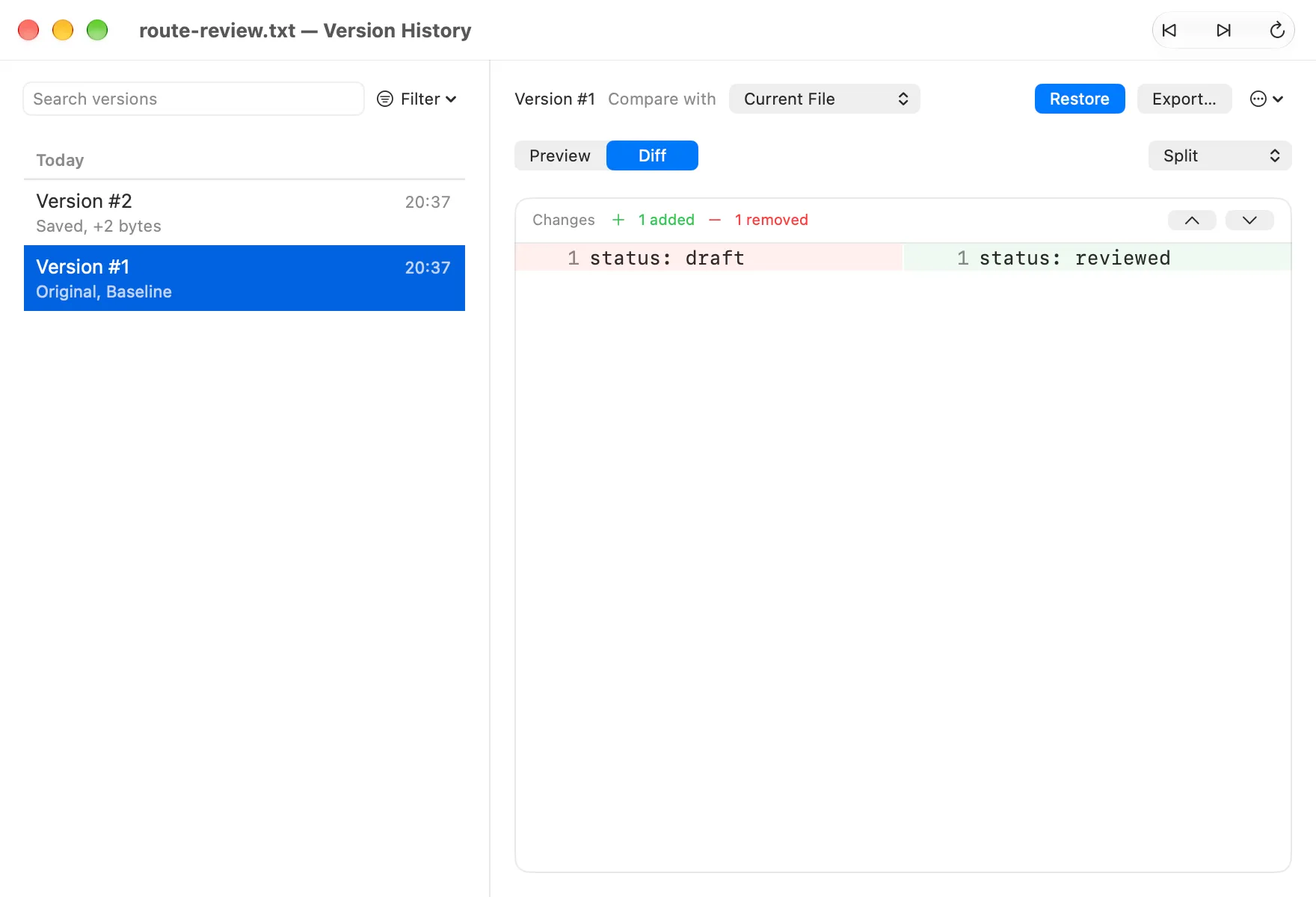
status: draftstatus: reviewedA small unified-diff example. The native version browser also offers other layouts where supported.
Open the version history
Section titled “Open the version history”With a document open, choose File > Version History….
The timeline shows the newest change first. Search with ⌘F, or use Filter to narrow by checkpoint type. Select a row to preview its contents. For Markdown, switch between Rendered and Source.
| Source | When it appears |
|---|---|
| Original | The disk contents captured before Space writes to a document for the first time. |
| Autosave | An automatic checkpoint after the contents change. |
| Saved | A regular save or Save As. |
| Manual | File > Save Version…. |
| External Change | Space sees that another app changed the file. |
| Restored | You restored an earlier version. |
Use First and Latest to move between the ends of the timeline, or Refresh to reload it.
Save a named version
Section titled “Save a named version”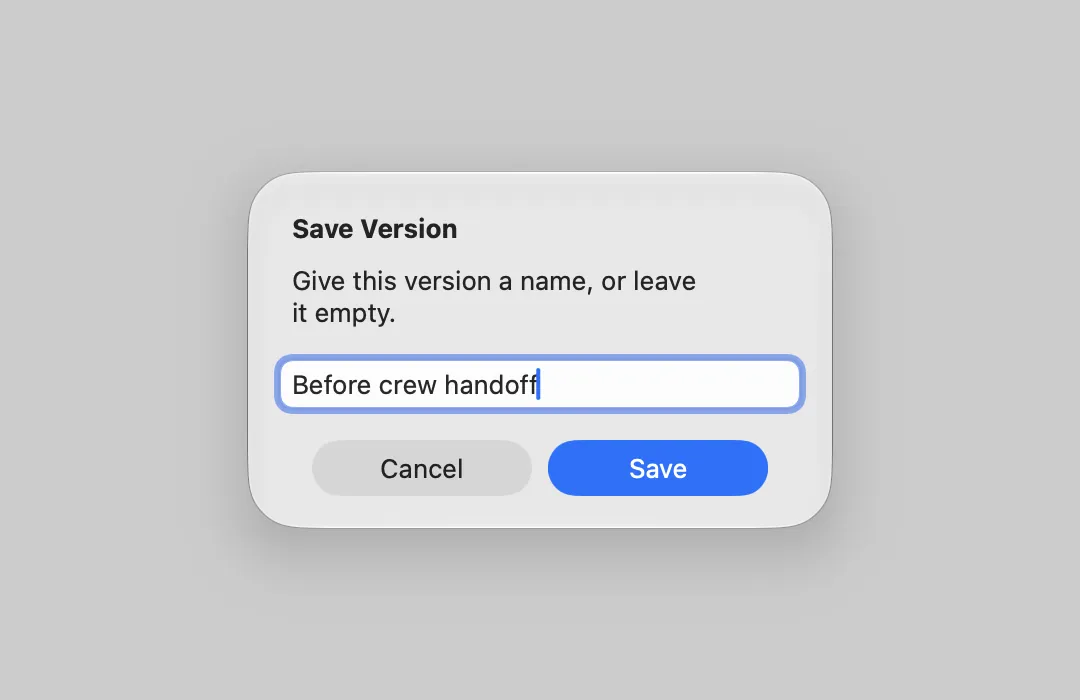
Choose File > Save Version…, optionally type a name, then choose Save.
Manual versions are useful before a large reorganization, an automated replacement or an experiment you may not want to keep. If the content is identical to the latest version, Space does not create another entry; it says that there are no changes since the last version.
Compare versions
Section titled “Compare versions”Select a version, then choose what to compare it with:
- Current File — the version as it exists on disk now.
- Previous Version — the immediately older version.
- Selected Version — any other version you pick.
Choose Diff, then pick a view from Layout at the right.
| Layout | What to look for |
|---|---|
| Unified | Deleted and inserted lines in one view |
| Split | Old and new text side by side, with changed characters highlighted |
| Structured | Changed keys, attributes or text by path in JSON, Markdown front matter and XML |
| Blocks | Changed Markdown blocks as formatted content |
Use the change navigation above Unified or Split to jump between groups. Long results show the first 500 items. Show 500 more items opens the next page.
Diffing runs in the background. If a result is too large to display, Space says so instead of blocking the window.
Restore a version
Section titled “Restore a version”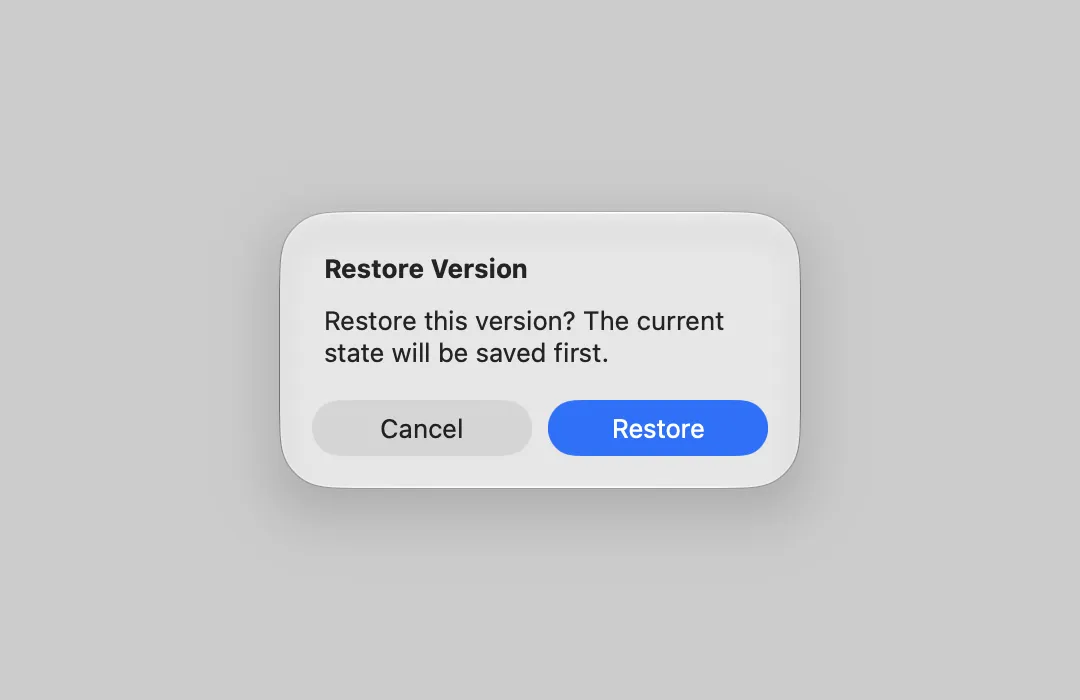
Select the version you want, then choose Restore and confirm.
Space writes that version’s exact bytes back to the document and reloads it. If the state before the restore differs from the latest stored version, it is recorded as Restored; Undo can return to that state. Restoring does not delete or rewrite the intervening history, so you can return to the newer state later. Restore is unavailable for read-only documents or a file that has grown past the version-history size limit.
To keep an old version without changing the current file, choose Restore as Copy… or Export….
Manage a version
Section titled “Manage a version”Use Search versions to find a label, path, source or sequence number. Use Filter to include only selected sources. When a filter is active, Delete Filtered Versions… removes only the versions shown.
Use Diagnostics to check SQLite integrity, counts, missing content objects and unreferenced objects. Use More for lower-frequency actions. More > Version has Rename…, Restore as Copy… and Delete Version…. Deleting a version requires confirmation; Space removes that entry and its stored contents if no other version uses the same bytes. Deleting a version does not change the current document.
More > Document has Import macOS Versions and Delete Document History…. More > Backup has Export Backup… and Import Backup…. Importing system versions reads the system’s current and earlier snapshots for the document into Space’s timeline. Export Backup… writes a .zip package containing the manifest, version metadata and content objects. Import Backup… restores that package in another copy of Space.
Original, manual and restored versions are not removed silently when the library reaches its storage budget. Automatic checkpoints can be paused to stay within the budget.
What Space records
Section titled “What Space records”Space records the document’s original bytes before its first write, then records the new bytes after saves and automatic checkpoints. Save Version… records an explicit checkpoint. If another app changes the file while it is open in Space, that state is recorded as an external change before Space continues; what the window then shows — a silent reload or a banner over unsaved edits — is described in Open and save files.
The Direct version stores history in the following directory. The Mac App Store version keeps the same structure inside its sandbox.
~/Library/Application Support/app.spacetext/DocumentVersions/v1/It stays on this Mac and isn’t uploaded anywhere. Space doesn’t add sidecar files or extended attributes to your documents.
Settings
Section titled “Settings”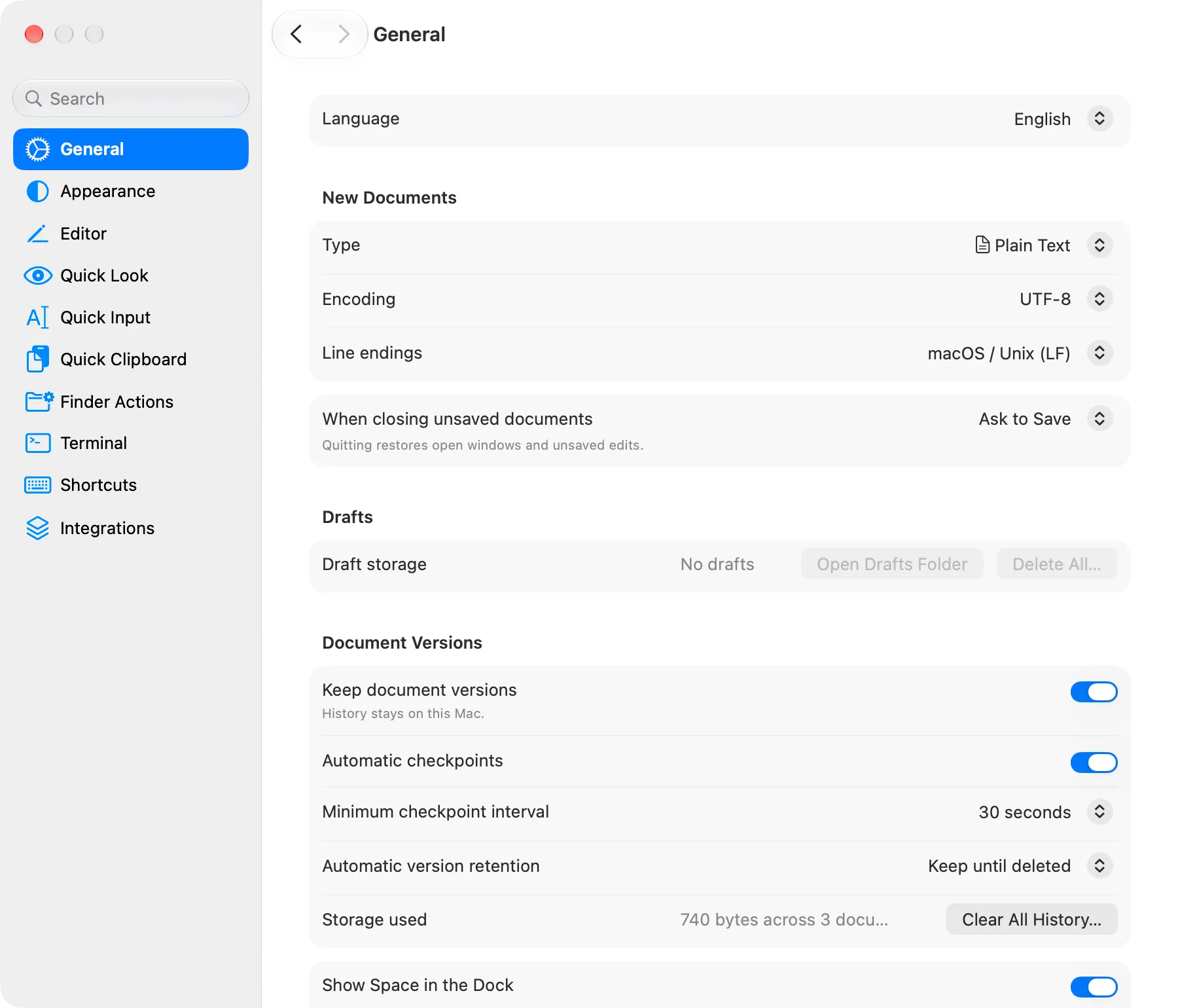
Settings > General > Document Versions controls whether history is kept, whether automatic checkpoints are recorded, the minimum time between automatic checkpoints, and the retention period for automatic checkpoints. Choose 7, 30, or 90 days, or keep them until deleted. Space applies the selected limit during normal use while keeping each document’s latest automatic checkpoint. Original and manual versions are not removed by this rule. The page also shows local storage use. Use Delete Document History… in the version window to remove every version for the current file. Clearing all history removes versions and content objects but never deletes the current files.
Limits
Section titled “Limits”- Text documents up to 8 MiB have version history. Larger files don’t create versions; if a file with history grows past the limit, existing history stays readable but Space stops adding versions and disables restore.
- A document must have a file before it can have history. An untitled draft doesn’t create versions until you save it.
- Read-only documents can view and export existing history, but can’t create new versions or restore.
- If you rename or move a file while it’s open in Space, the history follows it. If another app renames a closed file, opening it under the new path starts a new history; Export… can still recover a version from the old history.
- The version library has a 1 GiB budget. When it fills, automatic checkpoints pause; manual versions remain available, and you can delete versions you no longer need.
- Save a named version before a risky edit; the name makes the checkpoint easy to find later.
- Compare with Current File to see everything that has changed since an older version.
- Compare with Selected Version when you want to compare two checkpoints from the middle of the timeline.
- If macOS’s Revert To browser and Space’s history both have entries, either can restore your content. Space’s history adds labels, source-code diffs and a local retention boundary.