

Open and save files
Opening a file in Space gives you a real text editor — separate from the read-only Quick Look preview, which never changes a thing. A Markdown document also has a rendered view in the editor, and that one is editable: Writing Markdown covers what each key does and what lands in the file.
[!NOTE] Quick Look reads the document. Make changes in the Space editor.
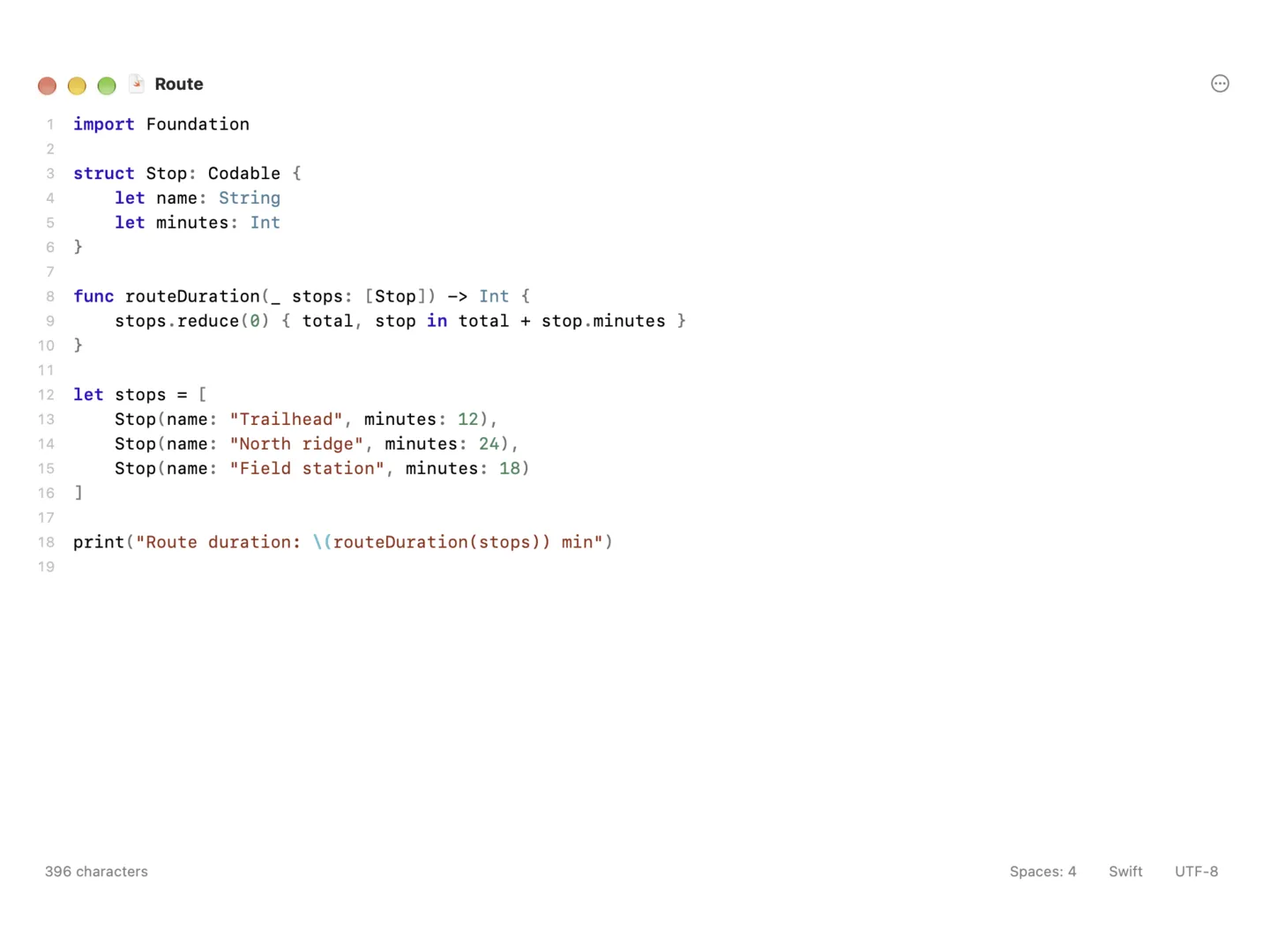
Open a file → make a change → save → reopen to check
Open, create and save documents
Section titled “Open, create and save documents”| Task | Command |
|---|---|
| Open an existing document | File > Open… or ⌘O |
| Choose a new document type | File > New |
| Save changes to the current file | File > Save or ⌘S |
Double-click a supported file, choose Space from Open With, drop a file on Space’s Dock icon, or use the space command line tool. A file you open this way lands in the window you’re already using. Drag files from Finder into the editable text area and each one opens as a tab in the window you dropped on; hold ⌥ to open separate windows. Press ⌘N for a new, empty document in a window of its own, or ⌘T for one in a new tab. Tabs and Windows has the whole story on what opens where.
File and editor behavior
Section titled “File and editor behavior”Autosave and versions
Section titled “Autosave and versions”Settings > General > When closing unsaved documents offers Ask to Save, Keep as Draft and Don’t Save. Ask to Save is the default: closing an edited document asks whether to save, while quitting restores open windows, tabs and unsaved edits next time. Keep as Draft saves named files automatically as you work and keeps closed untitled documents in File > Drafts. Don’t Save also leaves named files on automatic save, but discards untitled documents when you close or quit.
Ask to Save pauses automatic saving of named files. An edited tab shows a solid dot that remains clickable when you point at it. Closing an edited tab or window asks you to Save, Don’t Save, or Cancel for each affected document. Save writes a named file or asks where to save an untitled one; Don’t Save discards that document’s edits; Cancel stops the remaining close sequence. Pressing ⌘S saves as usual. Pressing ⌘Q keeps unsaved edits in local recovery copies without changing the original files, then restores the same windows, tabs and split groups when you next open Space. If a file or recovery copy is unavailable, Space reports the affected document and restores the others. For Space’s own timeline, named checkpoints and source diffs, see Document Versions.
If macOS relaunches Space after a restart, Space restores that saved session before creating an empty document. If you explicitly launch Space with a file, that file takes priority. File URLs replayed by macOS Resume do not replace the saved session.
File > Rename… changes the file’s name in place — the same command sits on a tab’s menu, where you can right-click the tab you mean. A small sheet drops from the window with the current name in a text field and everything before the extension selected, as in Finder, so typing replaces the name and keeps the extension; Rename applies it. A name that’s empty, contains a slash, starts with a dot (which would hide the file) or is already taken in that folder isn’t applied — a notice says why and the sheet comes back with what you typed. Renaming moves the file on disk without rewriting it, so its encoding and line endings stay as they were. It’s greyed out for a document that has never been saved or is read-only; Move To… is the command for sending the file to another folder. Dragging the title row still moves the window as usual. Large files on the mapped editing path do not use periodic autosave; Space still saves their changes when you close the document or quit.
If another app changes the file
Section titled “If another app changes the file”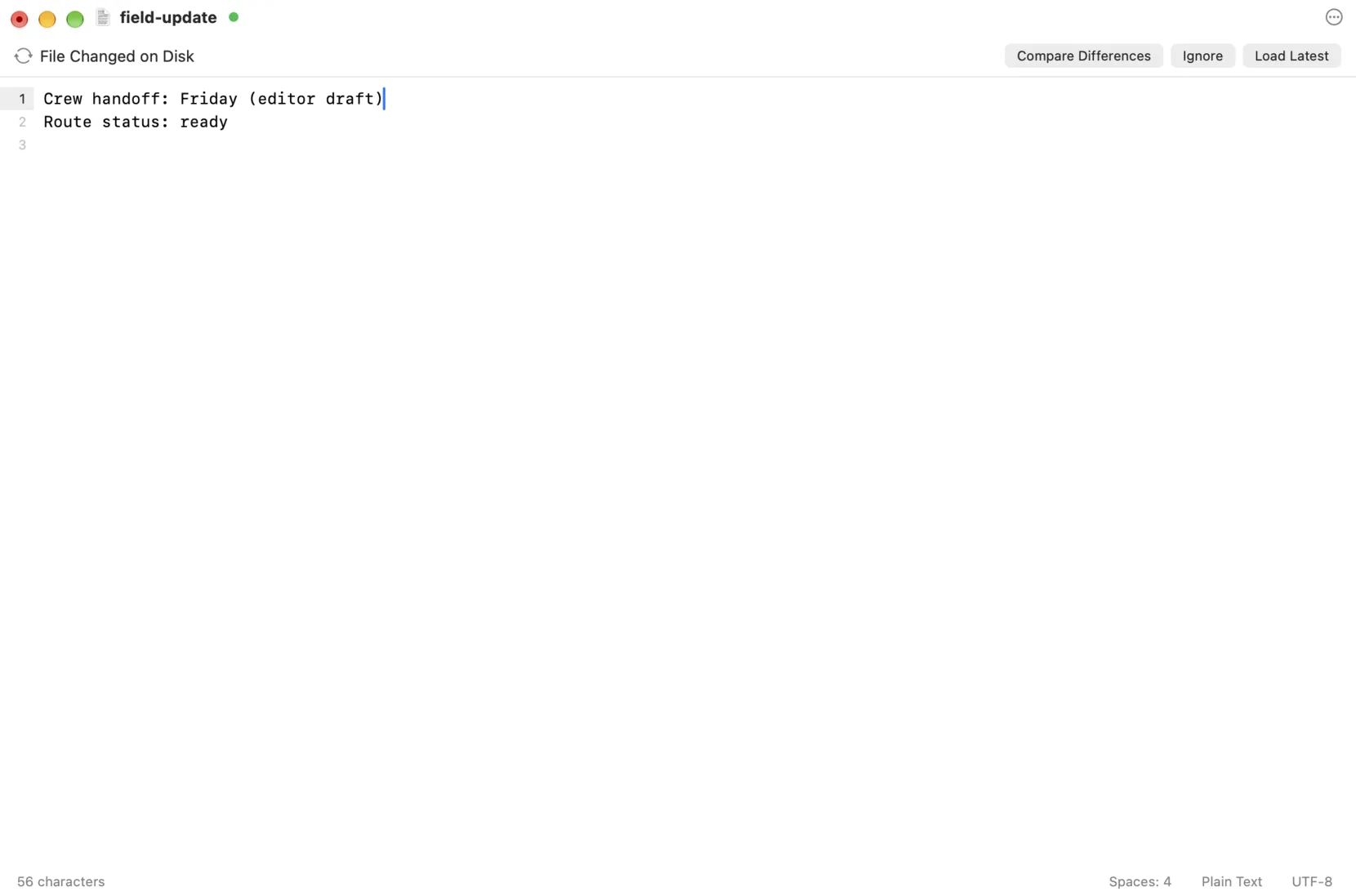
Space keeps an eye on the file behind every open document. When another app — a script, a sync client, an AI agent, a terminal command — writes to a file while you have it open, Space brings the window up to date:
- No unsaved edits. The new content loads right away. The same applies to read-only documents: a converted view such as a binary property list shown as XML, or a document that opens read-only because its encoding can’t be written back unchanged.
- Unsaved edits. Space doesn’t overwrite your work. A banner appears in the document’s window — File Changed on Disk — with three actions:
- Load Latest replaces the window’s content with the file as it is on disk. The edited dot goes away, and the unsaved edits are not kept.
- Compare Differences compares your window’s content with the file now on disk, using the same comparison as Document Versions.
- Ignore leaves the window as it is, edits and all. If the file changes on disk again, the banner comes back.
The banner belongs to the document’s window and follows tab switches; it never interrupts with a modal dialog, and if the file changes again while it’s up, Space updates the one banner instead of stacking interruptions. Whichever way you resolve it, the disk contents as found are recorded in Document Versions as an External Change. If you ignored the change and later save while the disk has moved on, the usual save conflict flow takes over and asks before anything on disk is replaced.
Encoding and line endings survive the round trip
Section titled “Encoding and line endings survive the round trip”Whatever encoding, byte-order mark, and line ending a file was opened with, saving writes it back exactly the same way: UTF-8, UTF-16 or UTF-32, with or without a BOM, and LF, CRLF or CR. Beyond Unicode, Space also recognizes common legacy encodings such as GBK, Big5, Shift-JIS, Latin-1 and Windows-1252 automatically. The File > Reopen with Encoding submenu lets you re-read the current file’s bytes under a different encoding if Space guessed wrong; the same list is available from the status bar’s encoding button. It works for very large files too: only the start of the file is decoded right away and the rest as you scroll. If the document has unsaved changes, Space asks first, and Cancel is the default — pressing Return or Esc keeps your changes. A file whose encoding can’t be safely written back byte-for-byte opens read-only rather than risking a save that silently rewrites characters — the tab carries a lock, a notice above the text explains why, and Export As offers a way to save an editable UTF-8 copy instead. New documents use New document encoding and New document line endings in Settings > General (see Settings); these choices never affect files that already exist on disk.
If you switch a document to an encoding that can’t represent some of the characters already in it, Space checks before letting the switch happen and shows an example of what would be lost, rather than silently corrupting text on the next save. On a large document the check can take a moment; while it runs, the encoding button shows the new name with an ellipsis and the encoding menu says it is checking. A greyed Reopen with Encoding explains itself when you point at it — an untitled document has to be saved to a file first.
The status bar
Section titled “The status bar”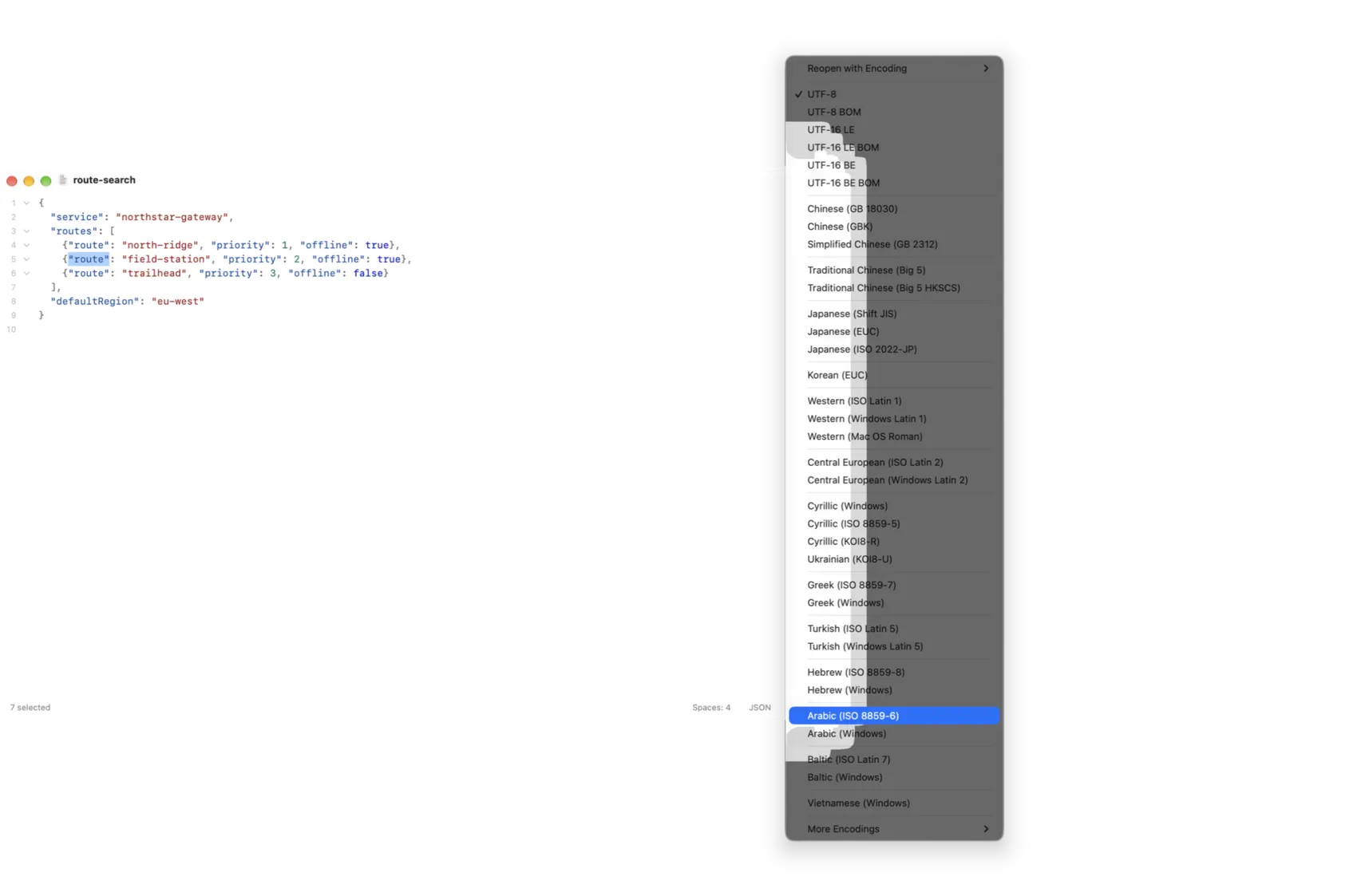
Along the bottom of the editor window: a count of characters or words, and three buttons you can click to change the current document’s settings — indentation (Spaces: 4 or Tab Size: 4), file type (syntax), and encoding. The indentation menu changes only the document in front of you and starts with where its indentation came from (detected from the file, your settings, or set by you); see Format and indent for how that is decided, Use Default Indentation and Detect Indentation from Content. Click the count to see both the character count and the word count and choose which one the bar shows; the choice applies to every window. Words follow the convention writers expect: each Chinese or Japanese character counts as one, Western text is counted by word, and punctuation is not counted. With text selected, the count is for the selection. Plain Text documents carry the syntax menu: it follows the file’s extension when you open it, shows each language with its own monochrome icon, and changing it changes how the document is colored, folded and formatted — see Format and indent. Markdown and the diagram, whiteboard and mind map documents have their syntax fixed by their type, so the bar shows no syntax item there. Changing the encoding either converts what will be written on the next save, or (via Reopen with Encoding) re-reads the file from disk under that encoding.
The bar can be hidden and brought back from three places that all do the same thing — View > Show Status Bar, the toolbar button, and the View menu on the right of the toolbar. It belongs to the window: hiding it affects only the window you’re in, and stays put when you switch tabs. The toolbar icon shows the current state; its tooltip and VoiceOver label name the action it will perform. Show status bar in Settings > Editor decides how new windows start, and windows you haven’t toggled follow it.
View settings for one document
Section titled “View settings for one document”Line numbers (View > Show Line Numbers), line wrapping (View > Wrap Lines, ⌥⌘W), zoom (⌘+, ⌘-, ⌘0), the source/preview switch and, for rendered Markdown, the page width change only the tab you’re in. The toolbar buttons and the View menu items with the same names are the same commands. Settings are the defaults: a document you haven’t adjusted follows them, and changing a setting updates it right away, while a document you have adjusted keeps its own value. The toolbar never writes back to Settings.
Space remembers the line numbers, wrapping, zoom, page width and indentation you set for a file and restores them the next time you open it, including after you rename, move or Save As from inside Space. This lives in Space’s own preferences — nothing is written into the file. A new, unsaved document keeps them only while it’s open, and the source/preview switch is not remembered: Markdown files open in the rendered view. To go back to the defaults, choose Use Default View Settings from the View menu on the right of the toolbar; Actual Size (⌘0) resets only the zoom, and Use Default Indentation in the status bar’s indentation menu resets only the indentation.
Trailing whitespace and the final newline
Section titled “Trailing whitespace and the final newline”Two Settings > Editor > Saving switches shape what is written on save, and nothing else in the file is touched. Trim trailing whitespace removes spaces and tabs at the end of lines. Add a final newline adds one line ending at the end of a non-empty file that lacks one, using the file’s own line ending (CRLF files get CRLF); it never removes extra blank lines. In Markdown, trimming also removes the two trailing spaces that mean a hard line break, so leave it off, or end the line with a backslash, if you rely on them.
Export As
Section titled “Export As”File > Export As… shows the formats available for the current document in one save panel. Unavailable formats stay visible with a reason. HTML and PDF are reading copies; plain text lets you choose its encoding. Markdown documents can also export basic Markdown, DOCX, TextBundle, and TextPack. Space explains any content that will be simplified before writing the file. Exporting never changes the original file.
File > Import as Markdown… converts an HTML, RTF, DOCX, TextBundle, or TextPack file into an unsaved Markdown document. The result opens in the active Space window, or a new window if none is active. Check the conversion notice, edit the result, then press Command-S to choose where to save it. The original file is left untouched. See Export and compatibility for formats and content that needs checking.
Copy Path and Show in Finder
Section titled “Copy Path and Show in Finder”File > Copy Path (⌥⌘C, the same key as Finder’s Copy as Pathname) puts the document’s full path on the clipboard, ready to paste into Terminal or a script. File > Show in Finder opens a Finder window with the file selected. Both are unavailable for a document that has never been saved.
Duplicate, Rename, and Move To
Section titled “Duplicate, Rename, and Move To”The File menu also has the standard macOS document commands: Duplicate (⇧⌘S) saves a copy of the current document under a new name, Rename… changes the file’s name in place, and Move To… relocates it to a different folder. Duplicate and Move To work the way they do in any Mac app that uses the system’s document architecture; Rename asks for the new name in a sheet on the window (described above) because the window’s title row is the tab strip. None of the three silently changes the file’s encoding or line endings. The last two are also on a tab’s menu, acting on the tab you right-clicked rather than the one you’re on: Tabs and Windows.
New documents
Section titled “New documents”⌘N opens an empty, untitled document in a window of its own; ⌘T opens one as a new tab in the window you’re in. Both use New document type, New document encoding and New document line endings from Settings > General, and both behave like any other document — nothing is written to disk until you save, at which point it becomes a real file.
Multi-cursor editing
Section titled “Multi-cursor editing”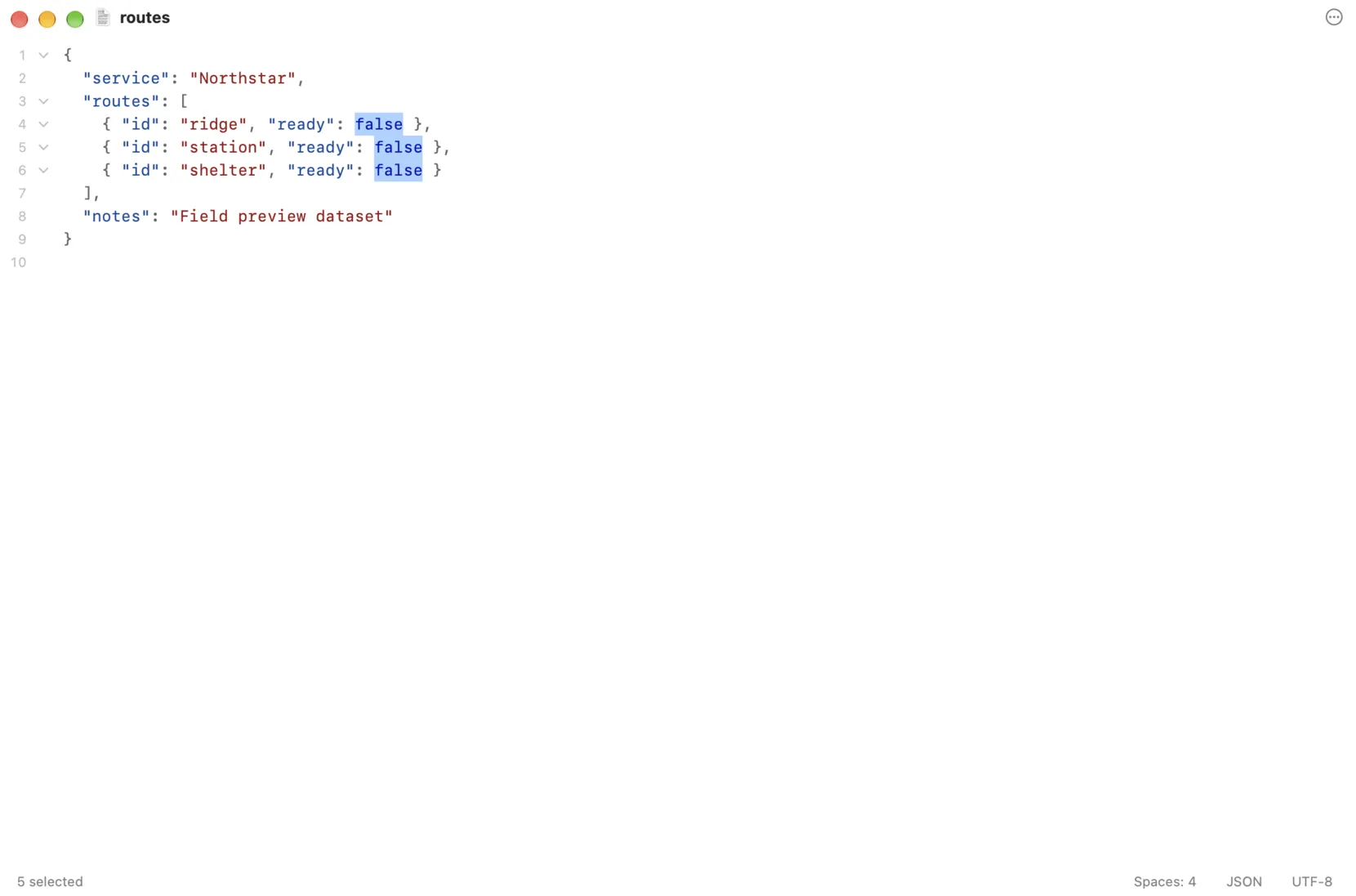
In the source editor, cursors and line commands work together so repeated edits stay in one pass. Select Line (⌘L) selects the line under each cursor and extends to the next line when pressed again. Delete Line (⌃⇧K), Duplicate Line (⇧⌥↓), Move Line Up (⌥↑), Move Line Down (⌥↓) and Toggle Line Comment (⌘/) act on every cursor’s line block, keep the remaining cursors with their text, and undo as one step. Toggle Line Comment is available only when the selected syntax has a line comment.
Build another cursor with ⌘Click; Control-Shift-Click remains as the older equivalent. The menu commands for this group live under Edit > Cursor. Add Cursor Above and Below (⌃⇧↑ / ⌃⇧↓) use the current column, or the nearest valid text position after a soft line break. Select Next Occurrence (⌘D) turns an empty cursor into the word under it, then adds the next equal occurrence; Select All Occurrences (⌃⌘G) adds every equal occurrence. Split Into Lines (⌘⇧L) puts a cursor at the end of every line in a multi-line selection, and Add Cursor To Line Ends (⇧⌥I) does the same for every visible line the selection touches. Esc keeps only the primary cursor.
Hold ⌥ and drag to make a rectangular column selection. Hold ⌘ as well to add that rectangle to the existing cursors; hold ⇧⌘ with ⌥ to remove the cursors it crosses. With the find bar open, press ⌘Return to turn the current find results into cursors and return focus to the text; ⇧Return inserts a newline in the query. If there are more than 256 results, Space keeps the first 256 in document order and says so in the search field.
⌘U backs out the most recent cursor construction—clicks, keyboard additions, splits, column selection or find conversion—without touching the content undo stack. A batch edit across those cursors is a separate single ⌘Z step. While an input method is composing text, the draft stays at the primary cursor so unfinished Chinese or Japanese text is not copied to every cursor. When you confirm the composition, the committed text is inserted at every cursor.
All of these keys can be changed in Settings > Shortcuts > Edit. The mouse gestures keep their modifiers; Keyboard shortcuts explains how to record and restore keys.
Find and replace
Section titled “Find and replace”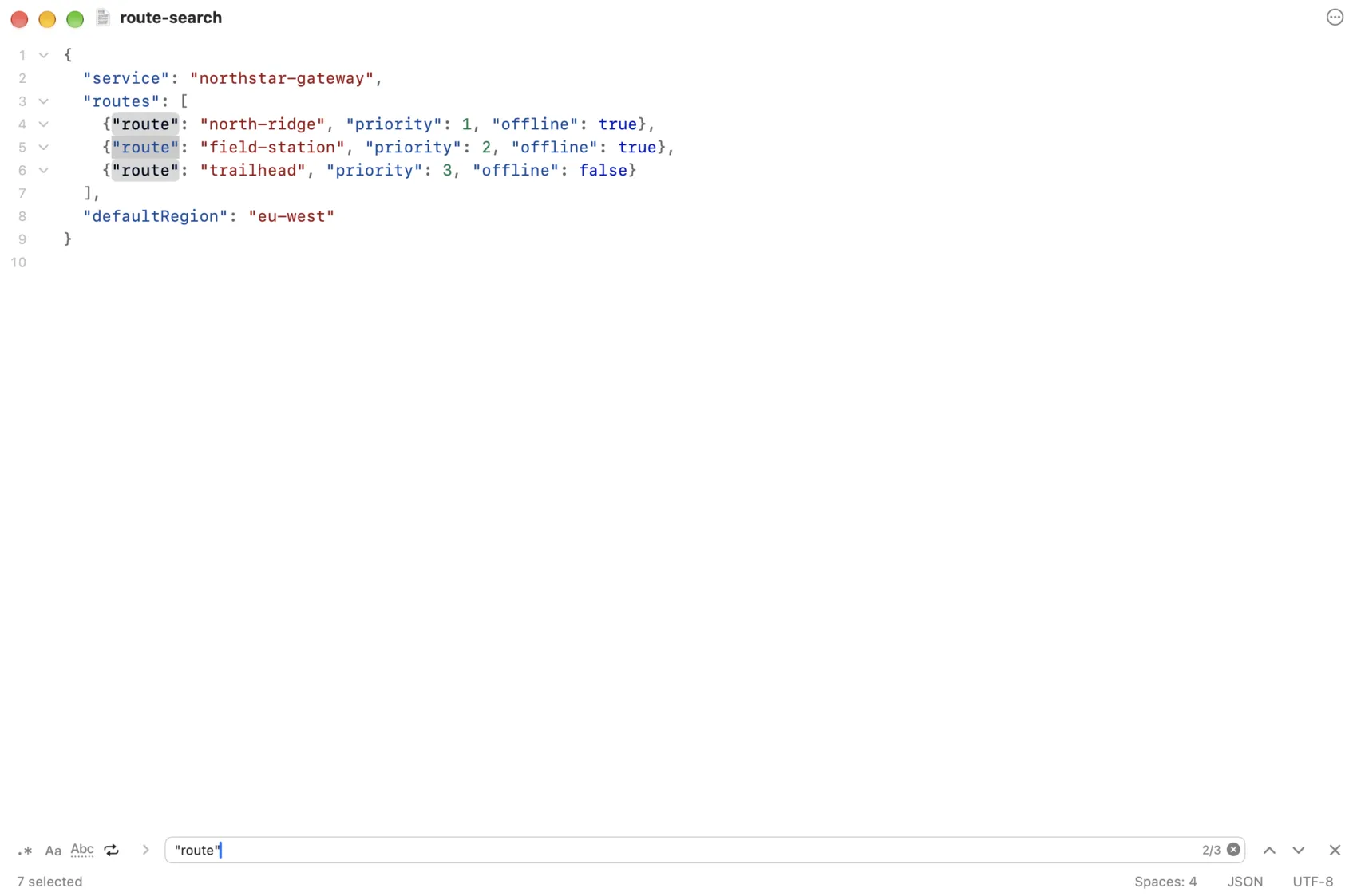
⌘F opens the find bar along the bottom of the text, and ⌥⌘F opens it with a replace row. Return and ⇧Return step through the matches; the count inside the search field shows where you are. The first search builds the match list in the background, then Return moves through that list without rescanning. You can enter or change the replacement after finding matches; Replace uses the current match and replacement text, while Replace All uses the current replacement text for every match. Editing the text clears the old highlights immediately so stale match boxes cannot move with changed characters; keep the query and press Return to rebuild matches against the edited text. Turn on .* to search with a regular expression — such a search runs in the background, so a pattern that would take forever on this document cannot freeze the window: after a few seconds the field says Search timed out and you can refine the pattern. Esc in the search field closes the bar and puts you back in the text. Esc in the text first collapses extra cursors or a selection, and closes the find bar only when there is nothing left to collapse.
Dropping files into the text
Section titled “Dropping files into the text”Drag a file from Finder into the text and its full path is inserted where you drop it, as plain text — spaces and all, nothing escaped. Several files go in one path per line, and a single ⌘Z takes the whole drop back. Hold ⌥ while dropping to open the files in new windows instead. Read-only windows and Quick Look don’t accept drops.
Looking up a word
Section titled “Looking up a word”⌃⌘D, or a three-finger tap, shows the macOS Look Up panel for the word under the pointer, the same as in TextEdit. With the pointer inside a selection it looks up the selection; with the pointer outside the text it looks up the selection or the word at the cursor.
- If a document opens read-only and you didn’t expect that, the tab’s lock tells you the state; when the cause is an encoding Space can’t guarantee to write back unchanged, a notice above the text says so.
- The status bar’s indentation button changes only the current document, and Space remembers it for that file. What every other file starts from is Settings > Editor > Indentation, unless its own contents provide a detected indentation.
- With Ask to Save, ⌘Q keeps your open windows, tabs and unsaved edits for the next launch. With Keep as Draft, an untitled document waits in File > Drafts; Don’t Save discards it.
Related settings
Section titled “Related settings”- General — New document type, New document encoding, New document line endings, When closing unsaved documents.
- Editor — Trim trailing whitespace and Add a final newline under Saving, Show status bar, fonts and display behavior.
- Document Versions — local checkpoints, source diffs and restore.
- Help > Supported File Types… — every type Space recognizes and what opens it. Troubleshooting walks through what to check if double-clicking doesn’t open Space.