

Quick Input
Quick Input is a global, theme-aware scratch surface for text that only needs to live for a few seconds. It starts on. You can turn it off in Settings > Quick Input; while off, Space does not register its global shortcut. Press Command-Shift-I from any app, type, then press Command-Return to send the whole buffer back to the input location that was focused before Quick Input appeared.
Opening the panel from another app leaves that app in the foreground and keeps its menu bar. Quick Input receives typing without bringing Space’s document window forward.
A short reply, a paragraph to revise, or a note to copy later.Example temporary content; Quick Input does not create a document until you choose a document workflow.
Type and finish
Section titled “Type and finish”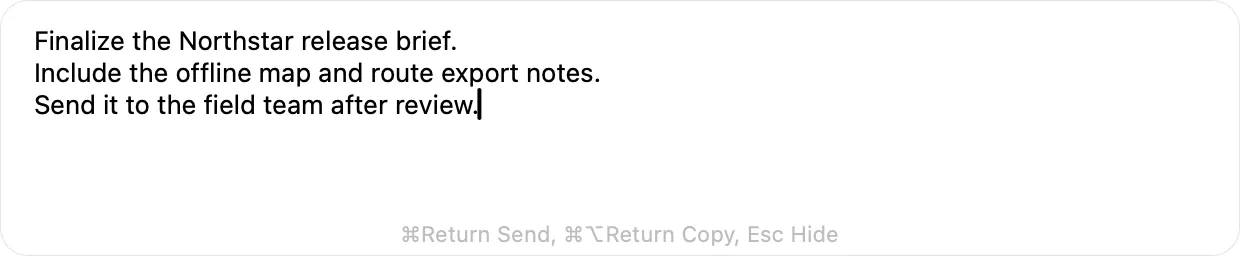
| Keys | Action |
|---|---|
| Command-Shift-I | Show or hide Quick Input |
| Return | Insert a new line |
| Command-Return | Send the whole buffer to the previously focused input |
| Command-Option-Return | Copy the whole buffer, clear it, and hide the panel |
| Escape | Hide the panel and keep the text |
| Command-C | Copy the selection without closing |
Command-Return and Command-Option-Return intentionally do not act while Chinese input has unconfirmed marked text. The first press confirms the candidate; the next press performs the action.
If the input area is empty, either action only closes the panel. It does not replace whatever is already on the clipboard.
Send to focused input
Section titled “Send to focused input”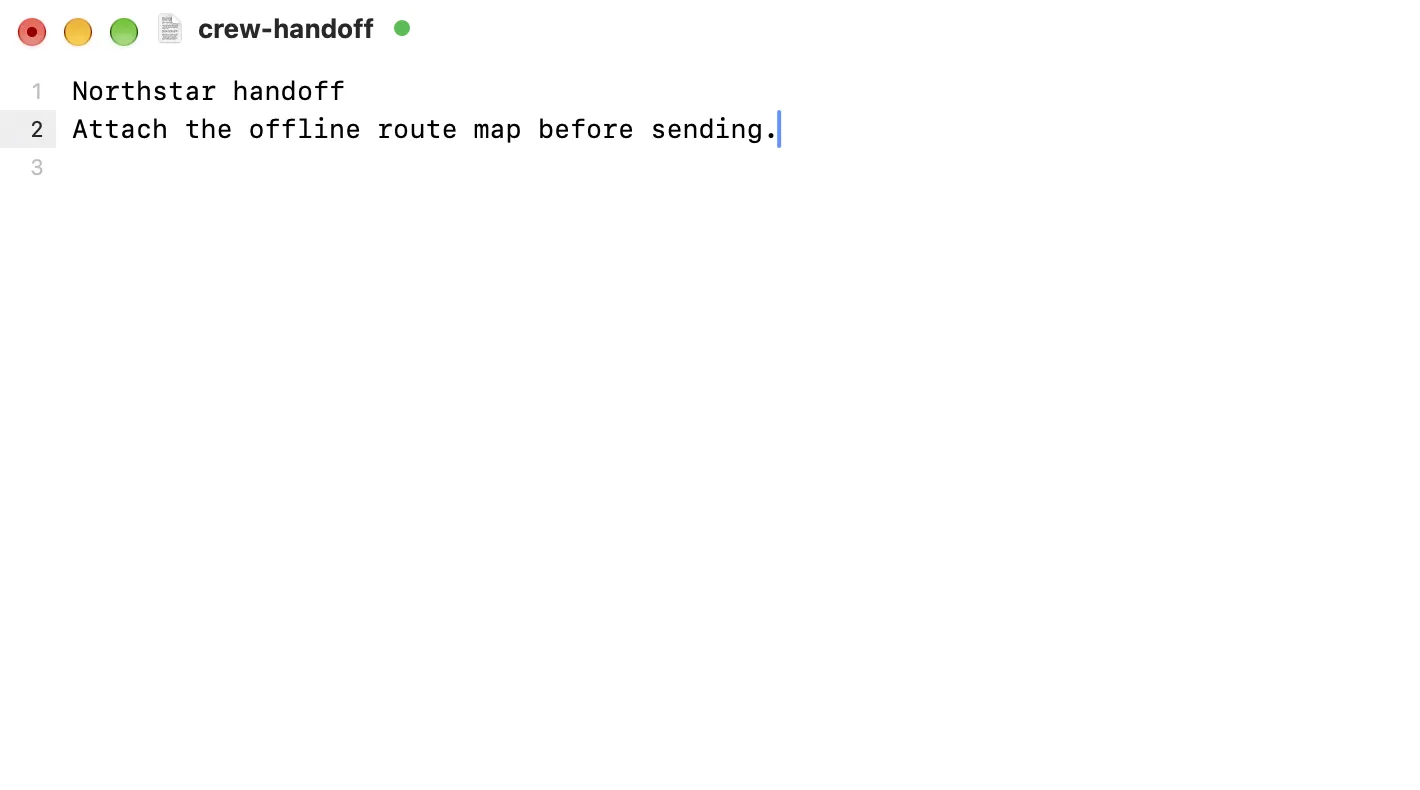
Send restores the application that was frontmost before Quick Input appeared, checks that its focused control is still editable, writes the whole buffer to the clipboard, and delivers the standard Paste command. It does not press Return in the target app, submit a chat message, or trigger a form.
Send requires Accessibility permission. See how to allow it. If permission is missing, the target is gone, or the focused control is no longer editable, Send fails directly and keeps the buffer in Quick Input. If Secure Input is active, Quick Input closes and keeps the buffer without copying or pasting. If clipboard writing fails, Quick Input keeps the panel and buffer open. If the target paste fails after the clipboard has been updated, Quick Input still clears and closes so the copy remains available.
You can also drag plain text into the panel. File and rich-text promises are ignored; multiline text keeps its newlines.
Mouse and position
Section titled “Mouse and position”Mouse selection uses the normal macOS text behavior inside lines that already contain text. Dragging from an empty area moves the panel. The first appearance is centered on the screen that contains the pointer; after hiding, it appears again at the position where it was last hidden, adjusted if a display is no longer available.
Drag an edge or corner to resize Quick Input between 360 by 128 and 920 by 680 points. Space keeps a resized panel’s size until it quits; the size is not persisted as a setting. After you resize the panel, it keeps that height and long content scrolls inside the text area. Until then, the panel grows with content up to its default maximum.
Text wraps at the visible width of the text area, including immediately after a resize. When text exceeds the panel height, the text area scrolls and automatically keeps the insertion point visible.
Temporary by design
Section titled “Temporary by design”Quick Input has one in-memory buffer. Hiding the panel keeps your text and selection while Space is running. Quitting Space discards it; a crash, force quit, logout, or restart also discards it. Quick Input does not create files, drafts, history, backups, or sync data.
When text becomes worth keeping, copy it into a document yourself. There is no conversion path into a Space document because that would recreate the cleanup problem Quick Input is designed to remove.
Shortcuts and settings
Section titled “Shortcuts and settings”The Quick Input settings page displays the current global shortcut. Choose Change… beside it to locate the command in Settings > Shortcuts, where all Quick Input shortcuts can be changed:
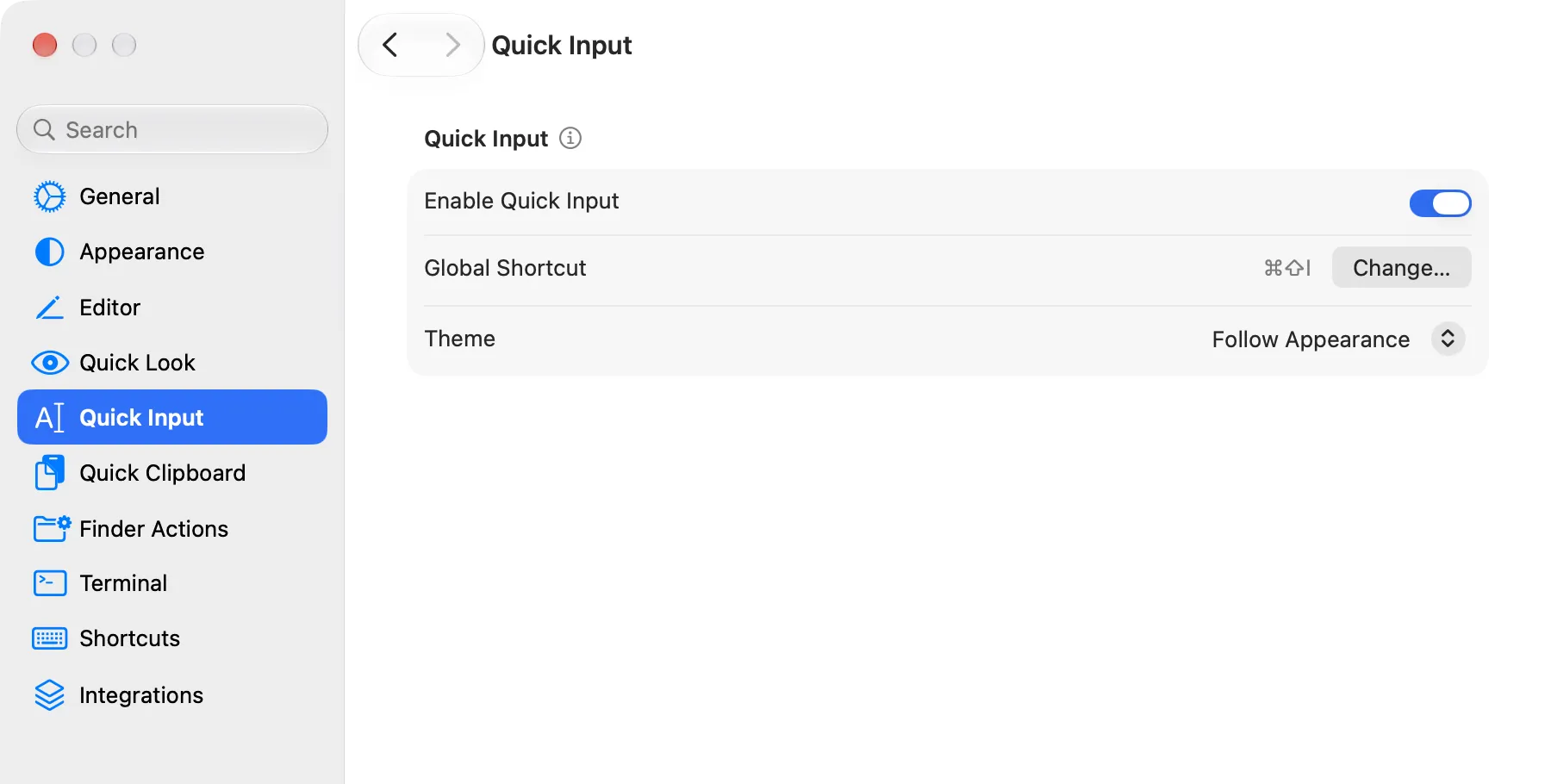
- Global Shortcut defaults to Command-Shift-I.
- Send to Focused Input Shortcut defaults to Command-Return.
- Copy and Close Shortcut defaults to Command-Option-Return.
Return is fixed so multiline input remains predictable. Clearing Send or Copy & Close disables that action; restoring an individual shortcut puts its default back. Restore Defaults on the Shortcuts page restores all Space shortcuts. Space warns you when Quick Input shortcuts collide or when the global shortcut cannot be registered. The Show Quick Input command in the Window menu is always available as a fallback.
The empty input area shows Temporary text immediately beside the insertion point; it disappears when you type or start composing Chinese text. A separate small action hint follows the editing state: while Chinese input shows unconfirmed marked text, the hint explains that Return confirms the candidate first. It stays below the text area and does not add a status bar or toolbar.
Appearance and privacy
Section titled “Appearance and privacy”The panel follows Space’s light and dark theme slots, including background, text, selection, and insertion-point colors. Changes apply while the panel is visible.
Quick Input writes only to the system clipboard when you ask for Copy & Close or Send. It has no network access, analytics, or persistent storage. Send does not restore the previous clipboard contents; the sent buffer becomes the current clipboard item.
Accessibility is used only to restore the target application, verify that its focused control is editable, and deliver Paste. Quick Input does not traverse the target window tree, read the target document, store focus details, or create history.
Global hotkeys can be limited when another application is using macOS Secure Input, and some launchers or input sources may already own a shortcut you choose. If the global shortcut does not respond, use the Window menu, check Secure Input, or choose another key combination in Settings.