

Code folding
Click the triangle beside an editor line number to collapse a block. Click it again to expand the original text.
A folding example
Section titled “A folding example”{ "project": "Northstar", "routing": { "strategy": "nearest-region", "timeoutMs": 2500, "maxRetries": 3 }, "offline": { "mapPack": "north-ridge", "cacheMinutes": 30, "keepWaterStops": true }, "status": "preview"}Save the sample as route-config.json. Click the triangle beside routing to collapse that object. Click it again to expand the source.
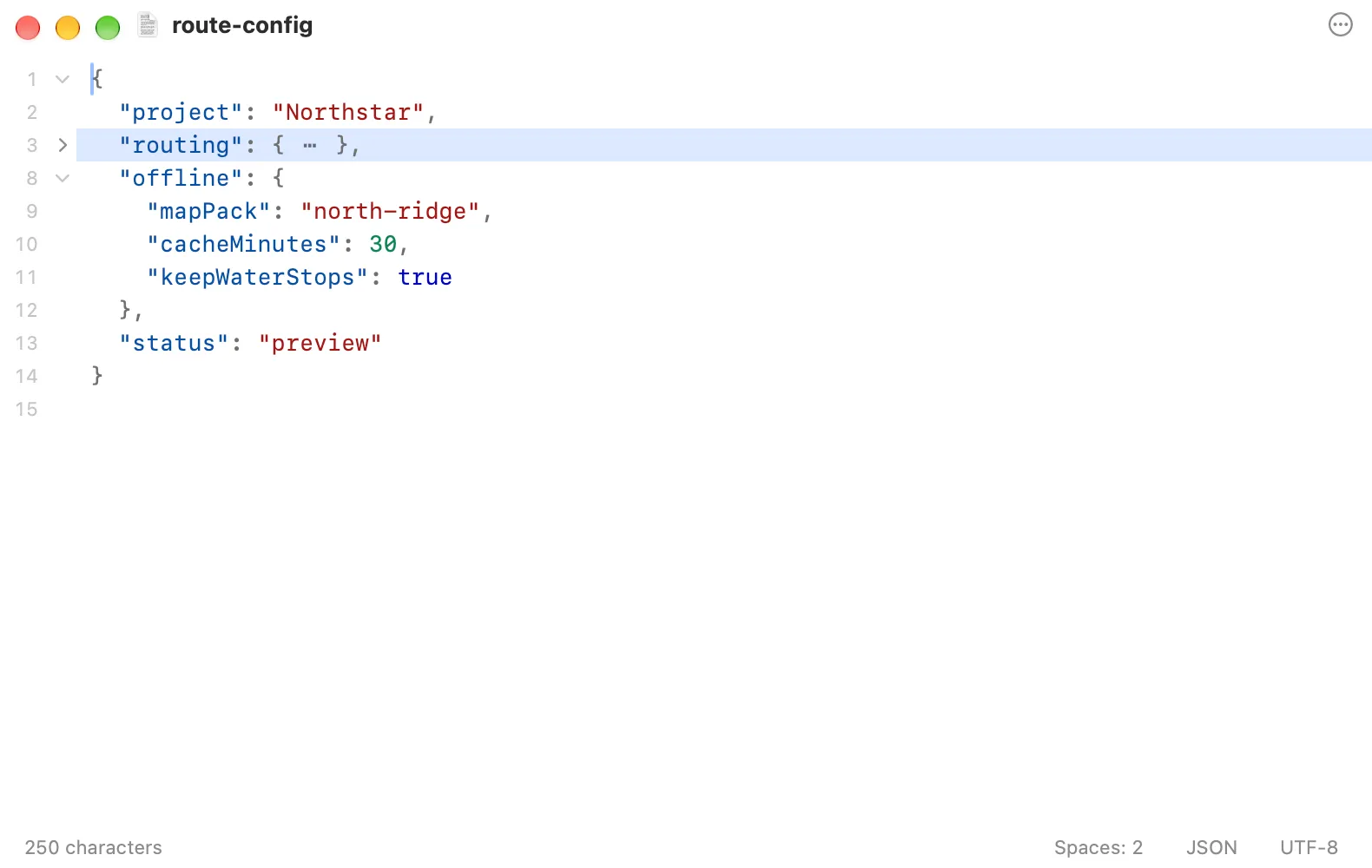
routing fits on one collapsed line while offline stays open. Click a nearby triangle to change either state.
Turn on code folding
Section titled “Turn on code folding”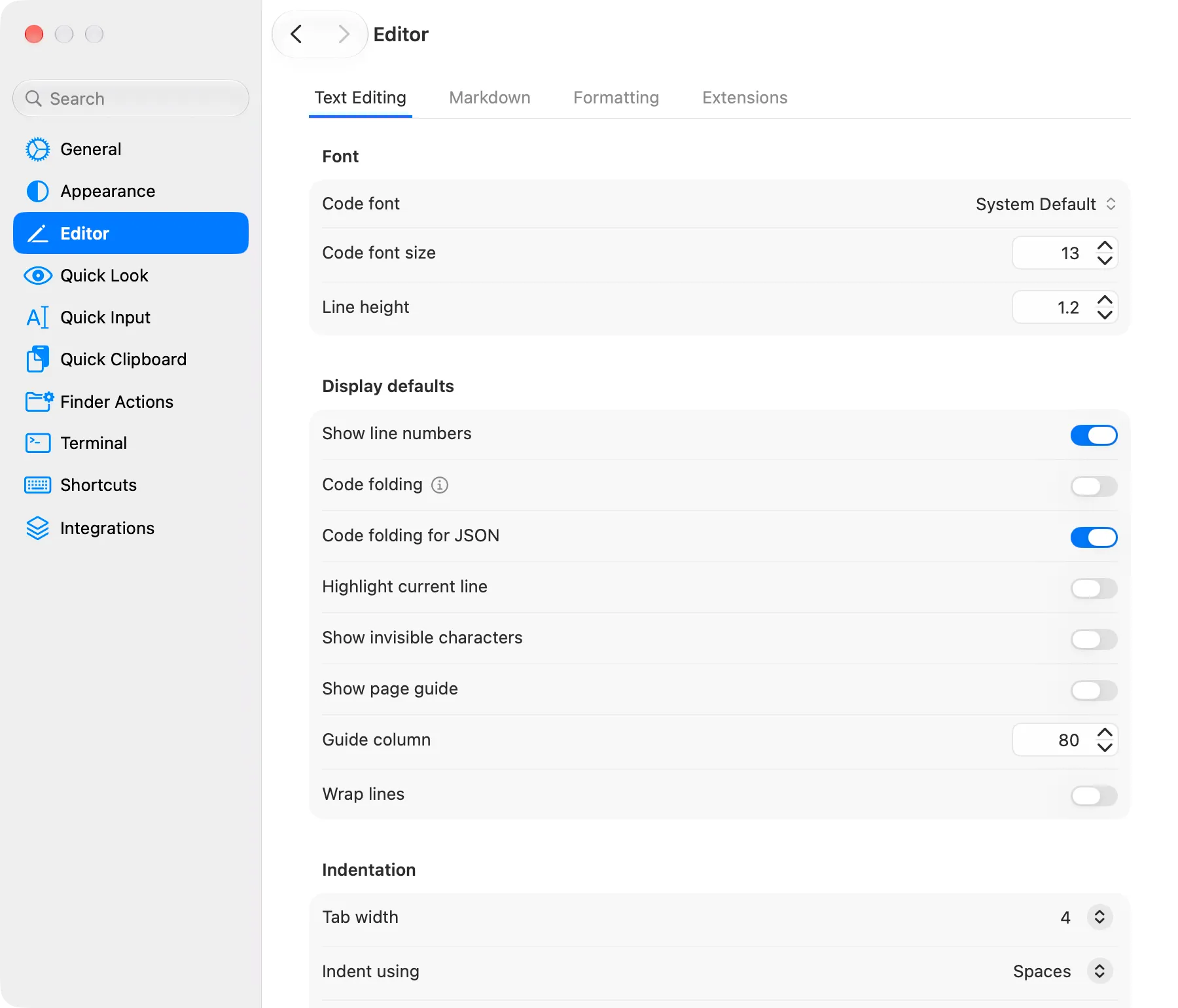
Folding is off by default for other files. Settings > Editor > Code folding turns it on for them. JSON documents have their own switch, Code folding for JSON, which is on by default and overrides the general switch. Then look for a triangle in the gutter next to a line number and click it. Line numbers need to be showing, since the triangles live in that gutter. Folding is part of the editor; a Quick Look preview doesn’t show triangles.
Supported structures and limits
Section titled “Supported structures and limits”Folding follows the syntax, not just indentation
Section titled “Folding follows the syntax, not just indentation”Space routes folding by the document’s syntax, so the triangles land on the right structure for each language:
- JSON and JSON Lines — folds by matching brackets, so a folded block collapses to
{ ⋯ }with both brackets still showing. - XML — folds by matching opening and closing tags.
- Markdown — folds headings (a heading folds everything up to the next heading of the same or higher level) and fenced code blocks.
- Most other code (the bracket-based languages) — folds by brace blocks, multi-line comments, and region markers such as
MARK: -,#pragma region/endregion, or// #region/// #endregion, matched to that language’s comment style. - Python, YAML, plain text and logs — folds by indentation depth, since these formats don’t use brackets to mark structure.
JSON Lines is a special case
Section titled “JSON Lines is a special case”A .jsonl file’s records stay one per line by default — that’s the point of the format, and folding them would just leave a column of identical {…} with no way to tell them apart. Instead, the triangle on a compact record line means something different: clicking it lays that one record out across multiple lines, like a normal formatted JSON object; clicking again collapses it back to the exact original line — byte for byte, not a re-serialized version, so nothing about spacing is silently changed. Once a record is expanded, the objects and arrays inside it fold normally, the same as any JSON document.
What the triangles look like
Section titled “What the triangles look like”Foldable lines use the same chevron-style triangle you’d expect from a native macOS control — pointing right when collapsed, down when expanded — so it reads correctly under any theme, in both light and dark appearance, without Space drawing anything custom. A collapsed triangle is drawn a shade darker than an expanded one, so the folded spots stand out in a column of triangles.
What a folded line looks like
Section titled “What a folded line looks like”A folded line gets a faint full-width tint in your system accent color (System Settings > Appearance), so you can spot it at any scroll position, even when the end of a long line is off screen. Where the hidden text was, the line shows a small ⋯ without a box or background; hover it to see the pointing-hand cursor and click once to expand the block again. The accent color keeps the tint apart from the theme’s neutral current-line highlight, and changing the accent color updates open windows right away. With Increase contrast turned on in System Settings > Accessibility > Display, the tint is replaced by a thin line above and below the folded line. Space doesn’t show how many lines are folded: the jump in line numbers already tells you.
Folding is a display change only
Section titled “Folding is a display change only”Collapsing a block hides its text behind the triangle, but the file’s contents don’t change at all — no characters are removed, and folding never marks a document as having unsaved changes. Folding is a reading aid only, so a folded document is exactly as safe as the unfolded original.
While one or more blocks are collapsed, Space hides Find highlights and the current Find selection instead of drawing them against stale positions. The Find panel keeps its query; press Return again after expanding, or with the blocks still collapsed, to rebuild and show matches safely.
Switching syntax expands everything
Section titled “Switching syntax expands everything”If you change a document’s syntax from the status bar — see Open and save files — every folded block in it expands. Folded structure is computed from the old syntax’s rules and usually has no equivalent under the new one, so Space treats a syntax change as a clean slate rather than leaving stale folds in place.
Turning folding on and off
Section titled “Turning folding on and off”The general Code folding switch starts off. Code folding for JSON starts on and takes precedence for .json. Changes apply immediately to open files. Turning folding off, hiding line numbers, or exceeding the folding limit expands the blocks.
Very large files are not folded
Section titled “Very large files are not folded”Folding has a content-specific work budget. When a document is too large or expensive to scan, Space shows its source without fold controls rather than promising that every line can be folded. Files at or above 8 MiB use the large-file browsing path.
The applicable syntax and file size are checked when opening the document or changing its source syntax. Large files explains browsing and rendering limits; historical timings are kept with their build identity in Benchmarks.
- If you’re scanning a large JSON Lines file, leave records collapsed and only expand the ones you need — that’s the format’s intended reading pattern.
- Region markers (
MARK: -,#region/#endregion,#pragma region) give you manual fold points in ordinary code, not just brace blocks. - If you never collapse blocks, leave Code folding off and turn Code folding for JSON off: Space skips the fold scan entirely.
Related settings
Section titled “Related settings”- Editor — Code folding (default off) and Code folding for JSON (default on); the rest of the pane is in Settings.
- Quick Look — has no folding; previews are read-only glances without a gutter.